
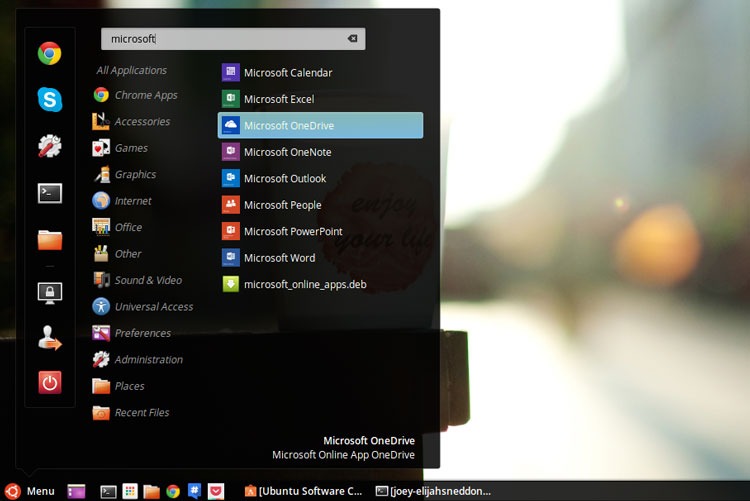
Microsoft Office on Linux: A Comprehensive Guide
Are you a Linux user who needs to work with Microsoft Office? Look no further! In this article, we will explore the different ways to install and use Microsoft Office on Linux.
Understanding Microsoft 365 Online
Before diving into installing Microsoft Office on Linux, it’s essential to understand the online version of Microsoft 365. This version allows you to access Word, Excel, and PowerPoint from your browser without needing to download any software. Simply create a free account, log in, and start working!
Microsoft 365 Online: A Practical Example
To illustrate how Microsoft 365 works on Linux, let’s take a practical example:
- Open your favorite browser (e.G., Firefox) and navigate to the official Microsoft 365 page.
- Log in with your existing account or sign up for a free one.
- Once logged in, you’ll see the dashboard of Microsoft 365. From here, you can access all your documents, create new ones, and even collaborate with others.
Installing Playonlinux
If the online version doesn’t meet your needs, there’s another way to install Microsoft Office on Linux using PlayOnLinux. This software allows you to run Windows applications on Linux by creating a virtual environment.
To install PlayOnLinux:
- Open the Terminal and enter the following commands:
Sudo apt updateSudo apt install playonlinux
- Once installed, launch PlayOnLinux and follow the prompts to create a new virtual machine.
- Search for Microsoft Office in the PlayOnLinux interface, select the version you want to install (e.G., 2007 Or 2010), and click Install.
Virtualizing Windows on Linux
Another option is to create a virtual machine on your Linux system using VirtualBox or similar software. This will allow you to install Windows and subsequently Microsoft Office just as you would on a physical PC.
For more information on this process, check out our separate guide on installing Windows on Linux.
Other Solutions For Microsoft Office on Linux
If the above solutions don’t meet your requirements or have limitations, there are other alternatives to consider:
- Libreoffice: A free and open-source office suite that’s fully compatible with Microsoft Office file formats. It’s a great option if you’re looking for a native Linux solution.
- Openoffice: Although not as actively maintained as LibreOffice, OpenOffice is another open-source alternative that offers compatibility with Microsoft Office files.
- Wps Office: A paid and free office suite that integrates Word, Excel, PowerPoint, PDF, and Forms. It’s a viable option if you’re looking for an alternative to Microsoft Office.
Conclusion
In conclusion, installing Microsoft Office on Linux can be achieved through various methods:
- Using the online version of Microsoft 365
- Installing PlayOnLinux and running Windows applications
- Virtualizing Windows on your Linux system using software like VirtualBox
- Exploring alternative office suites like LibreOffice, OpenOffice, or WPS Office
Each method has its pros and cons, but with this guide, you should be able to find the best solution for your needs.
Frequently Asked Questions
- Q: What Are The System Requirements For Microsoft 365 Online?
A: None! You can access Microsoft 365 from any Linux system with a browser. - Q: Can I Install Multiple Versions of Microsoft Office on my Linux System Using Playonlinux?
A: Yes, but be aware that each version will require its own virtual machine and separate installation. - Q: Are The Alternative Office Suites Mentioned in This Guide Compatible With Microsoft Office File Formats?
A: Yes, LibreOffice and OpenOffice are fully compatible, while WPS Office has some compatibility issues.
I hope you found this comprehensive guide helpful!


