
How to Detect Unauthorized Wi-fi Connections: A Step-by-step Guide
Are you worried about someone hacking into your wireless network without permission? You’re not alone! Many people have experienced the frustration of a slow or non-existent internet connection, only to discover that an unauthorized device is siphoning off bandwidth. In this article, we’ll show you how to detect and remove these unwanted connections from your Wi-Fi network.
Why Is It Important to Monitor Your Wi-fi Network?
Your wireless network is like an open window in your home – it’s vulnerable to unwanted guests. If someone gains unauthorized access to your network, they can:
- Steal sensitive information
- Install malware or viruses on your devices
- Use your internet connection for their own purposes
How to Check if Someone Is Connected to Your Wi-fi Network
There are several ways to detect an unauthorized device on your Wi-Fi network. Here are the steps you can follow:
Step 1: Access Your Router’s Panel
The first step is to access your router’s panel. You can do this using a web browser by typing your router’s IP address in the address bar. The IP address is usually printed on the underside of your router or in its manual.
Step 2: Look For Connected Devices
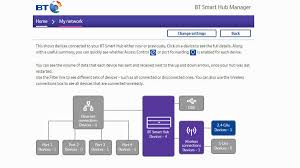
Once you’re logged into your router’s panel, look for the section that displays connected devices. This is usually found under “Network” or “Connected Devices.” Here, you’ll see a list of all devices currently connected to your Wi-Fi network.
How to Detect Unauthorized Wi-fi Connections Using a Computer
If you have a computer connected to your Wi-Fi network, you can use it to detect unauthorized devices. Here’s how:
Step 1: Open Your Router’s Panel
Open your web browser and type the IP address of your router in the address bar.
Step 2: Look For Connected Devices
Navigate to the “Network” or “Connected Devices” section, where you’ll find a list of all devices connected to your Wi-Fi network.
Step 3: Identify Suspicious Devices
Look for any devices that don’t belong to you. Check their names and IP addresses to see if they match any of your known devices.
How to Detect Unauthorized Wi-fi Connections Using a Smartphone or Tablet
If you’re using a smartphone or tablet, you can use an app to detect unauthorized devices on your Wi-Fi network. Here’s how:
Step 1: Download a Wi-fi Analyzer App
Download a Wi-Fi analyzer app from the App Store (for iOS devices) or Google Play Store (for Android devices). Some popular options include Fing and iNet.
Step 2: Open The App
Open the app and select your Wi-Fi network from the list of available networks.
Step 3: Analyze Your Network
The app will scan your network for connected devices. Look for any suspicious devices or those that don’t belong to you.
How to Block Unauthorized Devices on Your Wi-fi Network
If you’ve identified an unauthorized device on your Wi-Fi network, here’s how to block it:
Step 1: Access Your Router’s Panel
Access your router’s panel as described earlier.
Step 2: Look For Connected Devices
Navigate to the “Network” or “Connected Devices” section and find the suspicious device.
Step 3: Block The Device
Click on the “Block” button next to the device’s name. This will prevent it from accessing your Wi-Fi network.
How to Protect Your Wi-fi Network
To prevent unauthorized devices from connecting to your Wi-Fi network, follow these tips:
- Use a strong and unique password for your router.
- Enable WPA2 encryption on your router.
- Regularly update your router’s firmware.
- Monitor your network regularly using a Wi-Fi analyzer app.
By following these steps, you can detect and remove unauthorized devices from your Wi-Fi network. Remember to always monitor your network regularly to prevent future incidents.
Frequently Asked Questions (FAQs)
- Q: How do I Know if Someone is Connected to my Wi-fi Network?
A: Look for any suspicious devices or those that don’t belong to you in the “Connected Devices” section of your router’s panel or using a Wi-Fi analyzer app.
- Q: What Can an Unauthorized Device do on my Wi-fi Network?
A: An unauthorized device can steal sensitive information, install malware or viruses on your devices, and use your internet connection for their own purposes.
- Q: How do I Block an Unauthorized Device on my Wi-fi Network?
A: Access your router’s panel, navigate to the “Network” or “Connected Devices” section, find the suspicious device, and click on the “Block” button next to its name.
- Q: What Can I do to Protect my Wi-fi Network?
A: Use a strong and unique password for your router, enable WPA2 encryption on your router, regularly update your router’s firmware, and monitor your network regularly using a Wi-Fi analyzer app.
- Q: Can I Use a Smartphone or Tablet to Detect Unauthorized Devices on my Wi-fi Network?
A: Yes, you can use an app like Fing or iNet to scan your network for connected devices and identify any suspicious ones.
- Q: How Often Should I Monitor my Wi-fi Network?
A: Monitor your network regularly, ideally once a week, to prevent unauthorized devices from connecting to it.
- Q: What Happens if an Unauthorized Device is Still Connected to my Wi-fi Network After Blocking It?
A: If the device remains connected after blocking it, try restarting your router or contacting your internet service provider for assistance.
- Q: Can I Use a Vpn to Protect my Wi-fi Network?
A: Yes, using a virtual private network (VPN) can add an extra layer of security to your Wi-Fi network by encrypting all data transmitted through it.


