
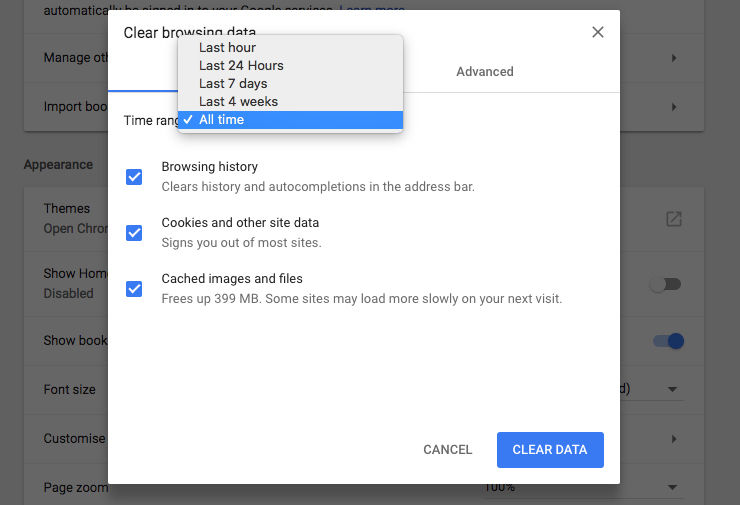
How to Erase a Site From Your Browser’s History
Are you tired of seeing certain websites appearing in your browser’s history? Do you want to keep your browsing habits private? Erasing a site from your browser’s history is easier than you think, and we’re here to guide you through the process.
Why Erase a Site From Your Browser’s History?
Before we dive into the steps, let’s talk about why you might want to erase a site from your browser’s history. Maybe you visited a website that you don’t want to be associated with, or perhaps you want to keep your browsing habits private for personal reasons.
Whatever the reason, erasing a site from your browser’s history is a simple process that can be done in just a few steps. And if you’re wondering how to erase a site from Google’s search history, we’ve got you covered too!
Erasing a Site From Your Browser’s History: A Step-by-step Guide
For Google Chrome
- Open Google Chrome: First, open Google Chrome on your computer or mobile device.
- Click on The Three Dots: Click on the three dots in the top right corner of the browser window.
- Select “History”: From the drop-down menu, select “History.”
- Find The Site You Want to Erase: In the History page, find the site you want to erase and click on it.
- Click on The Three Dots Again: Click on the three dots next to the site’s name and select “Delete” from the drop-down menu.
- Confirm Deletion: Confirm that you want to delete the site from your browser’s history.
For Microsoft Edge
- Open Microsoft Edge: First, open Microsoft Edge on your computer or mobile device.
- Click on The Three Dots: Click on the three dots in the top right corner of the browser window.
- Select “History”: From the drop-down menu, select “History.”
- Find The Site You Want to Erase: In the History page, find the site you want to erase and click on it.
- Click on The Three Dots Again: Click on the three dots next to the site’s name and select “Delete” from the drop-down menu.
- Confirm Deletion: Confirm that you want to delete the site from your browser’s history.
For Mozilla Firefox
- Open Mozilla Firefox: First, open Mozilla Firefox on your computer or mobile device.
- Click on The Three Bars: Click on the three bars in the top right corner of the browser window.
- Select “History”: From the drop-down menu, select “History.”
- Find The Site You Want to Erase: In the History page, find the site you want to erase and click on it.
- Click on The Three Bars Again: Click on the three bars next to the site’s name and select “Delete” from the drop-down menu.
- Confirm Deletion: Confirm that you want to delete the site from your browser’s history.
For Safari
- Open Safari: First, open Safari on your computer or mobile device.
- Click on The Three Dots: Click on the three dots in the top right corner of the browser window.
- Select “History”: From the drop-down menu, select “History.”
- Find The Site You Want to Erase: In the History page, find the site you want to erase and click on it.
- Click on The Three Dots Again: Click on the three dots next to the site’s name and select “Delete” from the drop-down menu.
- Confirm Deletion: Confirm that you want to delete the site from your browser’s history.
How to Erase a Site From Google’s Search History
If you want to erase a site from Google’s search history, follow these steps:
- Open Google: First, open Google on your computer or mobile device.
- Click on Your Profile Picture: Click on your profile picture in the top right corner of the browser window.
- Select “Manage Your Google Account”: From the drop-down menu, select “Manage Your Google Account.”
- Select “Data & Personalization”: In the Google Account settings page, select “Data & personalization.”
- Select “Activity Controls”: Select “Activity controls” from the drop-down menu.
- Select “Web & App Activity”: Select “Web & App Activity” from the drop-down menu.
- Find The Site You Want to Erase: In the Web & App Activity page, find the site you want to erase and select it.
- Click on The Three Dots: Click on the three dots next to the site’s name and select “Delete” from the drop-down menu.
- Confirm Deletion: Confirm that you want to delete the site from your Google search history.
Conclusion
Erasing a site from your browser’s history is a simple process that can be done in just a few steps. Whether you’re using Google Chrome, Microsoft Edge, Mozilla Firefox, or Safari, the steps are similar and easy to follow.
If you have any questions or need further assistance, feel free to ask! We’re here to help.
Frequently Asked Questions
- How do I Erase a Site From my Browser’s History on a Mac?
- To erase a site from your browser’s history on a Mac, follow the same steps as above.
- Can I Erase Multiple Sites at Once?
- Yes, you can erase multiple sites at once by selecting them and clicking on the “Delete” button.
- Will Erasing a Site From my Browser’s History Also Delete my Search History?
- No, erasing a site from your browser’s history will not delete your search history.
- How do I Prevent Certain Sites From Appearing in my Browser’s History?
- You can prevent certain sites from appearing in your browser’s history by enabling private browsing or using a VPN.
- Can I Erase a Site From Google’s Search History on my Android Device?
- Yes, you can erase a site from Google’s search history on your Android device by following the steps above.
- How do I Prevent Certain Sites From Appearing in my Google Search History?
- You can prevent certain sites from appearing in your Google search history by enabling private browsing or using a VPN.
- Will Erasing a Site From my Browser’s History Also Delete my Saved Passwords And Login Information?
- No, erasing a site from your browser’s history will not delete your saved passwords and login information.
I hope this helps! Let me know if you have any further questions.


