
Disable Automatic Video Start on Facebook: A Step-by-step Guide
Are you tired of videos autoplaying on Facebook, only to realize they’re not the ones you want to watch? Do you wish there was a way to disable this feature and regain control over your video consumption? You’re in luck! In this article, we’ll show you how to disable automatic video start on Facebook, whether you’re using a smartphone, tablet, or computer.
Why Disable Automatic Video Start on Facebook?
Before we dive into the tutorial, let’s quickly discuss why you might want to disable automatic video start on Facebook. For one, it can be frustrating when videos autoplay without your consent, especially if they’re not the ones you wanted to watch. Moreover, disabling this feature can help conserve battery life and data usage on your mobile device.
Disable Automatic Video Start on Facebook of Smartphone And Tablet
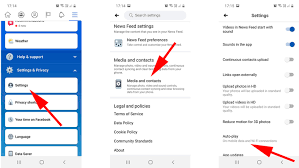
If you’re using a smartphone or tablet, follow these steps to disable automatic video start on Facebook:
On Android Devices
- Open the Facebook app on your Android device.
- Tap on the three horizontal lines in the top right corner.
- Select “Settings and privacy” from the menu.
- Choose “Settings” from the submenu.
- Scroll down to the “Media and contacts” section.
- Tap on “Automatic playback.”
- Select either “Never autoplay videos” or “Autoplay videos only with Wi-Fi.”
On Ios/ipados Devices
- Open the Facebook app on your iOS device.
- Tap on the three horizontal lines in the top right corner.
- Select “Settings and privacy” from the menu.
- Choose “Settings” from the submenu.
- Scroll down to the “Media and contacts” section.
- Tap on “Automatic playback.”
- Select either “Never autoplay videos” or “Autoplay videos only with Wi-Fi.”
Disable Automatic Video Start on Facebook of Computer
If you’re using a computer, follow these steps to disable automatic video start on Facebook:
- Open the Facebook website in your preferred browser.
- Click on the three horizontal dots in the top right corner.
- Select “Settings and privacy” from the menu.
- Choose “Video settings” from the submenu.
- Select “Disable automatic playback of videos.”
Tips And Variations
- If you want to avoid autoplaying videos with audio, follow these steps:
- On Android devices, go to Settings > Media and contacts > Video auto-play, and select either “Never autoplay videos” or “Autoplay videos only with Wi-Fi.”
- On iOS/iPadOS devices, go to Settings > Media and contacts > Video auto-play, and select either “Never autoplay videos” or “Autoplay videos only with Wi-Fi.”
- If you want to restore automatic video start on Facebook, follow these steps:
- On Android devices, go to Settings > Media and contacts > Video auto-play, and select either “Always autoplay videos” or “Autoplay videos on mobile data and Wi-Fi.”
- On iOS/iPadOS devices, go to Settings > Media and contacts > Video auto-play, and select either “Always autoplay videos” or “Autoplay videos on mobile data and Wi-Fi.”
Conclusion
Disabling automatic video start on Facebook is a simple process that can help you regain control over your video consumption. By following the steps outlined in this article, you can disable this feature on both mobile devices and computers. Remember to always check for updates and follow any variations or tips specific to your device.
Frequently Asked Questions
- Q: Why do Videos Autoplay on Facebook?
A: Videos autoplay on Facebook by default as a way to enhance the user experience. - Q: Can I Disable Automatic Video Start on Facebook Only For Certain Devices?
A: Yes, you can disable automatic video start on Facebook separately for each device connected to your account. - Q: Will Disabling Automatic Video Start Affect Other Features on Facebook?
A: No, disabling automatic video start will not affect other features on Facebook, such as video streaming or live videos. - Q: Can I Restore Automatic Video Start on Facebook if I Disable It?
A: Yes, you can restore automatic video start on Facebook by following the steps outlined in this article. - Q: Will Disabling Automatic Video Start Conserve Battery Life And Data Usage?
A: Yes, disabling automatic video start can help conserve battery life and data usage on your mobile device. - Q: Can I Disable Automatic Video Start on Facebook For Specific Videos or Pages?
A: No, you cannot disable automatic video start on Facebook for specific videos or pages; it’s a global setting. - Q: Will Disabling Automatic Video Start Affect The Quality of my Video Streaming Experience?
A: No, disabling automatic video start will not affect the quality of your video streaming experience.
By following these steps and tips, you can take control over your video consumption on Facebook and enjoy a more tailored experience.


