
Removing Youtube From Your Smart Tv: A Step-by-step Guide
Are you tired of seeing YouTube suggestions on your Smart TV’s home screen? Do you want to remove the YouTube app altogether? In this article, we will guide you through the process of removing YouTube from various Smart TV brands, including Android, Samsung, LG, Sony, and Philips.
Why Remove Youtube From Your Smart Tv?
There are several reasons why you might want to remove YouTube from your Smart TV. Perhaps you don’t use the app anymore and want to declutter your home screen. Or maybe you’re trying to reduce data usage or access time spent on YouTube. Whatever the reason, we’ll show you how to do it easily.
Removing Youtube From Android Smart Tvs
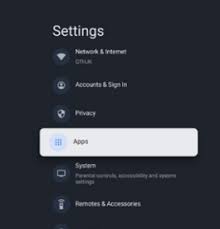
If you have an Android-based Smart TV, removing YouTube might be a bit more complicated than usual. Since YouTube is integrated into the operating system, you can’t simply uninstall it like other apps. However, there’s still a way to disable it:
- Go to the Google Play Store and find the YouTube app.
- Uninstall any updates for the app by clicking on “Update” and then selecting “Uninstall”.
- Disable the app by going to Settings > Applications > YouTube and switching off the toggle next to “Enable”.
By following these steps, you’ll effectively remove YouTube from your Android Smart TV’s home screen.
Removing Youtube From Samsung Smart Tvs
If you have a Samsung Smart TV, removing YouTube is relatively straightforward:
- Press the Home button on your remote.
- Navigate to the Apps section and find YouTube.
- Select the gear icon next to YouTube and choose “Uninstall”.
- Confirm that you want to remove the app.
On older Samsung TVs, you might need to use a different method:
- Go to Settings > Smart Hub > Applications.
- Find YouTube in the list of installed apps and select it.
- Choose “Delete” to remove the app.
Removing Youtube From LG Smart Tvs
Removing YouTube from an LG Smart TV is a straightforward process:
- Press the Home button on your remote.
- Navigate to the Launcher bar at the bottom of the screen.
- Select the pencil icon and choose Modification.
- Find YouTube in the list of installed apps and select it.
- Highlight the app’s icon and press the [X] button to remove it.
Removing Youtube From Sony Smart Tvs
If you have a Sony Smart TV, removing YouTube requires a slightly different approach:
- Press the Home button on your remote.
- Navigate to the Apps section and find YouTube.
- Select the gear icon next to YouTube and choose “Uninstall”.
- Confirm that you want to remove the app.
On older Sony TVs, you might need to use a different method:
- Go to Settings > Applications.
- Find YouTube in the list of installed apps and select it.
- Choose “Delete” to remove the app.
Removing Youtube From Philips Smart Tvs
Removing YouTube from a Philips Smart TV is a relatively simple process:
- Press the Home button on your remote.
- Navigate to the menu bar at the bottom of the screen.
- Select the icon that looks like a house (Home).
- Access the Applications section and find YouTube.
- Choose Modification and select the [X] button next to YouTube’s icon.
By following these steps, you’ll be able to remove YouTube from your Smart TV across various brands.
Conclusion
Removing YouTube from your Smart TV is a simple process that can help declutter your home screen or reduce data usage. In this article, we’ve provided step-by-step guides for removing YouTube from Android, Samsung, LG, Sony, and Philips Smart TVs. Whether you’re looking to remove the app altogether or simply disable it, these instructions will help you achieve your goal.
Frequently Asked Questions
Q: Can I reinstall YouTube on my Smart TV?
A: Yes, you can reinstall YouTube by going to the Google Play Store (on Android devices) or the relevant app store for other brands.
Q: Will removing YouTube affect other services or apps on my Smart TV?
A: No, removing YouTube will not affect any other services or apps on your Smart TV.
Q: Can I remove other apps from my Smart TV as well?
A: Yes, you can remove other apps by following the same steps outlined in this article.
Q: Will I lose access to YouTube content if I remove the app from my Smart TV?
A: Yes, removing the YouTube app will prevent you from accessing YouTube content on your Smart TV.
Q: Can I restore deleted apps, including YouTube, on my Smart TV?
A: In some cases, yes. You can restore deleted apps by going to the relevant app store or following specific instructions for each brand.
Q: Will removing YouTube affect my internet data usage?
A: Removing YouTube might reduce your internet data usage if you were previously accessing YouTube content on your Smart TV.
Remember: Before attempting to remove any apps, make sure you have the most up-to-date version of your Smart TV’s operating system and that you’re following the correct instructions for your specific device.


