
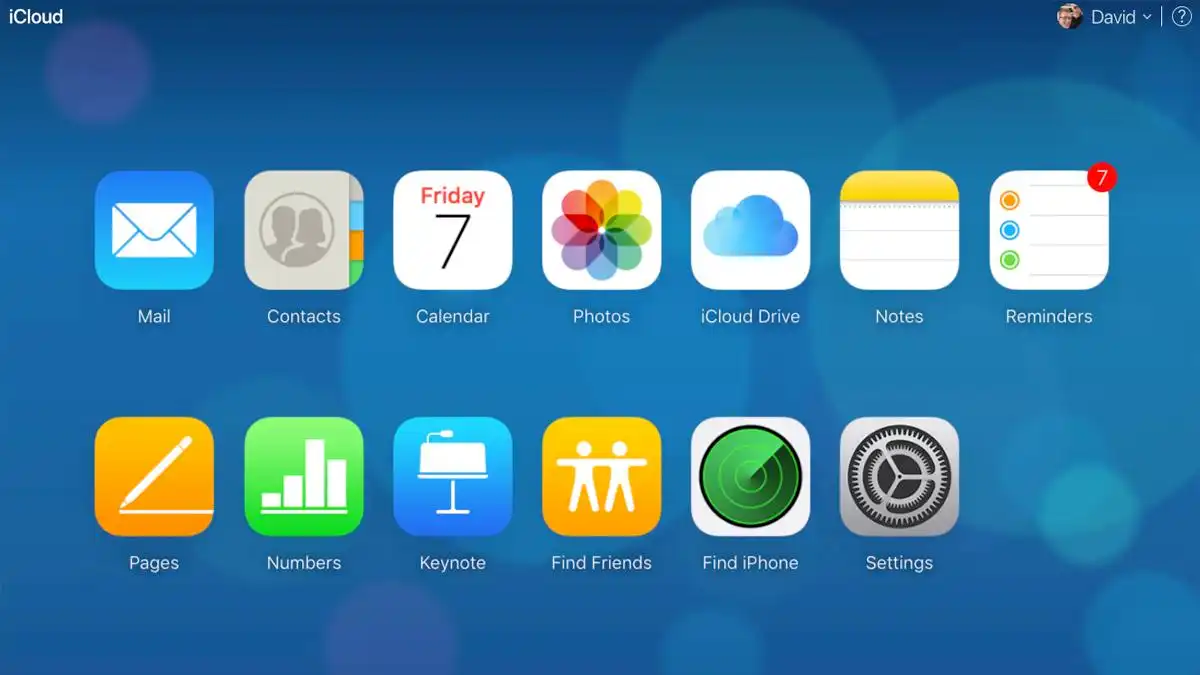
How to Access Icloud: A Step-by-step Guide
Are you wondering how to access your iCloud account? Do you want to synchronize some documents between your iPhone, iPad, or Mac? You’re in the right place! This article will guide you through the process of accessing your iCloud account on various devices.
Accessing Icloud on Iphone And Ipad
If you have an iPhone or iPad, accessing your iCloud account is a straightforward process. Here’s how to do it:
- Open the Settings app on your device.
- Tap on the option that says “iCloud” at the top of the screen.
- Enter your Apple ID email address and password in the respective fields.
- If you’ve enabled two-factor authentication, you’ll be asked to enter a verification code sent to one of your trusted devices or phone number.
Accessing Icloud on Android Devices
If you’re using an Android device, accessing your iCloud account is a bit more complicated. Here’s how to do it:
- Open the browser app on your device.
- Navigate to the official iCloud website (www.Icloud.Com).
- Enter your Apple ID email address and password in the respective fields.
- If you’ve enabled two-factor authentication, you’ll be asked to enter a verification code sent to one of your trusted devices or phone number.
Accessing Icloud on PC
If you’re using a Windows-based computer, accessing your iCloud account is relatively easy. Here’s how to do it:
- Download and install the official iCloud client for Windows from the Apple website.
- Launch the app and enter your Apple ID email address and password in the respective fields.
- If you’ve enabled two-factor authentication, you’ll be asked to enter a verification code sent to one of your trusted devices or phone number.
Accessing Icloud on Mac
If you’re using a Mac, accessing your iCloud account is also relatively easy. Here’s how to do it:
- Click on the Apple menu and select “System Preferences”.
- Click on the option that says “iCloud” at the top of the screen.
- Enter your Apple ID email address and password in the respective fields.
- If you’ve enabled two-factor authentication, you’ll be asked to enter a verification code sent to one of your trusted devices or phone number.
Accessing Icloud on Browser
If you don’t have access to a device but still want to use some features of iCloud (such as locating your iPhone), you can access your account through the official iCloud website:
- Navigate to the official iCloud website (www.Icloud.Com).
- Enter your Apple ID email address and password in the respective fields.
- If you’ve enabled two-factor authentication, you’ll be asked to enter a verification code sent to one of your trusted devices or phone number.
Accessing Icloud Without Password
If you’ve forgotten your iCloud password, don’t worry! Here’s how to reset it:
- Go to the official Apple website and click on the option that says “Forgot Apple ID or password”.
- Enter your Apple ID email address and follow the instructions provided.
- If you’re still having trouble, contact Apple support for further assistance.
Accessing Icloud Without Verification Code
If you’ve enabled two-factor authentication but want to access your account without entering a verification code, here’s what you can do:
- Open the browser app on your device.
- Navigate to the official iCloud website (www.Icloud.Com).
- Enter your Apple ID email address and password in the respective fields.
- If you’ve authorized your browser to remember your login details, you won’t be asked for a verification code.
Conclusion
Accessing your iCloud account is relatively easy, regardless of which device you’re using. By following the steps outlined above, you should be able to access your account and start using the various features that iCloud has to offer.
Frequently Asked Questions (FAQs)
- Q: What is Icloud?
A: ICloud is a cloud storage service provided by Apple that allows users to store and access their files, photos, contacts, calendar events, and more across multiple devices. - Q: How do I Reset my Icloud Password?
A: If you’ve forgotten your iCloud password, go to the official Apple website and click on the option that says “Forgot Apple ID or password”. - Q: What is Two-factor Authentication?
A: Two-factor authentication (2FA) is a security feature that requires you to enter a verification code sent to one of your trusted devices or phone number in addition to your password when accessing your iCloud account. - Q: How do I Authorize my Browser to Remember my Login Details?
A: When accessing your iCloud account through the official website, click on the option that says “Remember me” to save your login credentials for future use. - Q: Can I Access my Icloud Account Without a Verification Code if I’ve Authorized my Browser?
A: Yes, if you’ve authorized your browser to remember your login details and are accessing your iCloud account through the official website, you won’t be asked for a verification code.
Additional Resources
- Apple Support Website: Www.Support.Apple.Com
- Official iCloud Website: Www.Icloud.Com
Note to Reader:
We hope this article has helped you understand how to access your iCloud account across various devices. If you have any further questions or concerns, please don’t hesitate to reach out!


