
How to Add a Widget on Iphone: A Step-by-step Guide
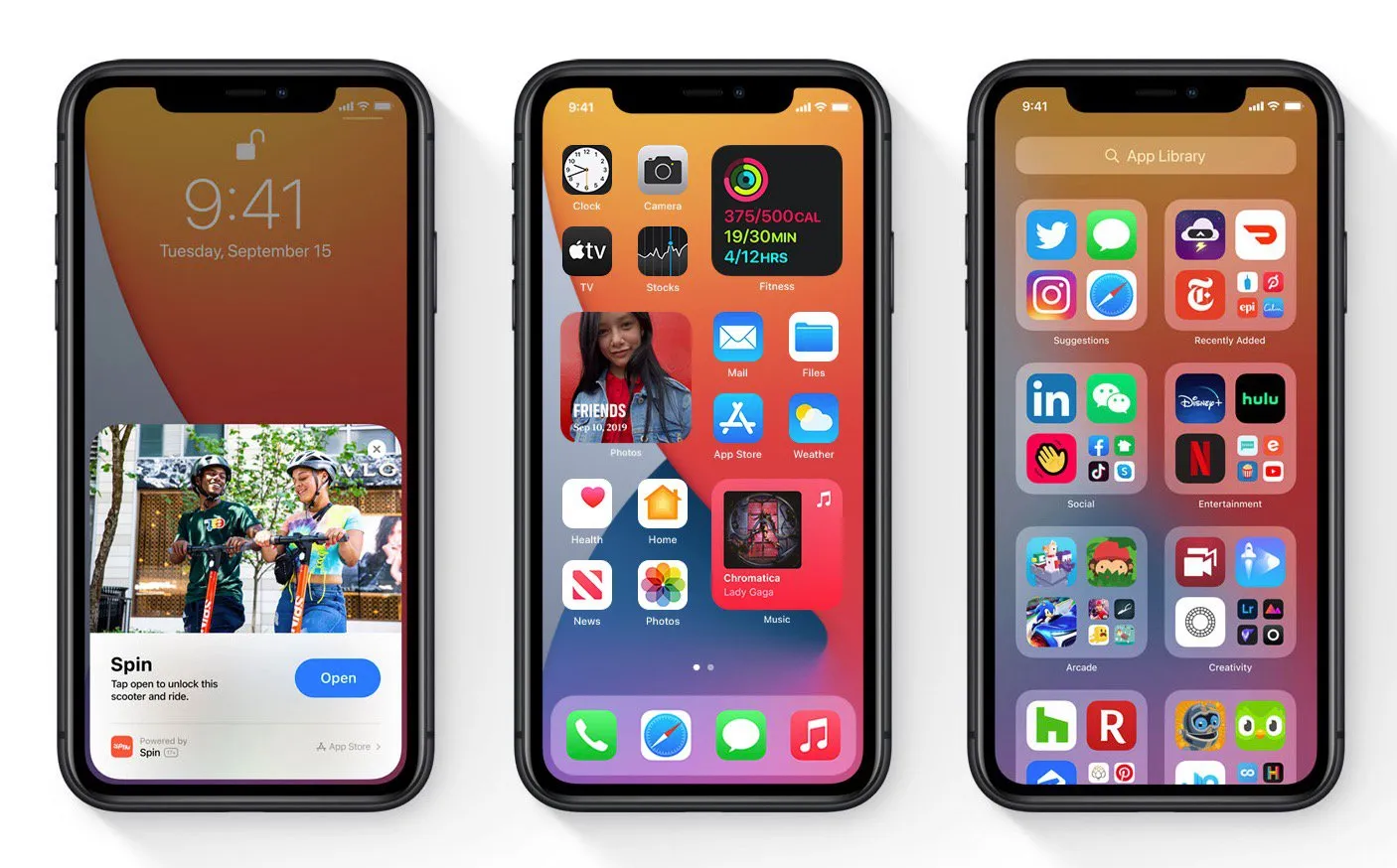
Are you looking to add some personality to your iPhone’s home screen? Look no further! In this article, we’ll show you how to add a widget on iPhone using the built-in features and third-party apps.
What Are Widgets?
Widgets are small, interactive elements that can be added to your iPhone’s home screen. They can display various types of information, such as photos, reminders, calendar events, and more. With the release of iOS 14, widgets have become even more customizable and useful.
Why Add a Widget on Iphone?
Adding a widget on iPhone can enhance your user experience in several ways:
- Personalization: Widgets allow you to personalize your home screen with information that matters most to you.
- Convenience: With widgets, you can access frequently used information at a glance without having to navigate through multiple apps.
- Customization: You can customize the appearance and layout of your widgets to match your personal style.
How to Add a Widget on Iphone
Adding a widget on iPhone is a straightforward process that requires minimal effort. Here’s a step-by-step guide:
- Tap And Hold: Tap and hold an empty space on your home screen until the icons and other widgets start to vibrate.
- Press The (+) Button: Press the (+) button in the top-right corner of the screen.
- Select a Widget: Select a widget from the list that appears, such as Photos, Weather, or Calendar.
Creating a Customized Widget on Iphone
If you want to create a customized widget on iPhone, you can use third-party apps like Widgetsmith or Photo Widget. These apps offer various customization options for your widgets, including changing their appearance, layout, and functionality.
- Download The App: Download the app from the App Store.
- Select a Template: Select a template for your widget from the app’s gallery.
- Customize The Appearance: Customize the appearance of your widget by choosing colors, layouts, and graphics.
- Add Information: Add information to your widget, such as photos or reminders.
Other Apps For Creating Customized Widgets
There are several other apps available on the App Store that can help you create customized widgets on iPhone. Some popular options include:
- Widgetsmith: A versatile app that allows you to create customizable widgets with various templates and designs.
- Color Widgets: An app that enables you to create colorful, interactive widgets for your home screen.
- Screenkit: An app that offers a wide range of customization options for your home screen, including widgets.
Tips For Choosing The Right Widget
When choosing the right widget for your iPhone, consider the following tips:
- Functionality: Choose a widget that serves a purpose and provides useful information.
- Appearance: Select a widget that matches your personal style and home screen aesthetic.
- Customization: Opt for an app that allows you to customize the appearance and functionality of your widget.
Conclusion
Adding a widget on iPhone is a simple process that can enhance your user experience and add some personality to your home screen. With the built-in features and third-party apps available, you can create customized widgets that match your style and preferences.
Frequently Asked Questions (FAQs)
- Q: What Are Widgets?
A: Widgets are small, interactive elements that can be added to your iPhone’s home screen. - Q: Why Add a Widget on Iphone?
A: Adding a widget on iPhone can enhance your user experience by providing personalized information and convenience. - Q: How do I Add a Widget on Iphone?
A: Tap and hold an empty space on your home screen until the icons and other widgets start to vibrate, then press the (+) button and select a widget from the list. - Q: Can I Create Customized Widgets on Iphone?
A: Yes, you can use third-party apps like Widgetsmith or Photo Widget to create customized widgets with various templates and designs. - Q: What Are Some Popular Apps For Creating Custom Widgets?
A: Some popular options include Widgetsmith, Color Widgets, and ScreenKit. - Q: How do I Customize my Widget?
A: You can customize your widget by choosing colors, layouts, and graphics using third-party apps like Widgetsmith or Photo Widget. - Q: Can I Add Multiple Widgets to my Home Screen?
A: Yes, you can add multiple widgets to your home screen by tapping and holding an empty space and selecting the (+) button. - Q: How do I Remove a Widget From my Home Screen?
A: Tap and hold the widget until it starts to vibrate, then press the (-) button in the top-right corner of the screen.
Bonus Tips
- You can use widgets to quickly access frequently used information, such as weather forecasts or calendar events.
- You can customize the appearance and layout of your widgets using third-party apps like Widgetsmith or Photo Widget.
- You can add multiple widgets to your home screen by tapping and holding an empty space and selecting the (+) button.
I hope this article has been helpful in answering your questions about adding a widget on iPhone. Happy customizing!


