
Deleting Your Facebook Account: A Step-by-step Guide
Are you tired of Facebook? Do you want to erase your account definitively? If so, this guide is for you! In this article, we’ll walk you through the process of deleting your Facebook account step by step.
What Happens When You Delete Your Facebook Account?
Before we dive into the instructions, it’s essential to know what happens when you delete your Facebook account. Deleting your account means that:
- All your data associated with your account will be deleted.
- You’ll no longer have access to Messenger and other services linked to your Facebook account.
- Any Facebook pages you manage as an administrator will also be deleted.
Why Delete Your Facebook Account?
You might wonder why someone would want to delete their Facebook account. Here are some reasons:
- Privacy concerns: Some people feel that Facebook collects too much personal data or shares it with third-party companies.
- Online harassment: Unfortunately, online bullying and harassment can occur on social media platforms like Facebook.
- Information overload: With the constant stream of news and updates, some users might find Facebook overwhelming.
Deleting Your Facebook Account From a Mobile Device
To delete your Facebook account from a mobile device (cellular or tablet), follow these steps:
- Open the Facebook app on your device.
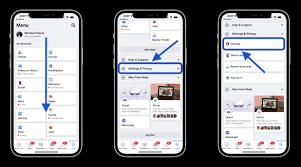
- Go to the menu (represented by three horizontal lines) and select “Settings and Privacy.”
- Tap on “See More in Settings” and then “Account Ownership and Control.”
- Scroll down and tap on “Deactivation or Elimination.”
- Select the option to delete your account (“Delete Account”).
- Enter your password and confirm that you want to delete your account.
Deleting Your Facebook Account From a Computer
To delete your Facebook account from a computer, follow these steps:
- Log in to Facebook.Com.
- Click on the menu (represented by three horizontal lines) and select “Settings and Privacy.”
- Tap on “See More in Settings” and then “Account Ownership and Control.”
- Scroll down and click on “Deactivation or Elimination.”
- Select the option to delete your account (“Delete Account”).
- Enter your password and confirm that you want to delete your account.
What If I Forget My Password?
If you’ve forgotten your Facebook password, don’t worry! You can reset it by following these steps:
- Open the Facebook app or go to Facebook.Com.
- Click on “Forgotten Account” and select the option to reset your password via SMS or email.
- Follow the instructions to receive a verification code.
- Enter the verification code and create a new password.
How to Reactivate Your Facebook Account
If you’ve deleted your account by mistake, don’t worry! You can reactivate it within 30 days of deletion. To do so:
- Log in to Facebook.Com with the credentials associated with the deleted account.
- Click on “Cancel Deletion” and confirm that you want to reactivate your account.
Alternative Solutions
Before deleting your Facebook account, consider these alternative solutions:
- Take a break from social media: If you’re feeling overwhelmed or tired of Facebook, try taking a break from social media altogether.
- Adjust your privacy settings: Instead of deleting your account, adjust your privacy settings to control what information is shared with others.
Conclusion
Deleting your Facebook account is a straightforward process. Remember to back up your data before deletion and consider alternative solutions if you’re not sure about deleting your account entirely.
Frequently Asked Questions (FAQs)
- Q: What Happens When I Delete my Facebook Account?
A: Your data associated with the account will be deleted, and you’ll no longer have access to Messenger or other services linked to the account. - Q: Can I Reactivate my Facebook Account After Deletion?
A: Yes, within 30 days of deletion, you can reactivate your account by logging in with the credentials associated with the deleted account. - Q: How do I Reset my Facebook Password if I Forget It?
A: Go to Facebook.Com and click on “Forgotten Account” to reset your password via SMS or email. - Q: Can I Delete my Facebook Account Without a Password?
A: Unfortunately, no. You’ll need to use the relative key of access (password) to delete your account.
I hope this guide has been helpful! If you have any further questions or concerns, feel free to ask.


