
How to Uninstall System Apps: A Step-by-step Guide
Are you tired of cluttered smartphones or tablets, with system apps taking up valuable space? Do you want to free up storage and improve performance? Look no further! In this article, we’ll guide you through the process of uninstalling system apps on Android, iOS, Windows 10, and Windows 11.
Why Uninstall System Apps?
System apps are pre-installed software that comes with your device. While they may seem harmless, they can take up valuable storage space and slow down your device. Additionally, some system apps may not be essential to your daily use, making them prime candidates for uninstallation.
Uninstalling System Apps on Android
If you’re using an Android device, there are several ways to uninstall system apps. Here’s a step-by-step guide:
Method 1: Using Titanium Backup (Requires Root Access)
If you have root access on your device, you can use the popular app Titanium Backup to uninstall system apps.
- Download and install Titanium Backup from the Google Play Store.
- Grant the app superuser permissions by going to Settings > Applications > Titanium Backup.
- Open the app and navigate to the “Backup” section.
- Select the system app you want to uninstall and tap on the “Delete” button.
- Confirm that you want to delete the app.
Method 2: Using a Third-party App
If you don’t have root access, you can use a third-party app like Universal Android Debloater (UAD) to uninstall system apps.
- Download and install UAD from the Google Play Store.
- Follow the in-app instructions to enable developer options on your device.
- Connect your device to your computer using a USB cable.
- Run the UAD tool on your computer and select the system app you want to uninstall.
- Confirm that you want to delete the app.
Method 3: Disabling System Apps
If you don’t want to completely uninstall a system app, you can simply disable it. This will prevent the app from running in the background and taking up storage space.
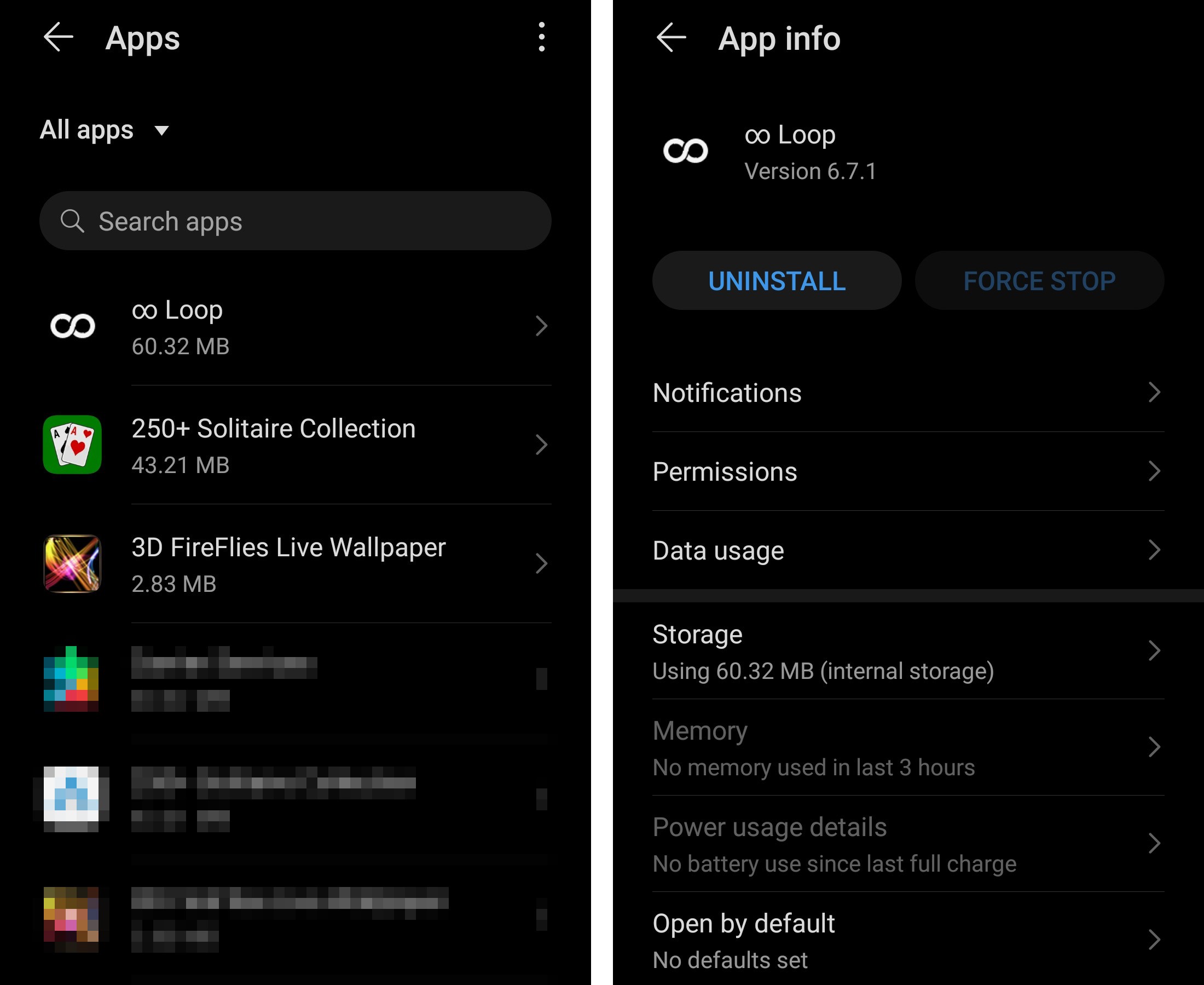
- Go to Settings > Applications > All applications.
- Find the system app you want to disable and tap on it.
- Tap on the “Disable” button.
- Confirm that you want to disable the app.
Uninstalling System Apps on Ios
If you’re using an iOS device, uninstalling system apps is a bit more straightforward. Here’s how:
Method 1: Using The Settings App
You can use the Settings app to delete system apps on your iOS device.
- Open the Settings app and go to General.
- Tap on “iPhone Storage”.
- Find the system app you want to uninstall and tap on it.
- Tap on the “Delete App” button.
- Confirm that you want to delete the app.
Method 2: Using a Third-party App
If you can’t find the system app in the Settings app, you can use a third-party app like Phone Cleaner to delete it.
- Download and install Phone Cleaner from the App Store.
- Launch the app and navigate to the “Storage” section.
- Find the system app you want to uninstall and tap on it.
- Tap on the “Delete” button.
- Confirm that you want to delete the app.
Uninstalling System Apps on Windows 10/11
If you’re using a Windows 10 or Windows 11 device, uninstalling system apps is relatively easy. Here’s how:
Method 1: Using The Settings App
You can use the Settings app to delete system apps on your Windows device.
- Open the Settings app and go to Apps.
- Find the system app you want to uninstall and click on it.
- Click on the “Uninstall” button.
- Confirm that you want to uninstall the app.
Method 2: Using a Third-party App
If you can’t find the system app in the Settings app, you can use a third-party app like CCleaner to delete it.
- Download and install CCleaner from the Microsoft Store.
- Launch the app and navigate to the “Storage” section.
- Find the system app you want to uninstall and click on it.
- Click on the “Uninstall” button.
- Confirm that you want to uninstall the app.
Conclusion
Uninstalling system apps can help free up storage space, improve performance, and declutter your device. Whether you’re using an Android, iOS, or Windows device, we’ve provided step-by-step guides on how to do it safely and effectively.
Frequently Asked Questions (FAQs)
- What are system apps?
System apps are pre-installed software that comes with your device. - Why uninstall system apps?
Uninstalling system apps can help free up storage space, improve performance, and declutter your device. - Can I reinstall system apps?
Yes, most system apps can be reinstalled directly from the store or app store. - What happens if I uninstall a system app?
If you uninstall a system app, it will no longer take up storage space and run in the background. - How do I enable developer options on my Android device?
To enable developer options on your Android device, go to Settings > About phone > Build number and tap on it seven times.
Note: This response is provided for informational purposes only and should not be taken as professional advice.


