
How to Connect Your Smartphone to Smart Tv: A Step-by-step Guide
Are you tired of using a separate remote control for your smart TV? Do you want to turn your smartphone into a universal remote control? Well, you’re in luck! With the advancements in technology, it’s now possible to connect your smartphone to your smart TV. In this article, we’ll show you how to do it in various ways.
Why Connect Your Smartphone to Smart Tv?
Before we dive into the step-by-step guide, let’s first talk about why you would want to connect your smartphone to your smart TV. Here are a few reasons:
- You can use your smartphone as a universal remote control.
- You can stream content from your phone to your TV.
- You can access more features and apps on your TV using your phone.
Method 1: Using Google Cast
Google Cast is a popular way to connect your smartphone to your smart TV. Here’s how you do it:
- Make sure both your phone and TV are connected to the same Wi-Fi network.
- Open the Google Home app on your phone and select the TV icon.
- Select the TV you want to connect to from the list of available devices.
- Choose the content you want to stream to the TV from the Google Home app.
Method 2: Using Miracast
Miracast is another technology that allows you to connect your smartphone to your smart TV wirelessly. Here’s how you do it:
- Make sure both your phone and TV are connected to the same Wi-Fi network.
- Open the Settings app on your phone and select the Miracast option.
- Select the TV icon from the list of available devices.
- Choose the content you want to stream to the TV.
Method 3: Using Airplay
AirPlay is a technology developed by Apple that allows you to connect your iPhone or iPad to your smart TV wirelessly. Here’s how you do it:
- Make sure both your phone and TV are connected to the same Wi-Fi network.
- Open the Control Center on your phone and select the Screen Mirroring option.
- Select the TV icon from the list of available devices.
- Choose the content you want to stream to the TV.
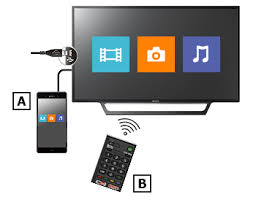
Method 4: Using a Cable
If you don’t have a wireless connection, you can still connect your smartphone to your smart TV using a cable. Here’s how:
- Purchase an HDMI cable and insert one end into the phone’s USB-C port.
- Connect the other end of the HDMI cable to the TV’s HDMI input.
- Turn on both devices and select the correct HDMI input on the TV.
Method 5: Using a Universal Remote Control App
There are several universal remote control apps available that allow you to connect your smartphone to your smart TV wirelessly. Here’s how:
- Download and install the app on your phone.
- Follow the instructions provided in the app to set up the connection between your phone and TV.
Method 6: Using Bluetooth
Some smart TVs come with built-in Bluetooth capabilities, which allows you to connect your smartphone to the TV wirelessly. Here’s how:
- Make sure both devices are connected to the same Wi-Fi network.
- Open the Settings app on your phone and select the Bluetooth option.
- Select the TV icon from the list of available devices.
Conclusion
As you can see, there are various ways to connect your smartphone to your smart TV. Whether you want to use a wireless connection or a cable, we’ve got you covered. Remember to follow the instructions provided in each method carefully to ensure a smooth and successful setup process.
Frequently Asked Questions (FAQs)
- Q: Why do I Need to Connect my Smartphone to my Smart Tv?
A: You can use your smartphone as a universal remote control, stream content from your phone to your TV, and access more features and apps on your TV using your phone. - Q: What Are The Different Methods For Connecting my Smartphone to my Smart Tv?
A: There are six methods: Using Google Cast, Miracast, AirPlay, a cable, a universal remote control app, and Bluetooth. - Q: Do I Need to Purchase Any Additional Hardware to Connect my Smartphone to my Smart Tv?
A: Depending on the method you choose, you may need to purchase an HDMI cable or a universal remote control app. - Q: Can I Use my Smartphone as a Universal Remote Control if I Don’t Have a Wireless Connection?
A: Yes, you can still connect your smartphone to your smart TV using a cable.
Additional Tips
- Make sure both devices are connected to the same Wi-Fi network before attempting to connect them wirelessly.
- Follow the instructions provided in each method carefully to ensure a smooth and successful setup process.
- Experiment with different methods to find what works best for you.


