
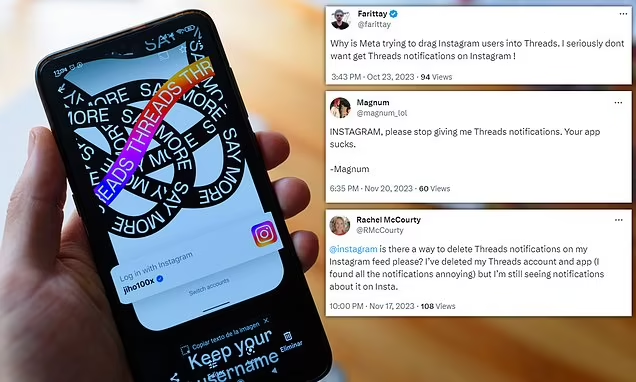
How to Disable Instagram Notifications: A Step-by-step Guide
Are you tired of being constantly disturbed by Instagram notifications? No need to disable your account or remove the app from your device. Here’s a step-by-step guide on how to easily and simply disable Instagram notifications.
How to Disable Notifications For a Specific Profile
To disable notifications for a specific profile, follow these steps:
- Open the Instagram app on your device.
- Tap on the profile icon at the bottom right to access your profile page.
- Tap on the bell icon at the top left to open the notification menu.
- Scroll down and tap on the “Disable” option next to various notification options (Posts, Stories, Videos, Reels, Live Streams).
- Tap on “Disable” to disable notifications for that specific profile.
How to Disable All Notifications
To disable all Instagram notifications, follow these steps:
- Open the Instagram app on your device.
- Tap on the profile icon at the bottom right to access your profile page.
- Tap on the bell icon at the top left to open the notification menu.
- Scroll down and tap on the “Disable” option next to the general “Notifications” option.
- Tap on “Disable” to disable all Instagram notifications.
How to Disable Notifications on a PC
To disable Instagram notifications on your computer, follow these steps:
- Access the Instagram website and open your profile page.
- Click on the profile icon at the top left to access your profile page.
- Click on the bell icon at the top right to open the notification menu.
- Scroll down and click on the “Disable” option next to the general “Notifications” option.
- Click on “Disable” to disable all Instagram notifications.
How to Disable Story Notifications
To disable story notifications, follow these steps:
- Open the Instagram app on your device.
- Tap on the profile icon at the bottom right to access your profile page.
- Tap on the bell icon at the top left to open the notification menu.
- Scroll down and tap on the “Disable” option next to the “Stories” option.
- Tap on “Disable” to disable story notifications.
How to Disable Post Notifications
To disable post notifications, follow these steps:
- Open the Instagram app on your device.
- Tap on the profile icon at the bottom right to access your profile page.
- Tap on the bell icon at the top left to open the notification menu.
- Scroll down and tap on the “Disable” option next to the “Posts” option.
- Tap on “Disable” to disable post notifications.
How to Disable Message Notifications
To disable message notifications, follow these steps:
- Open the Instagram app on your device.
- Tap on the profile icon at the bottom right to access your profile page.
- Tap on the bell icon at the top left to open the notification menu.
- Scroll down and tap on the “Disable” option next to the “Messages” option.
- Tap on “Disable” to disable message notifications.
How to Disable Notifications on Apple Watch
To disable Instagram notifications on your Apple Watch, follow these steps:
- Open the Watch app and select the “Notifications” option.
- Scroll down and tap on the “Instagram” option to open the notification menu.
- Tap on the “Disable” option next to the general “Notifications” option.
- Tap on “Disable” to disable all Instagram notifications.
How to Disable Email Notifications
To disable email notifications, follow these steps:
- Access your Instagram account and open your profile page.
- Click on the profile icon at the top left to access your profile page.
- Click on the bell icon at the top right to open the notification menu.
- Scroll down and click on the “Disable” option next to the “Email notifications” option.
- Click on “Disable” to disable email notifications.
We hope this guide has been helpful in disabling Instagram notifications and getting you back to your personal space.


