
How to Speed Up Windows 10: Tips And Tricks
Are you tired of waiting for your computer to start up or running applications? Do you want to get the most out of your Windows 10 experience? Look no further! In this article, we’ll provide you with tips and tricks on how to speed up Windows 10.
Why is My Computer Slow?
Before we dive into the solutions, let’s talk about why your computer might be slow. There are several reasons why Windows 10 can be sluggish, including:
- Running too many programs at once
- Having a hard drive that’s full or fragmented
- Not having enough RAM (memory)
- Running outdated or unnecessary software
Tip #1: Disable Unnecessary Programs at Startup
One of the easiest ways to speed up your computer is to disable programs that start up automatically when you turn on your PC. These programs can consume system resources and slow down your computer.
To do this, follow these steps:
- Press the Windows key + R to open the Run dialog box.
- Type “msconfig” and press Enter.
- In the System Configuration window, click on the Startup tab.
- Look for any unnecessary programs listed and uncheck them.
- Click OK to save your changes.
Tip #2: Enable Fast Startup
Fast startup is a feature in Windows 10 that allows your computer to start up quickly by using a pre-boot environment. To enable fast startup, follow these steps:
- Press the Windows key + I to open Settings.
- Click on Update & Security.
- Click on Recovery.
- Under “Advanced options,” toggle the switch next to “Turn on Fast Startup (recommended).”
Tip #3: Use a Pin For Faster Login
If you’re tired of typing in your password every time you want to log in, consider using a PIN instead. A PIN is faster and more secure than a traditional password.
To set up a PIN, follow these steps:
- Press the Windows key + I to open Settings.
- Click on Accounts.
- Click on Sign-in options.
- Under “Password”, click on “Add a passwordless account”.
- Follow the prompts to create a PIN.
Tip #4: Run a Malware Scan
Malware can slow down your computer and compromise your security. To scan for malware, follow these steps:
- Press the Windows key + I to open Settings.
- Click on Update & Security.
- Click on Windows Security.
- Under “Virus & threat protection”, click on “Scan options”.
- Select the type of scan you want to run and follow the prompts.
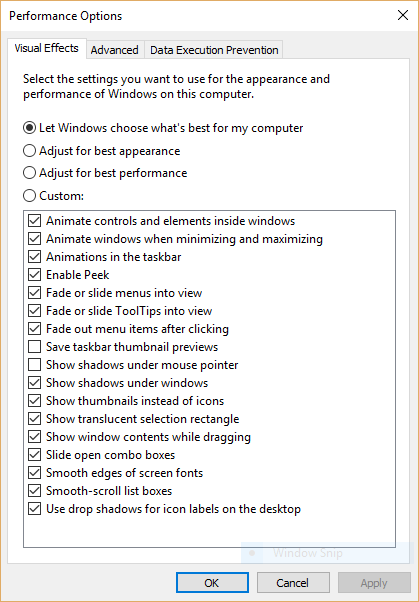
Tip #5: Disable Graphics Effects
If your computer is slow, disabling graphics effects can help improve performance. To do this, follow these steps:
- Press the Windows key + I to open Settings.
- Click on System.
- Click on Display.
- Under “Graphics settings”, toggle the switch next to “Turn off animations”.
- Click OK to save your changes.
Tip #6: Use a Lightweight Browser
Using a lightweight browser can help improve performance and reduce memory usage. Consider switching to Microsoft Edge, which is faster and more secure than other browsers.
Tip #7: Clean Up Your Disk
Cleaning up your disk can free up space and improve performance. To do this, follow these steps:
- Press the Windows key + I to open Settings.
- Click on System.
- Click on Storage.
- Under “Storage usage”, click on “View storage usage”.
- Follow the prompts to clean up your disk.
Tip #8: Update Your Operating System
Keeping your operating system up-to-date can help improve performance and security. To check for updates, follow these steps:
- Press the Windows key + I to open Settings.
- Click on Update & Security.
- Click on Windows Update.
- Under “Update status”, click on “Check for updates”.
Tip #9: Restart Your Computer Regularly
Restarting your computer regularly can help improve performance and clear out temporary files.
Tip #10: Consider Upgrading Your Hardware
If you’re running low on RAM or have an outdated hard drive, consider upgrading to a faster SSD or adding more RAM.
By following these tips and tricks, you should be able to speed up Windows 10 and get the most out of your computer. Remember to always keep your operating system up-to-date and clean up your disk regularly.
Frequently Asked Questions
Q: Why is my computer slow?
A: Your computer might be slow due to running too many programs at once, having a hard drive that’s full or fragmented, not having enough RAM (memory), or running outdated or unnecessary software.
Q: How can I speed up Windows 10?
A: You can speed up Windows 10 by disabling unnecessary programs at startup, enabling fast startup, using a PIN for faster login, running a malware scan, disabling graphics effects, using a lightweight browser, cleaning up your disk, updating your operating system, restarting your computer regularly, and considering upgrading your hardware.
Q: What is the best way to clean up my disk?
A: The best way to clean up your disk is by using the built-in Storage settings in Windows 10. Follow these steps: Press the Windows key + I to open Settings, click on System, then click on Storage.
Q: How can I improve performance and reduce memory usage?
A: You can improve performance and reduce memory usage by using a lightweight browser such as Microsoft Edge.
Q: What is the best way to keep my operating system up-to-date?
A: The best way to keep your operating system up-to-date is by regularly checking for updates in Settings > Update & Security > Windows Update.
Q: Why should I disable graphics effects?
A: Disabling graphics effects can help improve performance and reduce memory usage.
Q: How can I clean up my disk without losing any data?
A: You can clean up your disk without losing any data by using the built-in Storage settings in Windows 10. Follow these steps: Press the Windows key + I to open Settings, click on System, then click on Storage.
Q: What is the best way to improve performance and security?
A: The best way to improve performance and security is by keeping your operating system up-to-date and regularly running a malware scan.


