
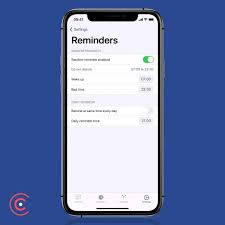
How to Use The Reminder Iphone App: A Step-by-step Guide
Are you tired of juggling multiple reminders, alarms, and notifications on your iPhone? Do you wish there was a way to organize your daily tasks more efficiently? Look no further! The Reminder app is here to help. In this article, we will guide you through the process of using the Reminder app to create, modify, synchronize, and complete reminders like a pro.
Why Use The Reminder App?
The Reminder app allows you to create reminders for specific events or tasks, and receive notifications when it’s time to take action. With its intuitive interface and powerful features, you can use the Reminder app to:
- Create reminders for upcoming events, appointments, or deadlines
- Set reminders for recurring tasks or activities
- Organize your reminders by category or priority
- Receive notifications on your iPhone, iPad, or Apple Watch
- Sync your reminders across all your Apple devices
Creating a Reminder
To create a reminder, follow these steps:
- Tap the Reminder app icon on your Home screen.
- Tap the “Create Reminder” button at the bottom of the screen.
- Assign a title to the reminder by tapping in the text field.
- Add additional details, such as location or images, if desired.
- Set the reminder date and time by tapping the calendar and clock icons.
- Choose a notification type (e.G., Alert, badge, or banner).
- Tap “Add” to save the reminder.
Using Siri to Create Reminders
If you prefer using voice commands, you can create reminders with Siri:
- Activate Siri by saying “Hey Siri” or pressing and holding the Home button.
- Say “Remind me to [task] on [date] at [time].”
- Follow the prompts to set up the reminder.
Modifying Reminders
Need to update a reminder? No problem!
- Tap the Reminder app icon on your Home screen.
- Select the reminder you want to modify from the list view.
- Tap and hold on the reminder title until it becomes editable.
- Make changes as needed, such as updating the date, time, or notification type.
Synchronizing Reminders
Want to access your reminders across all your Apple devices? Synchronize them with iCloud!
- Open the Settings app on your iPhone or iPad.
- Tap “iCloud” and ensure that the Reminder toggle is enabled.
- Repeat this process on each device you want to sync.
Organizing Reminders
Staying organized is key! Use the Reminder app’s list feature to categorize your reminders:
- Create a new list by tapping the “Add List” button at the bottom of the screen.
- Assign a title and color to the list, if desired.
- Add reminders to the list as needed.
Completing Reminders
Marking reminders complete helps keep your list organized:
- Select the reminder you want to mark complete from the list view.
- Tap the “Completed” toggle at the top of the screen.
- Repeat this process for each completed reminder.
Tips And Tricks
- Use tags (or hashtags) to label and categorize reminders.
- Assign priority levels to reminders for added emphasis.
- Set up recurring reminders for regular tasks or events.
- Experiment with different notification types, such as vibrations or sounds.
Conclusion
The Reminder app is a powerful tool that can help you stay organized and on top of your daily tasks. By following these steps and tips, you’ll be able to use the Reminder app like a pro. Whether you prefer using voice commands or the intuitive interface, the Reminder app has got you covered.


