
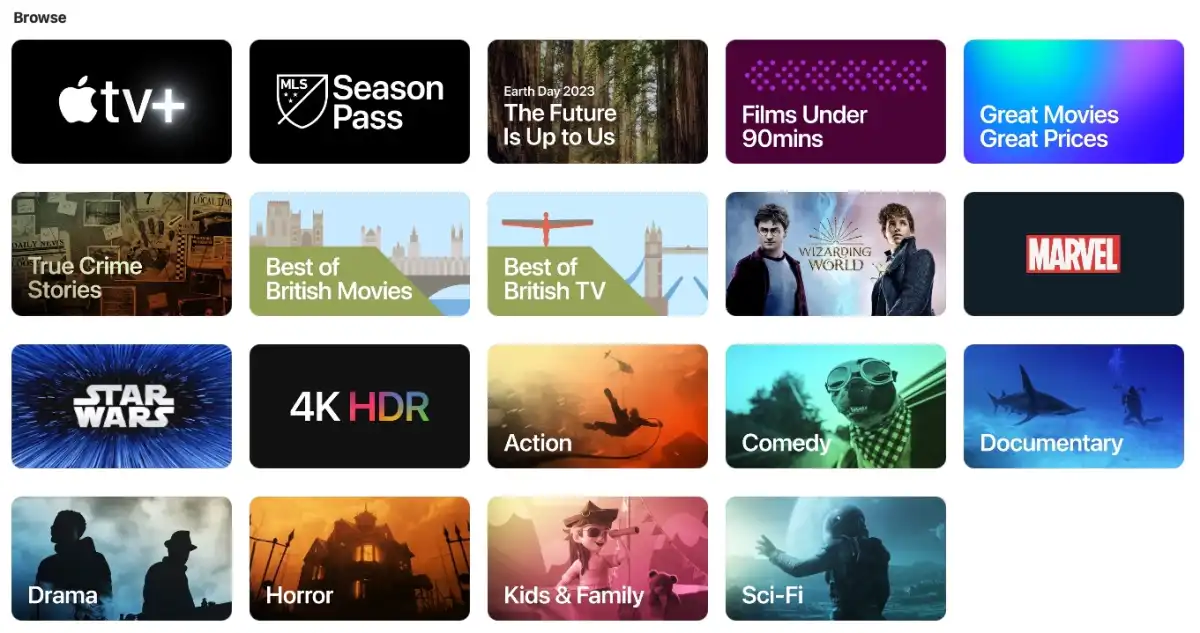
Are you looking for a convenient way to enjoy your favorite films on Apple TV? Look no further! In this article, we will guide you through the process of renting films on Apple TV, making it easy and intuitive for you to access a wide range of content.
Understanding Renting (Noleggio)
Before we dive into the step-by-step guide, let’s understand what renting (noleggio) means. Renting is the act of borrowing something for a limited time, in this case, a film on Apple TV. This feature allows you to rent a film for a limited time, typically 30 days, and watch it on your device.
Requirements
To begin with, you need to have an Apple ID and associate a credit/debit card or another form of payment (such as PayPal or Apple Pay) to your account. This is necessary for finalizing the transaction.
Step-by-step Guide: Renting on Apple TV
From Iphone/ipad
If you’re using an iPhone or iPad, follow these steps:
- Install The App: Find and install the Apple TV app from the Apple Store.
- Login With Apple ID: Access the app and login with your Apple ID. If you don’t have one, create it before proceeding.
- Explore The Catalogue: Navigate to the Store section within the app and explore the various categories, including films, TV shows, and more.
- Search For a Film: Use the search function or browse through the categories to find your desired film.
- Select And Rent: Click on the film’s image or trailer to access its page, then select the “Rent” button to rent it. Confirm the operation by pressing the “Rent” button again.
From Pc
If you’re using a Windows computer, follow these steps:
- Install Apple TV Software: Download and install the Apple TV software from the Microsoft Store.
- Login With Apple ID: Access the app and login with your Apple ID.
- Explore The Catalogue: Navigate to the Store section within the app and explore the various categories.
- Search For a Film: Use the search function or browse through the categories to find your desired film.
- Select And Rent: Click on the film’s image or trailer to access its page, then select the “Rent” button to rent it. Confirm the operation by pressing the “Rent” button again.
From Mac
If you’re using a Mac, follow these steps:
- Launch Apple TV App: Click on the Apple TV app icon in your Dock or Launchpad.
- Explore The Catalogue: Navigate to the Store section within the app and explore the various categories.
- Search For a Film: Use the search function or browse through the categories to find your desired film.
- Select And Rent: Click on the film’s image or trailer to access its page, then select the “Rent” button to rent it. Confirm the operation by pressing the “Rent” button again.
From Apple TV Device
If you have an Apple TV device, follow these steps:
- Launch Apple TV App: Open the Apple TV app on your device.
- Explore The Catalogue: Navigate to the Store section within the app and explore the various categories.
- Search For a Film: Use the search function or browse through the categories to find your desired film.
- Select And Rent: Click on the film’s image or trailer to access its page, then select the “Rent” button to rent it. Confirm the operation by pressing the “Rent” button again.
From Smart Tv
If you have a Smart TV or another device connected to your television, follow these steps:
- Install Apple TV App: Download and install the Apple TV app from your Smart TV’s store.
- Login With Apple ID: Access the app and login with your Apple ID.
- Explore The Catalogue: Navigate to the Store section within the app and explore the various categories.
- Search For a Film: Use the search function or browse through the categories to find your desired film.
- Select And Rent: Click on the film’s image or trailer to access its page, then select the “Rent” button to rent it. Confirm the operation by pressing the “Rent” button again.
Limitations
Please note that there are limitations to renting films on Apple TV:
- You have 30 days to start watching the film before it’s deleted from your account.
- Once you’ve started watching, you’ll need to finish the film within 24 hours.


