
How to Save Iphone Contacts: A Comprehensive Guide
Are you worried about losing your precious contacts on your iPhone? Do you want to save them safely and easily? Look no further! In this article, we will guide you through the process of saving your iPhone contacts in various formats and platforms.
Understanding The Risks
Before we dive into the solutions, let’s talk about the risks. Losing your contacts can be a nightmare, especially if they are important business or personal relationships. That’s why it’s essential to save them regularly and in multiple formats.
Method 1: Saving Contacts on Icloud
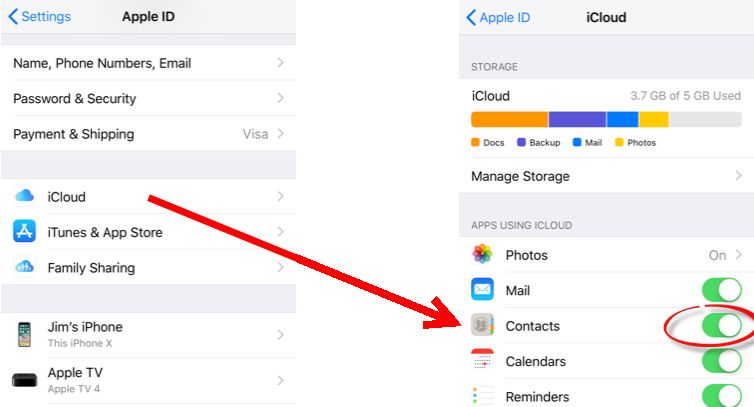
Saving your iPhone contacts on iCloud is one of the most convenient methods. Here’s how:
- Go to Settings > [Your Name] > iCloud.
- Make sure that “Contacts” is turned on.
- Your contacts will be synced with iCloud, and you can access them from any device connected to your Apple ID.
Method 2: Saving Contacts on Gmail
Saving your iPhone contacts on Gmail is another excellent option. Here’s how:
- Export your iPhone contacts as a VCF file using the built-in “Contacts” app.
- Go to Google Contacts and import the VCF file.
- Your contacts will be saved in your Gmail account, and you can access them from any device connected to your Google account.
Method 3: Saving Contacts on Outlook
Saving your iPhone contacts on Outlook is also possible. Here’s how:
- Export your iPhone contacts as a CSV file using the built-in “Contacts” app.
- Go to Outlook.Com and import the CSV file.
- Your contacts will be saved in your Outlook account, and you can access them from any device connected to your Microsoft account.
Method 4: Saving Contacts on Android
Saving your iPhone contacts on an Android device is also possible. Here’s how:
- Export your iPhone contacts as a VCF file using the built-in “Contacts” app.
- Go to Google Contacts on your Android device and import the VCF file.
- Your contacts will be saved in your Android device, and you can access them from any device connected to your Google account.
Method 5: Saving Contacts on PC
Saving your iPhone contacts on a Windows PC is also possible. Here’s how:
- Export your iPhone contacts as a CSV or VCF file using the built-in “Contacts” app.
- Go to iCloud for Windows and import the CSV or VCF file.
- Your contacts will be saved in your Windows PC, and you can access them from any device connected to your Apple ID.
Method 6: Saving Contacts on Mac
Saving your iPhone contacts on a Mac is also possible. Here’s how:
- Export your iPhone contacts as a CSV or VCF file using the built-in “Contacts” app.
- Go to iCloud for macOS and import the CSV or VCF file.
- Your contacts will be saved in your Mac, and you can access them from any device connected to your Apple ID.
Saving Contacts on Sim Card
Unfortunately, saving iPhone contacts directly on a SIM card is not possible. However, if you have an Android device, you can export your iPhone contacts as a VCF file, import it on the Android device, and then transfer the contacts to a SIM card using the built-in “Contacts” app.
Conclusion
Saving your iPhone contacts is easier than you think! With these methods, you can save them in various formats and platforms. Remember to always export your contacts regularly and in multiple formats to avoid losing them.


