
The Ultimate Guide to Monitoring Your Phone’s Temperature
As a smartphone user, you’re likely no stranger to the feeling of your device getting hot during intense usage, such as gaming or video streaming. While it may seem like a minor issue, overheating can lead to serious problems for your phone’s battery and other components. In this article, we’ll explore the importance of monitoring your phone’s temperature and provide you with step-by-step guides on how to do so on both Android and iPhone devices.
Why Monitor Your Phone’s Temperature?
Monitoring your phone’s temperature is crucial to prevent overheating-related issues. Here are some reasons why:
- Prevents Battery Damage: Excessive heat can cause battery degradation, leading to reduced lifespan or even permanent damage.
- Extends Device Lifespan: By monitoring and controlling the temperature, you can extend the life of your phone’s components, including the processor, GPU, and other critical parts.
- Improves Performance: A cooler device is more likely to perform smoothly and efficiently, ensuring a better user experience.
Monitoring Your Phone’s Temperature on Android Devices
If you’re an Android user, you have several options to monitor your phone’s temperature. Here are some methods:
Native Solutions or Personalization Software
Some Android devices come with built-in features that allow you to monitor the temperature of your device. For example:
- Samsung: On Samsung devices, go to Settings > About Phone > Battery Information > Temperature.
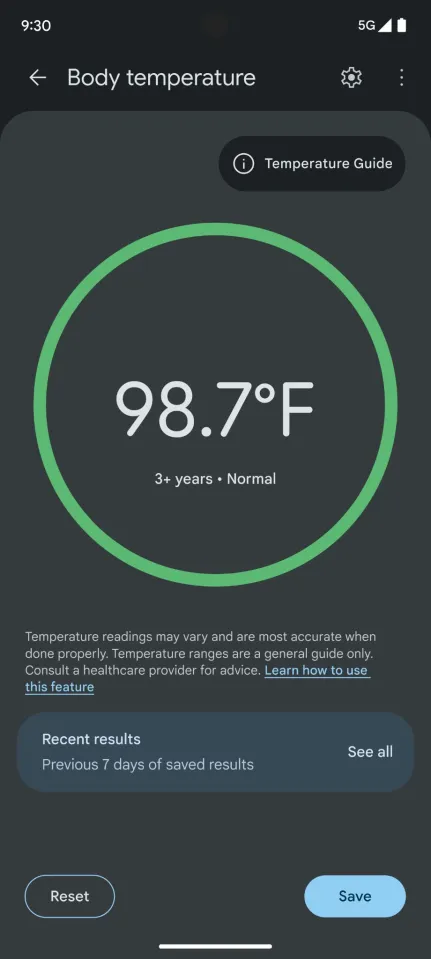
- Google Pixel: On Google Pixel devices, go to Settings > Developer Options > Show Temperature.
If your device doesn’t have a native solution, don’t worry! You can use personalization software like CPU-Z to monitor the temperature of your device.
Using Cpu-z
CPU-Z is a popular app that provides detailed information about your device’s hardware. Here’s how to use it:
- Install Cpu-z: Download and install CPU-Z from the Google Play Store.
- Launch The App: Open CPU-Z and navigate to the Battery section.
- Monitor Temperature: Look for the “Temperature” indicator, which will display the current temperature of your device.
Monitoring Your Phone’s Temperature on Iphone Devices
Unfortunately, iOS doesn’t provide a native way to monitor the temperature of your iPhone. However, you can use third-party apps to get an idea of your device’s performance and temperatures.
Using Lirum Device Info Lite
Lirum Device Info Lite is a popular app that provides detailed information about your iPhone’s hardware. Here’s how to use it:
- Install Lirum: Download and install Lirum from the App Store.
- Launch The App: Open Lirum and navigate to the Battery section.
- Monitor Temperature: Look for the “Temperature” indicator, which will display the current temperature of your device.
Note that iPhone devices don’t have a dedicated temperature monitoring feature, so this method may not provide accurate readings.
Conclusion
Monitoring your phone’s temperature is essential to prevent overheating-related issues and extend the life of your device. While Android devices offer native solutions or personalization software, iPhone users can use third-party apps like Lirum Device Info Lite to get an idea of their device’s performance and temperatures.
Remember to always be cautious when downloading and using apps from the Google Play Store or App Store, as some may have invasive permissions or advertisements.
Frequently Asked Questions (FAQs)
- Q: Why is my Phone Getting Hot?
A: Overheating can be caused by intense usage, such as gaming or video streaming. - Q: How Can I Prevent Overheating on Android Devices?
A: Monitor the temperature of your device using native solutions or personalization software like CPU-Z. - Q: Can I Monitor The Temperature of my Iphone?
A: Unfortunately, no. However, you can use third-party apps like Lirum Device Info Lite to get an idea of your device’s performance and temperatures. - Q: What Are The Consequences of Overheating on Android Devices?
A: Overheating can cause battery degradation, reduce lifespan, or even permanent damage to other components. - Q: How Often Should I Check my Phone’s Temperature?
A: It’s recommended to monitor your phone’s temperature during intense usage and after extended periods of inactivity. - Q: Can I Use Cpu-z on All Android Devices?
A: Yes, but be sure to download the correct version for your device model. - Q: Are There Any Other Apps That Can Help me Monitor my Phone’s Temperature?
A: Yes, consider using other apps like Device Monitor or System Info Lite.
I hope this article has provided you with a comprehensive guide on monitoring your phone’s temperature. Remember to stay safe and cautious when downloading and using apps from the Google Play Store or App Store!


