
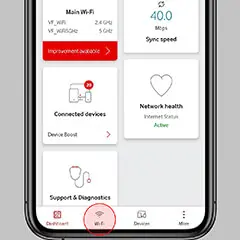
How to Change Your Wifi Password on Your Phone
Are you worried that someone has discovered your WiFi password? Do you want to change it but don’t know how? Don’t worry, we’ve got you covered! In this article, we’ll show you how to change your WiFi password on your phone in just a few simple steps.
Why Change Your Wifi Password?
Changing your WiFi password is an essential step in maintaining the security of your home network. If someone has discovered your password and is using your internet without permission, changing it will prevent them from accessing your network again.
How to Check if Someone Has Discovered Your Wifi Password
Before we dive into how to change your WiFi password, let’s first check if someone has already discovered it. Here are a few ways to do this:
- Look for unfamiliar devices connected to your network.
- Check your router’s log for any suspicious activity.
- Use a tool like Wi-Fi Analyzer to scan for nearby networks and see if anyone is using your password.
How to Change Your Wifi Password on Android
To change your WiFi password on an Android device, follow these steps:
- Go to Settings > Network & Internet > Wi-Fi.
- Tap on the three dots next to your network name.
- Select “Edit network” and enter a new password.
- Confirm the new password by entering it again.
How to Change Your Wifi Password on Ios
To change your WiFi password on an iPhone or iPad, follow these steps:
- Go to Settings > Wi-Fi.
- Tap on the “i” icon next to your network name.
- Select “Forget this Network” and then reconnect to it using the new password.
How to Change Your Wifi Password on a Router
To change your WiFi password on a router, you’ll need to access its web interface:
- Connect to your router’s default IP address (usually 192.168.0.1 Or 192.168.1.1).
- Log in with the admin username and password.
- Look for the “Wireless Settings” or “WiFi Settings” section and change the password.
Tips And Variations
- Use a strong and unique password that’s easy to remember but hard to guess.
- Consider changing your WiFi network name as well to make it harder for others to find.
- If you have multiple devices connected to your network, make sure to update their passwords accordingly.
- Keep in mind that some routers may have additional security features or settings that you should explore.
Conclusion
Changing your WiFi password on your phone is a straightforward process that can help protect your home network from unauthorized access. By following the steps outlined above and taking extra precautions like using strong passwords and changing your network name, you’ll be able to keep your internet connection secure and private.
Faqs
Q: Why do I need to change my WiFi password?
A: Changing your WiFi password helps prevent unauthorized access to your home network.
Q: How often should I change my WiFi password?
A: It’s a good idea to change your WiFi password every 3-6 months or whenever you suspect someone has discovered it.
Q: What’s the best way to create a strong and unique password?
A: Use a combination of uppercase and lowercase letters, numbers, and special characters to create a password that’s hard to guess.
Q: Can I use my phone’s built-in tools to change my WiFi password?
A: Yes, both Android and iOS devices have built-in tools to help you manage your WiFi network and change the password.


