
How to Limit The Band Wireless: A Step-by-step Guide
Are you tired of your brother or family members consuming all the available bandwidth on your home network, slowing down your online activities? Do you wish you could prioritize your own internet usage over others in your household? Look no further! In this article, we’ll show you how to limit the band wireless using various methods, including setting up Quality of Service (QoS) rules and creating a guest network.
Understanding Qos
Before we dive into the technical aspects, let’s quickly explain what QoS is. QoS stands for Quality of Service, and it’s a feature that allows you to prioritize certain devices or applications over others on your home network. By setting up QoS rules, you can specify which devices get more bandwidth and which ones get less.
Method 1: Using Qos Rules
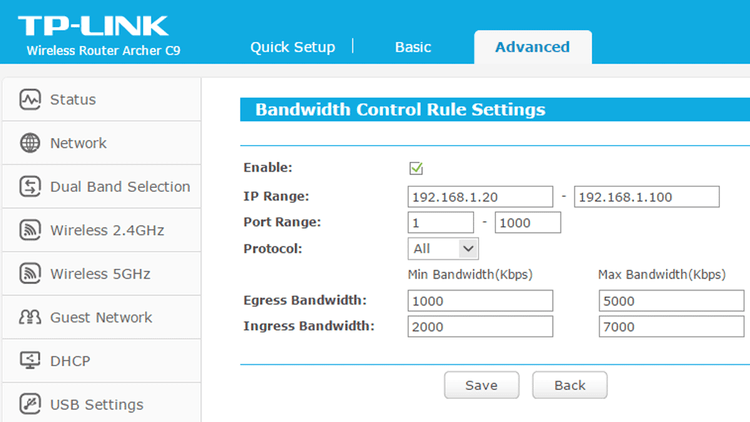
To set up QoS rules, follow these steps:
- Access The Router’s Admin Panel: Open a web browser and type in the IP address of your router (usually 192.168.1.1 Or 192.168.1.254). Log in with your administrator credentials.
- Find The Qos Settings: Look for the Quality of Service or Prioritization settings on your router’s admin panel. This may be located under Advanced Settings, Network Configuration, or a similar section.
- Create a New Rule: Follow the prompts to create a new QoS rule. You’ll need to specify the device(s) you want to prioritize and set the priority level (high, medium, low).
- Save Your Changes: Apply the new rule and save your settings.
Method 2: Creating a Guest Network
Another way to limit bandwidth is by creating a guest network for visitors or family members who only need basic internet access. Here’s how:
- Check if Your Router Supports Guest Networks: Most modern routers have this feature.
- Enable The Guest Network: Look for the Guest Network settings on your router’s admin panel and enable it.
- Set up The Guest Network: Choose a name and password for the guest network, and set any desired bandwidth limits or restrictions.
Method 3: Using Third-party Software
If your router doesn’t support QoS rules or guest networks, you can try using third-party software to limit bandwidth. One popular option is NetLimiter, which allows you to control the speed of downloads and uploads for individual computers or applications.
- Download And Install Netlimiter: Get the software from the official website and follow the installation instructions.
- Set up Netlimiter: Configure the software to limit bandwidth for specific devices or applications.
Conclusion
Limiting bandwidth on your home network doesn’t have to be a complex task. By following these simple steps, you can prioritize your own internet usage and ensure that others in your household don’t consume all the available bandwidth.
Frequently Asked Questions (FAQs)
- Q: What is Qos?
A: Quality of Service (QoS) is a feature that allows you to prioritize certain devices or applications over others on your home network. - Q: How do I Set up Qos Rules on my Router?
A: Check the admin panel of your router and look for the Quality of Service or Prioritization settings. - Q: Can I Create a Guest Network if my Router Doesn’t Support It?
A: Yes, you can use third-party software to limit bandwidth for visitors or family members who only need basic internet access. - Q: What is Netlimiter?
A: NetLimiter is a software that allows you to control the speed of downloads and uploads for individual computers or applications. - Q: Can I Prioritize Devices on my Network Using Qos Rules?
A: Yes, by setting up QoS rules, you can specify which devices get more bandwidth and which ones get less. - Q: How do I Access The Admin Panel of my Router?
A: Open a web browser and type in the IP address of your router (usually 192.168.1.1 Or 192.168.1.254). - Q: Can I Limit Bandwidth For Specific Applications Using Qos Rules?
A: Yes, some routers allow you to prioritize certain applications over others. - Q: What Are The Benefits of Creating a Guest Network?
A: A guest network can help you manage bandwidth usage and ensure that visitors or family members don’t consume all the available bandwidth on your home network.


