
How to Project Your Phone’s Monitor on a Tv: A Step-by-step Guide
Are you tired of watching videos or playing games on your phone’s small screen? Do you want to experience the thrill of big-screen entertainment without breaking the bank? Look no further! In this article, we’ll show you how to project your phone’s monitor on a TV using various methods.
What You Need to Know
Before we dive into the nitty-gritty details, let’s get one thing straight: Projecting your phone’s monitor on a TV is not as complicated as it sounds. With the right equipment and a little bit of know-how, you can enjoy big-screen entertainment without spending a fortune.
Method 1: Using Chromecast
One of the most popular ways to project your phone’s monitor on a TV is by using Google’s Chromecast device. This nifty gadget allows you to stream content from your phone to your TV in just a few clicks.
To use Chromecast, follow these steps:
- Connect your Chromecast device to your TV’s HDMI port.
- Download and install the Google Home app on your phone.
- Open the Google Home app and select the Chromecast device connected to your TV.
- Choose the content you want to stream (e.G., A video or game) from your phone.
- Tap the “Cast” button to send the content to your TV.
Method 2: Using Apple TV
If you’re an iPhone user, you can also use Apple’s AirPlay feature to project your phone’s monitor on a TV. Here’s how:
- Connect your Apple TV device to your TV’s HDMI port.
- Make sure both your iPhone and Apple TV are connected to the same Wi-Fi network.
- Open the Control Center on your iPhone by swiping up from the bottom of the screen (or swiping down from the top right corner if you have an iPhone X or later).
- Tap the “AirPlay” icon and select the Apple TV device connected to your TV.
- Choose the content you want to stream from your phone.
Method 3: Using Miracast
If you don’t have a Chromecast or Apple TV, don’t worry! You can still project your phone’s monitor on a TV using the Miracast protocol. Here’s how:
- Check if your TV and phone support Miracast by looking for the “Miracast” logo on both devices.
- Connect your phone to the same Wi-Fi network as your TV.
- Open the Settings app on your phone and go to the “Devices connected” section.
- Tap the “Preferences of connection” option and select the “Transmission” option.
- Choose the content you want to stream from your phone.
Method 4: Using Hdmi Cables
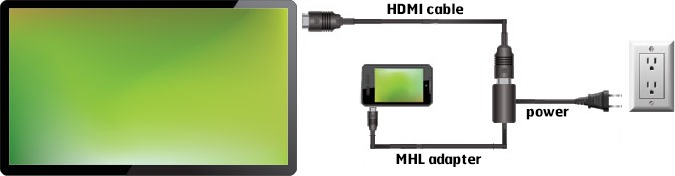
If none of the above methods work for you, don’t worry! You can still project your phone’s monitor on a TV using an HDMI cable. Here’s how:
- Connect your phone to the TV using an HDMI cable.
- Make sure both devices are connected to the same power source.
- Open the Settings app on your phone and go to the “Display” section.
- Select the “HDMI” option and choose the content you want to stream from your phone.
Tips And Tricks
Here are some additional tips and tricks to keep in mind when projecting your phone’s monitor on a TV:
- Make sure both devices are connected to the same power source.
- Use a high-quality HDMI cable for the best results.
- If you’re using Miracast, make sure your phone and TV are connected to the same Wi-Fi network.
- Experiment with different content formats (e.G., Video, games, photos) to find what works best for you.
Conclusion
Projecting your phone’s monitor on a TV is easier than you think! With these four methods, you can enjoy big-screen entertainment without breaking the bank. Whether you’re an iPhone user or an Android enthusiast, we’ve got you covered. So go ahead and give it a try – your eyes (and wallet) will thank you!
Frequently Asked Questions
Q: What devices support Miracast?
A: Many modern TVs and phones support Miracast, including models from Samsung, LG, Sony, and more.
Q: Can I use Miracast with an iPhone?
A: Unfortunately, no. Miracast is not supported on iOS devices.
Q: How do I connect my phone to a TV using HDMI cables?
A: Simply plug the HDMI cable into your phone’s HDMI port and the other end into your TV’s HDMI input.
Q: What are some common issues with projecting phone content on a TV?
A: Some common issues include poor video quality, audio lag, or connectivity problems. Try restarting both devices or checking your cables for any issues.
Q: Can I use Chromecast with multiple TVs?
A: Yes! You can connect multiple TVs to the same Chromecast device using an HDMI switch or a separate cable for each TV.
Q: How do I know which method is best for me?
A: If you have a Google account and want to stream content from your phone, try using Chromecast. If you’re an iPhone user, AirPlay might be a better option. If you don’t have either device, Miracast or HDMI cables are still viable options.
Q: Can I project my phone’s monitor on a TV without Wi-Fi?
A: Yes! You can use a physical cable (e.G., HDMI) to connect your phone to your TV without needing Wi-Fi.


