
The Ultimate Guide to Programming Your Mouse
Are you tired of tedious mouse clicks and endless menu scrolling? Do you wish there was a way to customize your mouse experience and boost your productivity? Look no further! In this comprehensive guide, we’ll show you how to program your mouse and take your computing experience to the next level.
What is Programming My Mouse?
Programming my mouse refers to the process of customizing the behavior of your mouse buttons and gestures to suit your specific needs. This can include assigning actions to individual mouse clicks, creating macros, and even setting up complex gesture-based interactions.
Why Should I Program My Mouse?
There are many benefits to programming your mouse, including:
- Increased productivity: By assigning common tasks to your mouse buttons, you can reduce the time spent on mundane activities and focus on more important tasks.
- Improved workflow: Customizing your mouse behavior can help you streamline your workflow and work more efficiently.
- Enhanced gaming experience: For gamers, programming the mouse can be a game-changer, allowing for faster and more precise movements.
Programming My Mouse on Windows
If you’re using a Windows computer, there are several options available to program your mouse. Here’s a step-by-step guide:
- Use The Built-in Settings: Windows 10 and 11 have a built-in feature that allows you to customize your mouse behavior.
- Click on the Start button and select Settings.
- Click on Devices and then Mouse.
- From here, you can adjust the mouse speed, set up gestures, and even create custom mouse buttons.
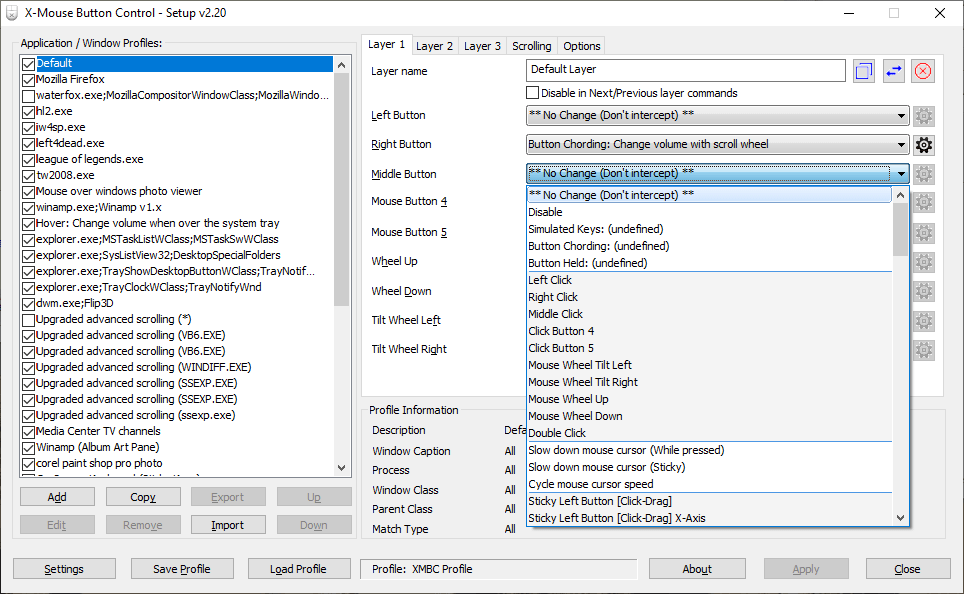
- Use Xmbc (X-Mouse Button Control): This free software allows for detailed customization of your mouse behavior, including assigning actions to individual mouse clicks and setting up complex gesture-based interactions.
- Download and install XMBC from the official website.
- Follow the in-app instructions to set up XMBC.
Programming My Mouse on Mac
If you’re a Mac user, there are also several options available to program your mouse. Here’s a step-by-step guide:
- Use System Preferences: You can customize your mouse behavior directly from the System Preferences menu.
- Click on the Apple menu and select System Preferences.
- Click on Mouse and then Gestures.
- From here, you can adjust the mouse speed, set up gestures, and even create custom mouse buttons.
- Use Bettertouchtool: This third-party app allows for advanced customization of your mouse behavior, including assigning actions to individual mouse clicks and setting up complex gesture-based interactions.
- Download and install BetterTouchTool from the official website.
- Follow the in-app instructions to set up BetterTouchTool.
Alternative Software Options
There are several other software options available that can help you program your mouse, including:
- Hydramouse: This commercial software offers advanced customization of your mouse behavior, including assigning actions to individual mouse clicks and setting up complex gesture-based interactions.
- Key Remapper: This free software allows for remapping of your keyboard keys to custom mouse buttons.
Conclusion
Programming your mouse is a simple yet powerful way to boost your productivity and take your computing experience to the next level. Whether you’re using Windows or Mac, there are several options available to customize your mouse behavior and streamline your workflow. With this guide, you’ll be well on your way to unlocking the full potential of your mouse.
Frequently Asked Questions
- Q: What is Programming my Mouse?
A: Programming my mouse refers to the process of customizing the behavior of your mouse buttons and gestures to suit your specific needs. - Q: Why Should I Program my Mouse?
A: There are many benefits to programming your mouse, including increased productivity, improved workflow, and enhanced gaming experience. - Q: Can I Program my Touchpad on Windows?
A: Yes, you can customize your touchpad behavior directly from the System Preferences menu or use third-party software like XMBC. - Q: Can I Program my Magic Mouse on Mac?
A: Yes, you can customize your Magic Mouse behavior directly from the System Preferences menu or use third-party software like BetterTouchTool. - Q: What Are Some Alternative Software Options Available For Programming my Mouse?
A: There are several other software options available, including HydraMouse and Key Remapper. - Q: Can I Use Multiple Software Options to Program my Mouse?
A: Yes, you can use multiple software options to customize your mouse behavior and streamline your workflow. - Q: Is Programming my Mouse Difficult?
A: No, programming your mouse is a simple yet powerful way to boost your productivity and take your computing experience to the next level. - Q: Can I Program my Mouse on Both Windows And Mac?
A: Yes, you can customize your mouse behavior on both Windows and Mac using various software options available.


