
The Ultimate Guide to Taking Part in a Meeting on Microsoft Teams
Are you ready to take part in a meeting on Microsoft Teams? Do you want to know the secrets of accessing a meeting without any problems? Look no further! In this article, we will guide you through the step-by-step process of taking part in a meeting on Microsoft Teams, whether you’re using your computer, smartphone, or tablet.
What You Need to Know Before Taking Part
Before we dive into the nitty-gritty details, it’s essential to know that Microsoft Teams is available on various devices, including computers, smartphones, and tablets. To take part in a meeting, you’ll need to access the application or log in to the website using your Microsoft account.
How to Take Part in a Meeting on Computer
To take part in a meeting on computer, follow these steps:
- Access The Teams Calendar: Open the Teams application on your computer and navigate to the Calendar section.
- Select The Meeting: Choose the meeting you want to join from the calendar view.
- Click “Join”: Click on the “Join” button next to the meeting title.
- Wait For Approval: If the meeting organizer has enabled waiting room settings, wait for approval before joining the meeting.
How to Take Part in a Meeting on Web
To take part in a meeting on the web, follow these steps:
- Access The Teams Website: Go to the Microsoft Teams website and sign in with your Microsoft account.
- Click “Join”: Click on the “Join” button next to the meeting title.
- Wait For Approval: If the meeting organizer has enabled waiting room settings, wait for approval before joining the meeting.
How to Take Part in a Meeting by App
To take part in a meeting using the app, follow these steps:
- Download The Teams App: Download and install the Microsoft Teams app on your smartphone or tablet.
- Open The App: Open the app and navigate to the Calendar section.
- Select The Meeting: Choose the meeting you want to join from the calendar view.
- Click “Join”: Click on the “Join” button next to the meeting title.
- Wait For Approval: If the meeting organizer has enabled waiting room settings, wait for approval before joining the meeting.
How to Take Part in a Meeting With Link
To take part in a meeting using the link, follow these steps:
- Open The Link: Open the link provided by the meeting organizer.
- Select “Join”: Select the “Join” option from the browser.
- Wait For Approval: If the meeting organizer has enabled waiting room settings, wait for approval before joining the meeting.
How to Take Part in a Meeting With Code
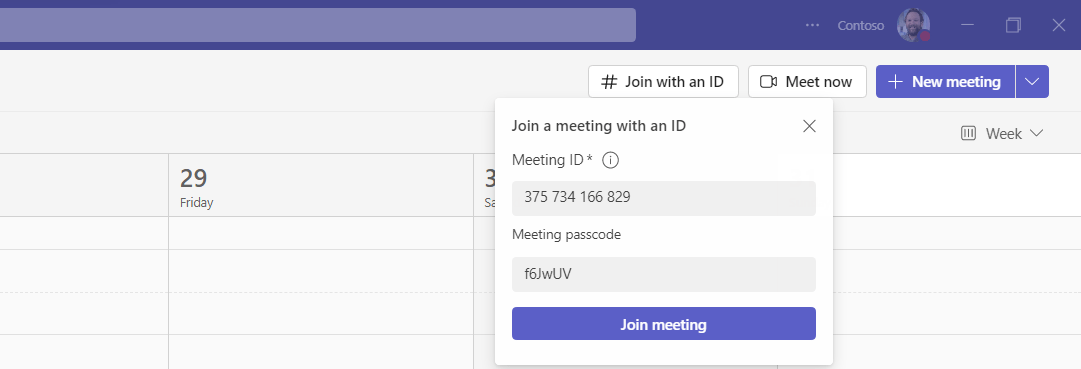
To take part in a meeting using the code, follow these steps:
- Open The Teams App: Open the Microsoft Teams app on your smartphone or tablet.
- Click “Join”: Click on the “Join” button next to the meeting title.
- Enter Code And Password: Enter the meeting code and password provided by the organizer.
How to Take Part in a Meeting Without Account
To take part in a meeting without an account, follow these steps:
- Open The Link: Open the link provided by the meeting organizer.
- Select “Join”: Select the “Join” option from the browser.
- Wait For Approval: If the meeting organizer has enabled waiting room settings, wait for approval before joining the meeting.
How to Take Part in Two Meetings on Teams
To take part in two meetings on Microsoft Teams, follow these steps:
- Use Different Devices: Use different devices or log out and back into your account to join multiple meetings.
- Follow Previous Steps: Follow the previous steps for joining a meeting using the app, link, code, or without an account.
Conclusion
Taking part in a meeting on Microsoft Teams is easy and convenient. By following these simple steps, you’ll be able to access and participate in meetings from anywhere. Whether you’re using your computer, smartphone, or tablet, Microsoft Teams has got you covered.
Frequently Asked Questions (FAQs)
- Q: What if I Don’t Have a Microsoft Account?
A: You can take part in a meeting on Microsoft Teams without an account by opening the link provided by the organizer. - Q: How do I Join a Meeting Using my Smartphone or Tablet?
A: To join a meeting using your smartphone or tablet, open the Microsoft Teams app and follow the prompts to access the meeting. - Q: What if I Get Stuck During The Meeting?
A: Don’t worry! If you experience any technical issues during the meeting, contact the meeting organizer for assistance. - Q: Can I Take Part in Multiple Meetings at Once?
A: Unfortunately, it’s not possible to join multiple meetings on Microsoft Teams using the same device or account. - Q: How do I Know if a Meeting is Being Recorded?
A: Check the meeting invite for information about recording. If you have any questions, contact the meeting organizer. - Q: What if I’m Experiencing Technical Issues During The Meeting?
A: Try restarting your device or closing and reopening the Microsoft Teams app. If the issue persists, contact the meeting organizer for assistance. - Q: How do I Access a Meeting on my Computer?
A: To access a meeting on your computer, open the Microsoft Teams application and follow the prompts to join the meeting. - Q: Can I Take Part in a Meeting Using The Web Version of Microsoft Teams?
A: Yes! You can access meetings using the web version of Microsoft Teams by signing in with your Microsoft account.
I hope this guide has been helpful! Let us know if you have any further questions or need assistance with taking part in a meeting on Microsoft Teams.


