
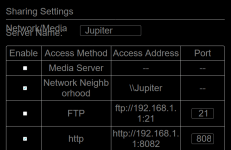
Accessing Your Hard Disk Attached to The Router: A Step-by-step Guide
Are you curious about accessing your hard disk attached to the router? You’re not alone! Many of us have wondered if it’s possible to access our files stored on an external hard drive connected to our router. The answer is yes, and in this guide, we’ll walk you through the steps to do so.
Why Access Your Hard Disk Attached to The Router?
Before we dive into the tutorial, let’s quickly discuss why you might want to access your hard disk attached to the router. Here are a few scenarios:
- You have a large collection of files (photos, videos, documents) stored on an external hard drive connected to your router.
- You want to access these files from any device connected to your network (computer, smartphone, tablet).
- You need to share these files with others who also have devices connected to your network.
Prerequisites
Before you start, make sure you have the following:
- A router with USB ports (most modern routers have this feature).
- An external hard drive connected to one of the router’s USB ports.
- Devices connected to your network (computer, smartphone, tablet).
Step 1: Check Router Compatibility
Not all routers are created equal. Ensure that your router is compatible with sharing files over a local network. Most modern routers have this feature, but it’s always good to double-check.
- Check your router’s manual or manufacturer’s website for information on file sharing capabilities.
- If you’re unsure, consult our guide on how to check if your router supports file sharing.
Step 2: Verify File System of The External Hard Drive
Make sure the external hard drive is formatted using a compatible file system. Most modern routers support NTFS, FAT32, or exFAT file systems.
- Check the file system used by your external hard drive.
- If it’s not in one of the supported formats, you can reformat it to a compatible format (e.G., FAT32 or exFAT).
Step 3: Choose File Server Type
There are two main approaches to sharing files over a local network:
- Samba/smb: This is the ideal approach if you want to share files across multiple devices (Windows, macOS, Android, iOS, etc.).
- Dlna: This is suitable for streaming multimedia content (music, video, images) to devices connected to your network.
Choose one of these approaches and we’ll guide you through the setup process.
Step 4: Connect Devices to The Local Network
Make sure all devices you want to access the shared files from are connected to your local network.
- Use Ethernet cables or Wi-Fi connections to connect your devices.
- Ensure that your router is set up to allow file sharing over the local network.
Step 5: Find The Router’s IP Address
To access the shared files, you’ll need to know the router’s IP address. Here are some ways to find it:
- Windows: Open PowerShell or Command Prompt and type
ipconfig. - Macos: Open Terminal and type
netstat -nr | grep default. - Android: Go to Settings > Networks & Internet > Wi-Fi > [Network Name] > Advanced.
- Ios/ipados: Go to Settings > Wi-Fi > [Network Name].
Step 6: Access The Shared Files
Once you have all the prerequisites met, follow these steps:
- Connect your device (computer, smartphone, tablet) to your local network.
- Open a file explorer or browser on your device.
- Type the router’s IP address followed by
\\and the shared folder name (e.G.,\\192.168.1.254\SharedFiles). - Enter the username and password you set up during the configuration process.
Troubleshooting Tips
If you encounter any issues during this process, refer to our troubleshooting guide on how to resolve common problems when accessing files shared over a local network.
Conclusion
Accessing your hard disk attached to the router is a straightforward process once you have all the necessary prerequisites met. By following these steps, you’ll be able to share files across multiple devices connected to your local network. If you encounter any issues or need further assistance, don’t hesitate to reach out.
Frequently Asked Questions (FAQs)
- What Are The Benefits of Accessing my Hard Disk Attached to The Router?
Accessing your hard disk attached to the router allows you to share files across multiple devices connected to your local network. - Which File Server Type Should I Choose?
Choose Samba/SMB for sharing files across multiple devices or DLNA for streaming multimedia content. - How do I Find my Router’s IP Address?
You can find your router’s IP address using the methods outlined in Step 5. - What if I Encounter Issues Accessing The Shared Files?
Refer to our troubleshooting guide on how to resolve common problems when accessing files shared over a local network. - Can I Access The Shared Files From Outside my Home Network?
Yes, you can access the shared files from outside your home network by setting up a VPN or using a remote file server setup (e.G., Using a router with an FTP server). - What Are Some Common Issues When Accessing Files Shared Over a Local Network?
Some common issues include problems with connectivity, file system compatibility, and incorrect configuration of the file sharing settings. - Can I Share Files Across Different Operating Systems?
Yes, you can share files across multiple devices running different operating systems (Windows, macOS, Android, iOS, etc.) Using Samba/SMB or DLNA file servers. - What is The Recommended Approach For Streaming Multimedia Content Over a Local Network?
Use DLNA for streaming multimedia content (music, video, images) to devices connected to your network.
References
- [Your Router’s Manual]
- [Router Manufacturer’s Website]
- [File Sharing Guide]
- [Troubleshooting Guide]


