
Recovering Windows 7: A Comprehensive Guide
Are you still using Windows 7 despite its discontinuation? You’re not alone! Many users prefer its stability and compatibility with applications and peripherals. However, like any operating system, it can become unstable or corrupted over time. In this article, we’ll explore the various methods of recovering Windows 7, ensuring your computer is back to its former glory.
Why Recover Windows 7?
Before diving into the recovery process, let’s address why you might need to recover your Windows 7 installation:
- System corruption: Malware or software conflicts can cause system instability.
- Driver issues: Outdated or incompatible drivers can lead to problems with hardware devices.
- Software installations: Incompatible or corrupted software can cause system crashes.
Methods of Recovery
There are several ways to recover Windows 7, depending on your specific situation:
1. System Restore Point
Windows 7 creates automatic restore points at regular intervals. If you’ve recently installed software or drivers, you may be able to revert back to a previous state using this method:
- Click on the Start button and type “system restore” in the search bar.
- Select the desired restore point from the list.
- Follow the prompts to complete the recovery process.
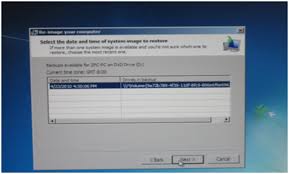
2. Backup And Restore
Windows 7 includes a built-in backup system that allows you to create images of your operating system. You can use this feature to recover Windows 7 in case of a major issue:
- Click on the Start button and type “backup” in the search bar.
- Select the option to create a system image.
- Choose the destination drive (e.G., External hard drive or DVD).
- Follow the prompts to complete the backup process.
3. Recovery Console
If your Windows 7 installation is severely corrupted, you may need to use the recovery console:
- Insert the Windows 7 installation DVD and restart your computer.
- Select the language and other preferences, then click “Next.”
- Choose the option to repair Windows 7 using the System Repair tool.
4. Format And Reinstall
As a last resort, you can format your hard drive and reinstall Windows 7 from scratch:
- Insert the Windows 7 installation DVD and restart your computer.
- Follow the prompts to complete the installation process.
Choosing The Right Method
Each method has its pros and cons. Here’s a brief summary to help you decide:
- System Restore Point: Best for minor issues, but may not work if system corruption is severe.
- Backup and Restore: Ideal for major issues, as it allows you to restore your entire operating system from a backup image.
- Recovery Console: Suitable for severe corruption or malware infections.
- Format and Reinstall: Only recommended when other methods fail, as it will erase all data on the hard drive.
Conclusion
Recovering Windows 7 can be a daunting task, but with this guide, you’re equipped to handle various scenarios. Remember to always backup your system regularly using the built-in backup feature or third-party software to minimize potential losses in case of an issue.
Frequently Asked Questions (FAQs)
- Q: Can I Recover Windows 7 Without Losing my Data?
A: Yes, if you’ve created a system image using the Backup and Restore feature, you can restore your operating system while preserving your files. - Q: Will I Need to Reinstall All Software After Recovering Windows 7?
A: It depends on the method used for recovery. If you used System Restore Point or Backup and Restore, most software will remain intact. However, if you chose to format and reinstall, you’ll need to reinstall all applications. - Q: How Long Does The Recovery Process Take?
A: The time required for recovery varies depending on the method used and system specifications. Typically, it takes anywhere from 15 minutes to several hours. - Q: Can I Recover Windows 7 if my Hard Drive is Corrupted or Damaged?
A: In some cases, yes. If your hard drive is only partially damaged, you might be able to recover your operating system using specialized software or a data recovery service. However, if the damage is extensive, it’s best to seek professional help. - Q: Are There Any Risks Associated With Recovering Windows 7?
A: As with any technical procedure, there are potential risks involved. Be cautious when attempting to recover your operating system, and make sure you have a complete backup of all important files before proceeding. - Q: Can I Use Recovery Software From Third-party Vendors to Recover Windows 7?
A: Yes, but be aware that these tools may not work as promised or could cause further damage to your system. It’s always best to try built-in methods first and seek professional help if needed. - Q: Will Recovering Windows 7 Affect my Warranty or Support?
A: It depends on the manufacturer and specific circumstances. In general, attempting to recover your operating system may void your warranty or affect support options.
Remember to always follow proper procedures when attempting to recover Windows 7, and don’t hesitate to seek professional help if you’re unsure about any aspect of the process.


