
How to Create a Second Channel on Youtube: A Step-by-step Guide
Are you looking to create a second channel on YouTube, but not sure where to start? You’re in luck! In this article, we’ll guide you through the process of creating a secondary channel on YouTube, using both your existing account and a new Google account.
Why Create a Second Channel on Youtube?
Before we dive into the step-by-step instructions, let’s talk about why you might want to create a second channel on YouTube. Perhaps you have multiple projects or topics that you’d like to focus on separately, or maybe you’re looking to create a channel for your business or brand. Whatever the reason, having a second channel can be a great way to expand your online presence and reach new audiences.
Using Your Existing Account
If you already have a YouTube account and want to create a second channel using the same account, here’s what you need to do:
- Access Your Youtube Settings: Log in to your YouTube account and click on your profile picture in the top right corner of the screen.
- Click on “Settings”: From the dropdown menu, select “Settings”.
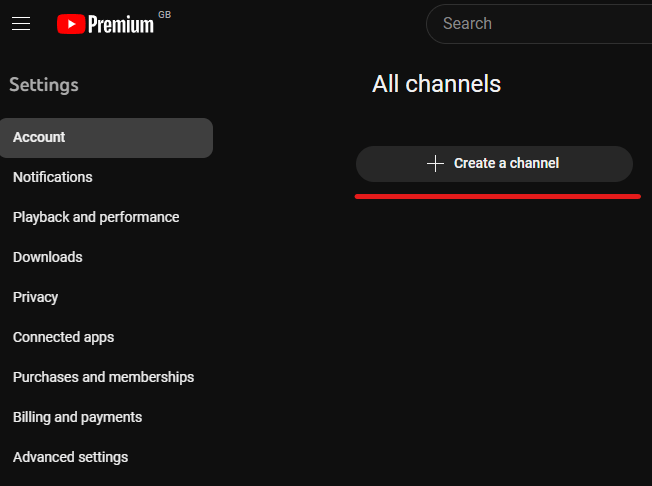
- Scroll Down to “Your Channel”: In the settings page, scroll down to the “Your channel” section.
- Click on “Add or Modify Your Channels”: Click on this option and then click on the “+” button next to it.
- Create a New Channel: Fill in the details for your new channel, including its name, handle, and other relevant information.
Using a Second Google Account
If you want to create a second channel using a different Google account, here’s what you need to do:
- Create a New Google Account: If you don’t already have a secondary Google account, create one now.
- Access Youtube With Your New Account: Log in to YouTube using your new account.
- Click on Your Profile Picture: Click on your profile picture in the top right corner of the screen.
- Select “Create a Channel”: From the dropdown menu, select “Create a channel”.
- Fill in The Details: Fill in the details for your new channel, including its name, handle, and other relevant information.
Switching Between Channels
Once you have multiple channels set up, you can switch between them easily. Here’s how:
- Access Your Youtube Settings: Log in to your YouTube account and click on your profile picture in the top right corner of the screen.
- Click on “Settings”: From the dropdown menu, select “Settings”.
- Scroll Down to “Your Channel”: In the settings page, scroll down to the “Your channel” section.
- Select The Channel You Want to Switch To: Click on the channel you want to switch to.
Tips And Variations
Here are a few additional tips and variations to keep in mind:
- Use The Same Account For Multiple Channels: If you have multiple channels that are closely related, it may be easiest to use the same account for all of them.
- Create Separate Accounts For Different Projects: On the other hand, if you have different projects or topics that you want to keep separate, it’s a good idea to create separate accounts for each one.
- Consider Using a Third-party App: There are also third-party apps available that can help you manage multiple YouTube channels and accounts.
Conclusion
Creating a second channel on YouTube is a straightforward process that can be completed in just a few steps. Whether you’re looking to expand your online presence, create separate channels for different projects or topics, or simply have more control over your YouTube experience, creating a secondary channel is a great way to do so. With these step-by-step instructions and tips, you’ll be well on your way to becoming a YouTube pro!
Faqs
Here are some frequently asked questions about creating a second channel on YouTube:
- Q: Can I Have Multiple Channels With The Same Account?
A: Yes, you can have up to 100 channels associated with a single Google account. - Q: How do I Switch Between Channels?
A: To switch between channels, access your YouTube settings and select the channel you want to switch to from the “Your channel” section. - Q: Can I Use a Third-party App to Manage Multiple Channels?
A: Yes, there are several third-party apps available that can help you manage multiple YouTube channels and accounts. - Q: How do I Create a New Google Account For my Second Channel?
A: To create a new Google account, go to the Google sign-up page and follow the instructions. - Q: Can I Have Multiple Channels With Different Names?
A: Yes, you can have multiple channels with different names associated with a single Google account.
Additional Resources
Here are some additional resources that may be helpful:
- Youtube’s Official Guide to Creating a Second Channel: This guide provides detailed instructions on how to create a second channel using your existing account.
- Google’s Account Management Page: This page provides information on how to manage multiple accounts and channels with Google.
- Third-party Apps For Managing Multiple Youtube Channels: There are several third-party apps available that can help you manage multiple YouTube channels and accounts.


