
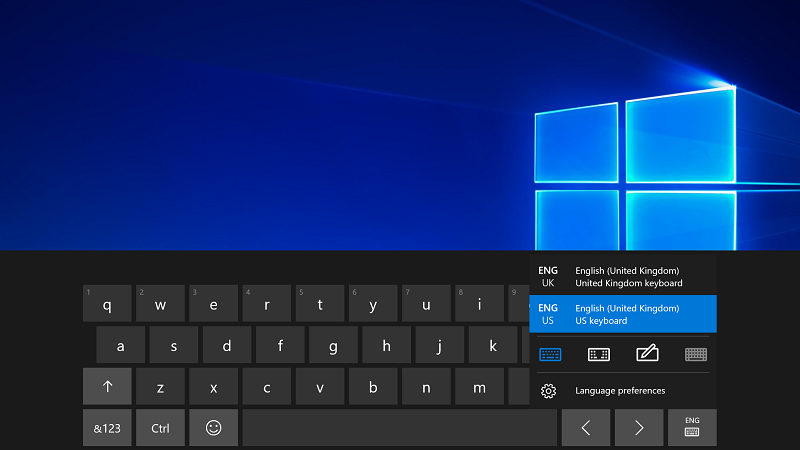
How to Change Keyboard Layout on Windows, Macos, Android, And Ios
Are you tired of using the default keyboard layout on your computer or mobile device? Do you want to switch to a different layout, such as QWERTZ, AZERTY, or QWERTY? Look no further! In this article, we will guide you through the process of changing the keyboard layout on Windows, macOS, Android, and iOS.
Why Change Keyboard Layout?
Changing the keyboard layout can be helpful for several reasons:
- If you are used to typing in a specific language or region, such as German QWERTZ or French AZERTY.
- If you have difficulty typing certain characters or symbols on your current layout.
- If you want to try out a different layout to improve your typing speed and accuracy.
Changing Keyboard Layout on Windows
To change the keyboard layout on Windows, follow these steps:
- Open Settings: Click on the Start button and select Settings.
- Click on Time & Language: In the Settings window, click on Time & Language.
- Click on Language: In the Time & Language window, click on Language.
- Select Add a Language: Click on Add a language and select the language you want to add (e.G., German QWERTZ or French AZERTY).
- Select Keyboard Layout: Select the keyboard layout you want to use for that language (e.G., QWERTZ or AZERTY).
- Click on Options: Click on Options next to the language and select Add keyboard.
- Select The New Layout: In the list of available layouts, select the one you want to use.
Changing Keyboard Layout on Macos
To change the keyboard layout on macOS, follow these steps:
- Open System Preferences: Click on the Apple menu and select System Preferences.
- Click on Keyboard: In the System Preferences window, click on Keyboard.
- Select Input Sources: Select Input sources from the top menu bar.
- Add a New Input Source: Click on the plus sign (+) at the bottom of the list to add a new input source.
- Select The Language And Layout: Select the language you want to use (e.G., German QWERTZ or French AZERTY) and select the corresponding keyboard layout.
Changing Keyboard Layout on Android
To change the keyboard layout on an Android device, follow these steps:
- Open Settings: Go to the Settings app.
- Click on Language & Input: Select Language & input from the menu.
- Select Virtual Keyboard: Select Virtual keyboard from the list of options.
- Select Gboard or Swiftkey: Select either Gboard or SwiftKey as your virtual keyboard.
- Tap on Languages: Tap on Languages and select the language you want to use (e.G., German QWERTZ or French AZERTY).
- Select Keyboard Layout: Select the keyboard layout you want to use for that language.
Changing Keyboard Layout on Ios
To change the keyboard layout on an iOS device, follow these steps:
- Open Settings: Go to the Settings app.
- Click on General: Select General from the menu.
- Select Keyboard: Select Keyboard from the list of options.
- Tap on Keyboards: Tap on Keyboards and select the language you want to use (e.G., German QWERTZ or French AZERTY).
- Select Keyboard Layout: Select the keyboard layout you want to use for that language.
Conclusion
Changing the keyboard layout on Windows, macOS, Android, and iOS is a straightforward process. By following these steps, you can switch to a different layout that suits your needs and preferences. Whether you’re looking to improve your typing speed and accuracy or simply want to try out a new layout, we hope this article has been helpful.
Frequently Asked Questions (FAQs)
- Q: Can I Change The Keyboard Layout on my Smartphone?
A: Yes, you can change the keyboard layout on Android devices using Gboard or SwiftKey, and on iOS devices by going to Settings > General > Keyboard. - Q: Will Changing The Keyboard Layout Affect my Typing Speed And Accuracy?
A: Changing the keyboard layout may take some time to get used to, but it should not significantly affect your typing speed and accuracy. - Q: Can I Use Multiple Keyboard Layouts at Once?
A: Yes, you can use multiple keyboard layouts on Windows and macOS by adding them as separate input sources or keyboards. - Q: Will Changing The Keyboard Layout Affect my Keyboard Shortcuts?
A: Changing the keyboard layout may affect some keyboard shortcuts, but most will still work as usual.
Table 1: Keyboard Layouts For Different Languages
| Language | Keyboard Layout |
|---|---|
| English (US) | QWERTY |
| German | QWERTZ |
| French | AZERTY |
| Italian | QWERTY |
_ _ The Ultimate Guide to Changing Keyboard Layout on Windows, Macos, Android, And Ios
| OS | Steps to Change Keyboard Layout |
|---|---|
| Windows 11 | Open Settings > Time & Language > Language > Add a language > Select keyboard layout |
| MacOS | Open System Preferences > Keyboard > Input sources > Add new input source > Select language and layout |
| Android (Gboard) | Open Settings > Language & input > Virtual keyboard > Gboard > Languages > Select keyboard layout |
| IOS | Open Settings > General > Keyboard > Keyboards > Select language and layout |
Note: The steps may vary slightly depending on the device and OS version.


