
How to Disable Notifications on Your Smartphone: A Step-by-step Guide
Are you tired of being bombarded with notifications on your smartphone? Do you wish you could disable them, but don’t know where to start? Look no further! In this article, we’ll show you how to disable notifications on various smartphones, including Android, Xiaomi, Samsung, Huawei, and iPhone.
Why Disable Notifications?
Before we dive into the step-by-step guide, let’s talk about why disabling notifications might be a good idea. With so many apps on our phones, it’s easy to get overwhelmed by the constant stream of notifications. Whether it’s social media, email, or messaging apps, notifications can be distracting and disrupt our workflow. By disabling them, you can focus on what matters most – your work, relationships, or hobbies.
How to Disable Notifications on Android
If you own an Android smartphone, here’s how to disable notifications:
- Open The Settings App: Find the Settings icon (usually represented by a cogwheel) and tap it.
- Go to Notifications: Scroll down and select “Notifications” from the menu.
- Disable All Notifications: Tap on each app that you want to disable notifications for, and toggle off the switch next to “Allow notifications.”
- Alternatively, Use The Not Disturbing Mode: Swipe down from the top of your screen with two fingers to access the Quick Settings panel. Then, tap on the “Not disturbing” icon (represented by a crescent moon) and toggle it on.
How to Disable Notifications on Xiaomi
If you own a Xiaomi smartphone, here’s how to disable notifications:
- Open The Settings App: Find the Settings icon (usually represented by a cogwheel) and tap it.
- Go to Notifications And Status Bar: Select “Notifications and status bar” from the menu.
- Disable All Notifications: Tap on each app that you want to disable notifications for, and toggle off the switch next to “Allow notifications.”
- Alternatively, Use The Not Disturbing Mode: Swipe down from the top of your screen with two fingers to access the Quick Settings panel. Then, tap on the “Not disturbing” icon (represented by a crescent moon) and toggle it on.
How to Disable Notifications on Samsung
If you own a Samsung smartphone, here’s how to disable notifications:
- Open The Settings App: Find the Settings icon (usually represented by a cogwheel) and tap it.
- Go to Notifications: Scroll down and select “Notifications” from the menu.
- Disable All Notifications: Tap on each app that you want to disable notifications for, and toggle off the switch next to “Allow notifications.”
- Alternatively, Use The Do Not Disturb Mode: Swipe down from the top of your screen with two fingers to access the Quick Settings panel. Then, tap on the “Do not disturb” icon (represented by a crescent moon) and toggle it on.
How to Disable Notifications on Huawei
If you own a Huawei smartphone, here’s how to disable notifications:
- Open The Settings App: Find the Settings icon (usually represented by a cogwheel) and tap it.
- Go to Management of Clusters: Select “Management of clusters” from the menu.
- Disable All Notifications: Tap on each app that you want to disable notifications for, and toggle off the switch next to “Allow notifications.”
- Alternatively, Use The Not Disturbing Mode: Swipe down from the top of your screen with two fingers to access the Quick Settings panel. Then, tap on the “Not disturbing” icon (represented by a crescent moon) and toggle it on.
How to Disable Notifications on Iphone
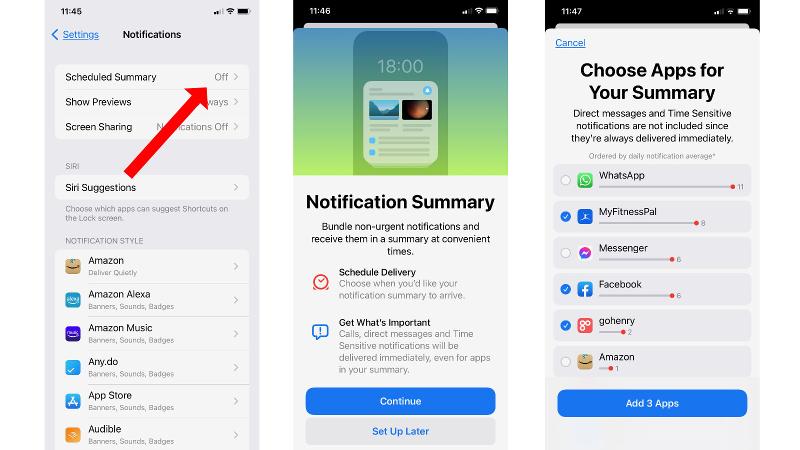
If you own an iPhone, here’s how to disable notifications:
- Open The Settings App: Find the Settings icon (usually represented by a cogwheel) and tap it.
- Go to Notifications: Scroll down and select “Notifications” from the menu.
- Disable All Notifications: Tap on each app that you want to disable notifications for, and toggle off the switch next to “Allow notifications.”
- Alternatively, Use The Do Not Disturb Mode: Swipe down from the top of your screen with two fingers to access the Quick Settings panel. Then, tap on the “Do not disturb” icon (represented by a crescent moon) and toggle it on.
How to Disable Notifications in Chrome
If you’re tired of receiving notifications from Google Chrome, here’s how to disable them:
- Open The Google Chrome App: Find the Google Chrome icon and tap it.
- Go to Settings: Tap on the three dots (represented by a cogwheel) at the top right corner of your screen.
- Select Notifications: Scroll down and select “Notifications” from the menu.
- Disable All Notifications: Toggle off the switch next to “#All notifications” or “Consent notifications”.
How to Disable Notifications in Facebook
If you’re tired of receiving notifications from Facebook, here’s how to disable them:
- Open The Facebook App: Find the Facebook icon and tap it.
- Go to Settings: Tap on the three lines (represented by a cogwheel) at the top right corner of your screen.
- Select Notifications: Scroll down and select “Notifications” from the menu.
- Disable All Notifications: Toggle off the switch next to each notification type, such as comments or likes.
Conclusion
Disabling notifications on your smartphone can be a simple yet effective way to improve your productivity and focus. By following these step-by-step guides, you can disable notifications on various smartphones, including Android, Xiaomi, Samsung, Huawei, iPhone, Google Chrome, and Facebook.
Frequently Asked Questions
- Q: Why do I still receive notifications even after disabling them?
A: If you’re still receiving notifications despite disabling them, it’s possible that the app has been updated with new features or changes. Try restarting your phone or checking for updates. - Q: How can I customize my notification settings?
A: You can usually find customization options within the notification settings menu. Look for toggle switches or sliders to adjust the level of notifications you receive.


