
How to Augment Your Pc’s Ram: A Step-by-step Guide
Are you tired of your computer slowing down? Do you want to give it a nice “boost” without breaking the bank? Look no further! In this article, we will show you how to augment your PC’s RAM, making it run like new again.
Why Augmenting Ram is Important
Your computer’s RAM (Random Access Memory) is one of the most crucial components that determine its performance. It’s where all your programs and applications store data temporarily while they’re running. The more RAM you have, the more programs you can run simultaneously without experiencing slow downs or crashes.
How to Determine Your Computer’s Ram Needs
Before we dive into augmenting your RAM, it’s essential to determine how much RAM your computer needs. You can do this by:
- Checking your computer’s specifications: Look for the RAM capacity on your computer’s label or in its manual.
- Using a software program like CPU-Z (for Windows) or System Information (for macOS): These programs will show you the current RAM capacity and usage.
Step 1: Determine Your Computer’s Compatible Ram Type
To augment your RAM, you need to purchase compatible memory modules. You can do this by:
- Checking your computer’s specifications: Look for the type of RAM supported by your computer.
- Using a software program like CPU-Z or System Information: These programs will show you the current RAM capacity and type.
Step 2: Purchase The Correct Ram Modules
Once you know the type of RAM compatible with your computer, purchase the correct modules from a reputable supplier. Make sure to buy modules that match your computer’s specifications exactly.
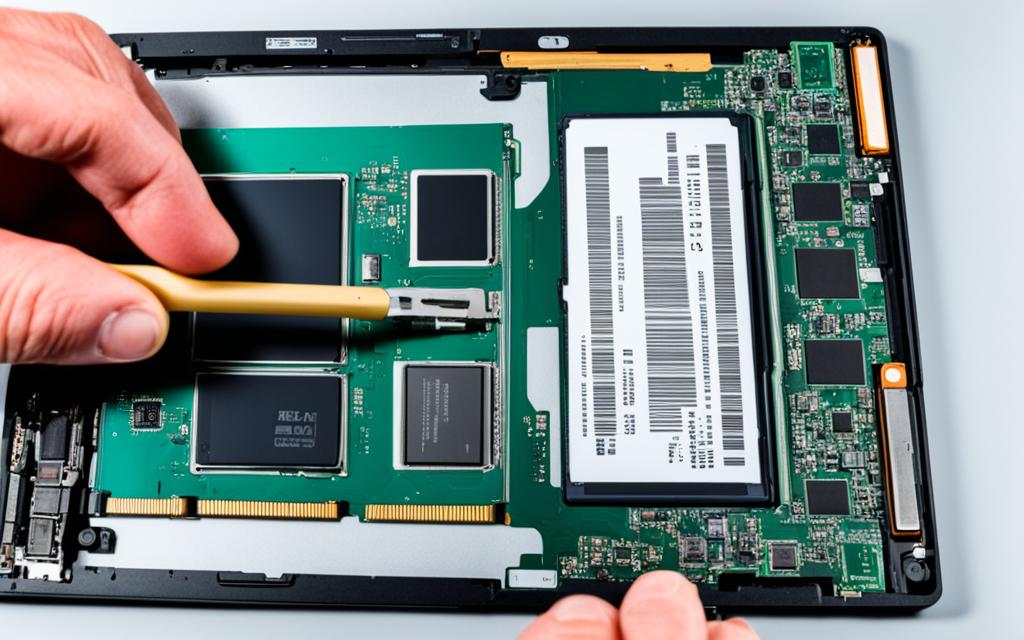
Step 3: Install The New Ram Modules
Installing new RAM modules is relatively straightforward:
- For desktop computers:
- Shut down your computer.
- Unplug the power cord and any other cables.
- Remove the side panel of your computer case.
- Locate the existing RAM slots and remove any clips or screws holding them in place.
- Insert the new RAM modules into the empty slots, making sure they’re securely seated.
- For laptops:
- Consult your laptop’s manual or manufacturer’s website for instructions on how to access the RAM slots.
- Remove any screws or clips holding the RAM slot cover in place.
- Gently pull out the existing RAM module and insert the new one.
Step 4: Configure Your Computer’s Bios
After installing the new RAM modules, you may need to configure your computer’s BIOS (Basic Input/Output System) settings:
- Restart your computer and enter its BIOS setup by pressing F2, F12, or Del.
- Look for the “Advanced” or “Performance” tab and select the option to enable the new RAM modules.
Step 5: Test Your Computer
Once you’ve completed these steps, test your computer to ensure it’s running smoothly:
- Run a few resource-intensive programs to see if they run without any issues.
- Check your computer’s performance using a benchmarking tool like CPU-Z or System Information.
Additional Tips And Tricks
Here are some additional tips and tricks to help you maximize the benefits of augmenting your PC’s RAM:
- Minecraft-specific Guide: If you’re looking to boost Minecraft performance, check out our separate article on how to augment Minecraft RAM.
- Graphics Card Memory: While it’s not possible to add more RAM to a graphics card, you can configure your computer’s BIOS settings to allocate more system RAM for the graphics card.
- Smartphone And Tablet Optimization: Unfortunately, it’s not possible to add or substitute RAM modules on smartphones or tablets. However, you can optimize their performance by closing unused apps and adjusting your phone’s settings.
Conclusion
Augmenting your PC’s RAM is a simple yet effective way to boost its performance and extend its lifespan. By following these steps, you’ll be able to determine your computer’s compatible RAM type, purchase the correct modules, install them correctly, configure your BIOS settings, and test your computer for optimal results.
Frequently Asked Questions
- Q: What is Ram?
A: RAM (Random Access Memory) is a type of computer memory that temporarily stores data while programs are running. - Q: Why do I Need to Augment my Pc’s Ram?
A: Augmenting your PC’s RAM will improve its performance, allowing you to run more resource-intensive programs without experiencing slow downs or crashes. - Q: Can I Add More Ram to a Graphics Card?
A: No, it’s not possible to add more RAM to a graphics card. However, you can configure your computer’s BIOS settings to allocate more system RAM for the graphics card. - Q: Can I Optimize my Smartphone or Tablet’s Performance by Adding or Substituting Ram Modules?
A: Unfortunately, no. Smartphones and tablets do not have removable RAM modules.
I hope this article has been helpful in augmenting your knowledge about how to augment your PC’s RAM!


