
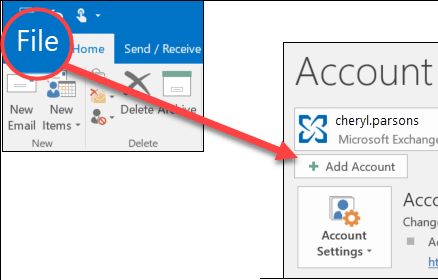
Creating a New Outlook Account: A Step-by-step Guide
Are you looking to create a new Outlook account? Look no further! In this article, we will guide you through the process of creating a free Outlook account, as well as how to upgrade to Outlook Premium.
Why Choose Outlook?
Outlook is one of the most popular email services in the world. With its user-friendly interface and robust features, it’s an ideal choice for both personal and professional use. Whether you’re looking for a simple way to manage your emails or want to take advantage of advanced features like calendar integration and task management, Outlook has got you covered.
Differences Between Outlook And Outlook Premium
Before we dive into the steps to create a new account, let’s briefly discuss the differences between Outlook and Outlook Premium. While both services offer a range of features, Outlook Premium includes additional perks like:
- 50 GB of storage space (compared to 15 GB for free accounts)
- Advanced security features to protect your emails from phishing and malware
- Customizable email addresses with personalization options
- Access to Microsoft Office online tools and other Microsoft services
Creating a Free Outlook Account
To create a new Outlook account, follow these simple steps:
From Computer
- Go to the Outlook website (www.Outlook.Com) and click on “Create an account for free.”
- Enter your desired email address in the “New email address” field.
- Select the country code from the dropdown menu.
- Click on “Next” and follow the prompts to create a password.
- Fill out the required information, including your name, surname, and date of birth.
- Check your identity by solving the CAPTCHA puzzle.
- Choose whether you want to receive promotional emails from Microsoft.
From Smartphone or Tablet
If you prefer to use a mobile device, follow these steps:
- Download and install the Outlook app on your Android or iOS device.
- Tap on “Create new account” and select “Email address.”
- Enter your desired email address in the “New email address” field.
- Select the country code from the dropdown menu.
- Create a password and fill out the required information, including your name, surname, and date of birth.
- Check your identity by solving the CAPTCHA puzzle.
- Choose whether you want to receive promotional emails from Microsoft.
Upgrading to Outlook Premium
If you’re interested in upgrading to Outlook Premium, follow these steps:
- Go to the www.Microsoft365.Com website and sign up for a subscription plan.
- Select the type of subscription that suits your needs (Personal or Family).
- Fill out the required information, including your name, surname, country of residence, and date of birth.
- Create an email address using Outlook Premium’s advanced features.
Benefits of Upgrading to Outlook Premium
By upgrading to Outlook Premium, you’ll get access to:
- 50 GB of storage space
- Advanced security features to protect your emails from phishing and malware
- Customizable email addresses with personalization options
- Access to Microsoft Office online tools and other Microsoft services
Conclusion
Creating a new Outlook account is a straightforward process that can be completed in just a few minutes. Whether you choose the free version or upgrade to Outlook Premium, you’ll have access to a range of features that make managing your emails and calendar a breeze.
Faqs
- What’s The Difference Between Outlook And Outlook Premium?
Outlook Premium includes advanced security features, 50 GB of storage space, customizable email addresses, and access to Microsoft Office online tools. - How do I Create a New Outlook Account For Free?
To create a new Outlook account for free, go to www.Outlook.Com and click on “Create an account for free.” - Can I Upgrade to Outlook Premium?
Yes, you can upgrade to Outlook Premium by signing up for a subscription plan at www.Microsoft365.Com. - What Are The Benefits of Upgrading to Outlook Premium?
Upgrading to Outlook Premium gives you access to advanced security features, 50 GB of storage space, customizable email addresses, and access to Microsoft Office online tools. - How do I Access my Emails on Multiple Devices?
To access your emails on multiple devices, sign in to your Outlook account using the app or browser extension. - Can I Change my Email Address if It’s Already Taken?
Yes, you can try changing your email address if it’s already taken by selecting a different username and password combination. - How do I Recover my Lost Password?
If you’ve forgotten your password, click on “Forgot password” on the Outlook login page to reset it. - What Are The System Requirements For Running Outlook?
The system requirements for running Outlook vary depending on the device and operating system you’re using.
Additional Resources
For more information on creating a new Outlook account or upgrading to Outlook Premium, check out our additional resources:
- Www.Outlook.Com – Create an account for free
- Www.Microsoft365.Com – Sign up for a subscription plan
- Www.Office.Com – Access Microsoft Office online tools
Related Articles
- How to Create a New Gmail Account
- Upgrading to Outlook Premium: A Step-by-step Guide
- Managing Your Emails With Outlook
Creating a New Outlook Account: A Step-by-step Guide
Upgrading to Outlook Premium
Upgrading to Outlook Premium
If you’re interested in upgrading to Outlook Premium, follow these steps:
- Go to the www.Microsoft365.Com website and sign up for a subscription plan.
- Select the type of subscription that suits your needs (Personal or Family).
- Fill out the required information, including your name, surname, country of residence, and date of birth.
- Create an email address using Outlook Premium’s advanced features.
Benefits of Upgrading to Outlook Premium
By upgrading to Outlook Premium, you’ll get access to:
- 50 GB of storage space
- Advanced security features to protect your emails from phishing and malware
- Customizable email addresses with personalization options
- Access to Microsoft Office online tools and other Microsoft services


