
How to Connect Bluetooth Speakers to Your PC
Are you tired of dealing with tangled cords and low sound quality? Do you want to upgrade your music listening experience on your PC? Look no further than connecting a Bluetooth speaker! In this article, we will guide you through the step-by-step process of connecting Bluetooth speakers to your Windows 10, Windows 7, or Mac computer.
Understanding Bluetooth Speakers
Before we dive into the instructions, it’s essential to understand how Bluetooth speakers work. Bluetooth speakers use wireless technology to connect to a device, such as a PC, smartphone, or tablet, and stream audio content. This means you can enjoy high-quality music, podcasts, or online videos without being tied down by cables.
Connecting Bluetooth Speakers to Your Windows 10 PC
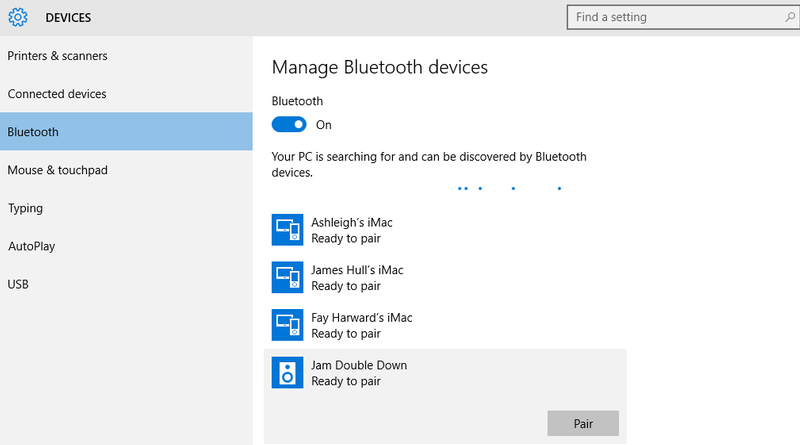
To connect a Bluetooth speaker to your Windows 10 PC, follow these steps:
- Check if Your PC Has Bluetooth: Ensure that your PC is equipped with Bluetooth capabilities. You can check this by looking for the Bluetooth icon in the system tray or searching for “Bluetooth” in the Start menu.
- Put Your Bluetooth Speaker in Pairing Mode: Place your Bluetooth speaker in pairing mode, following the manufacturer’s instructions. This usually involves pressing and holding a button on the speaker until it starts flashing or beeping.
- Open The Settings App: On your Windows 10 PC, open the Settings app by clicking on the Start button and selecting “Settings.”
- Click on Devices: In the Settings app, click on the “Devices” tab.
- Add a Device: Click on the “Add device” button.
- Select Bluetooth: Choose “Bluetooth” as the type of device you want to add.
- Search For Devices: Wait for your PC to detect the Bluetooth speaker. You may see it listed under “Available devices.”
- Connect to The Speaker: Select the name of your Bluetooth speaker from the list, and click on “Connect.”
Connecting Bluetooth Speakers to Your Windows 7 PC
To connect a Bluetooth speaker to your Windows 7 PC, follow these steps:
- Check if Your PC Has Bluetooth: Ensure that your PC is equipped with Bluetooth capabilities.
- Put Your Bluetooth Speaker in Pairing Mode: Place your Bluetooth speaker in pairing mode, following the manufacturer’s instructions.
- Open The Control Panel: On your Windows 7 PC, open the Control Panel by clicking on the Start button and selecting “Control Panel.”
- Click on Hardware And Sound: In the Control Panel, click on the “Hardware and Sound” icon.
- Click on Add a Device: Click on the “Add a device” button.
- Select Bluetooth: Choose “Bluetooth” as the type of device you want to add.
- Search For Devices: Wait for your PC to detect the Bluetooth speaker. You may see it listed under “Available devices.”
- Connect to The Speaker: Select the name of your Bluetooth speaker from the list, and click on “Next.”
Connecting Bluetooth Speakers to Your Mac
To connect a Bluetooth speaker to your Mac, follow these steps:
- Check if Your Mac Has Bluetooth: Ensure that your Mac is equipped with Bluetooth capabilities.
- Put Your Bluetooth Speaker in Pairing Mode: Place your Bluetooth speaker in pairing mode, following the manufacturer’s instructions.
- Open System Preferences: On your Mac, open System Preferences by clicking on the Apple logo and selecting “System Preferences.”
- Click on Bluetooth: In System Preferences, click on the “Bluetooth” icon.
- Add a Device: Click on the “+” button to add a new device.
- Select Bluetooth: Choose “Bluetooth” as the type of device you want to add.
- Search For Devices: Wait for your Mac to detect the Bluetooth speaker. You may see it listed under “Available devices.”
- Connect to The Speaker: Select the name of your Bluetooth speaker from the list, and click on “Continue.”
Tips And Variations
- If you’re using a Windows PC, make sure that the Bluetooth speaker is placed in pairing mode before attempting to connect.
- If you’re using a Mac, ensure that the Bluetooth speaker is recognized by your computer. You may see it listed under “Available devices.”
- If you have trouble connecting your Bluetooth speaker to your PC or Mac, try restarting both devices and attempting to reconnect again.
- Some Bluetooth speakers come with an adapter that allows them to connect directly to a USB port on your computer. Check the manufacturer’s instructions for more information.
Frequently Asked Questions (FAQs)
- Q: What is The Range of a Bluetooth Speaker?
A: The range of a Bluetooth speaker varies depending on the device and environment, but it can typically reach up to 30 feet. - Q: Can I Connect Multiple Bluetooth Speakers to my PC or Mac?
A: Yes, you can connect multiple Bluetooth speakers to your PC or Mac, but this may require additional software or configuration. - Q: Will Connecting a Bluetooth Speaker Affect The Performance of my Computer?
A: No, connecting a Bluetooth speaker should not affect the performance of your computer. - Q: Can I Use a Bluetooth Speaker With a Wired Connection?
A: Some Bluetooth speakers come with an adapter that allows them to connect directly to a USB port on your computer. Check the manufacturer’s instructions for more information. - Q: What is The Battery Life of a Bluetooth Speaker?
A: The battery life of a Bluetooth speaker varies depending on the device and usage, but it can typically last up to 8 hours. - Q: Can I Use a Bluetooth Speaker With Other Devices?
A: Yes, you can use a Bluetooth speaker with other devices such as smartphones, tablets, or gaming consoles.
Conclusion
Connecting a Bluetooth speaker to your PC or Mac is a straightforward process that requires minimal technical expertise. By following the steps outlined in this article, you should be able to enjoy high-quality audio streaming wirelessly on your computer. Remember to check for compatibility and follow manufacturer’s instructions to ensure optimal performance.


