
How to Connect Your PC to Tv: A Step-by-step Guide
Are you tired of watching movies and videos on your computer monitor? Do you want to enjoy a bigger screen experience with your family or friends? Look no further! In this article, we will guide you through the process of connecting your PC to TV using various methods.
Why Connect Your PC to Tv?
Connecting your PC to TV offers several benefits, including:
- A larger viewing experience for movies and videos
- Easier sharing of content with family or friends
- Improved gaming experience with a bigger screen
Technologies of Connection
There are several technologies that allow you to connect your PC to TV. Here are some of the most popular ones:
Miracast
Miracast is a wireless connection technology that allows you to mirror your PC’s screen on your TV without using cables or a router.
To use Miracast, follow these steps:
- Ensure that both your PC and TV have Miracast capabilities.
- Connect your PC to the same network as your TV.
- Open the Settings app on your PC and select “Devices”.
- Click on “Add a device” and select “Wireless display” or “Projecting to this PC”.
- Select the name of your TV from the list of available devices.
Google Cast (Chromecast)
Google Cast, also known as Chromecast, is another popular method for connecting your PC to TV. To use Google Cast, follow these steps:
- Ensure that you have a Google Cast device connected to your TV.
- Open the Google Chrome browser on your PC and sign in with your Google account.
- Click on the menu icon (three dots) at the top right corner of the browser window and select “Cast”.
- Select the name of your Google Cast device from the list of available devices.
Airplay
AirPlay is a technology developed by Apple that allows you to connect your Mac or iOS device to your TV. To use AirPlay, follow these steps:
- Ensure that you have an AirPlay-compatible TV.
- Open the Control Center on your Mac or iOS device and select “Screen Mirroring”.
- Select the name of your TV from the list of available devices.
Hdmi Cable
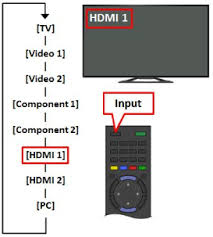
If you prefer a wired connection, you can use an HDMI cable to connect your PC to TV.
To use an HDMI cable, follow these steps:
- Ensure that both your PC and TV have an HDMI port.
- Connect one end of the HDMI cable to your PC and the other end to your TV.
- Adjust the display settings on your PC to match the resolution and refresh rate of your TV.
Other Connection Methods
There are also other connection methods available, such as using a VGA or S-Video cable. However, these methods may not provide the same level of quality as HDMI or wireless connections.
Conclusion
Connecting your PC to TV is easier than ever with various technologies and methods available. Whether you prefer a wired or wireless connection, there’s an option for everyone. By following the steps outlined in this article, you can enjoy a bigger screen experience with your favorite movies, videos, and games.
Frequently Asked Questions (FAQs)
- Q: What is the best method to connect my PC to TV?
- A: The best method depends on your specific needs and preferences. If you prefer a wireless connection, Miracast or Google Cast may be the best option. If you prefer a wired connection, HDMI cable is a good choice.
- Q: Can I use AirPlay to connect my Windows PC to TV?
- A: No, AirPlay is only compatible with Mac and iOS devices.
- Q: How do I troubleshoot issues with connecting my PC to TV?
- A: If you encounter any issues while trying to connect your PC to TV, check that both devices are connected to the same network, and that all necessary cables or adapters are properly installed.
I hope this helps! Let me know if you have any other questions.


