
How to Augment Your Storage Space: A Comprehensive Guide
Are you tired of running out of storage space on your device? Do you wish there was a way to free up some room without sacrificing any precious files or memories? Look no further! In this article, we’ll explore the various ways to augment your storage space, from Google to Outlook, and everything in between.
Why Augment Your Storage Space?
Before we dive into the solutions, let’s quickly discuss why augmenting your storage space is essential. With the constant influx of new files, photos, and videos, it’s easy to see how storage space can become a precious commodity. Whether you’re using a smartphone, computer, or tablet, having sufficient storage space ensures that you can:
- Store important documents and files
- Save cherished memories in the form of photos and videos
- Install new apps and software without worrying about storage constraints
Google Cloud Storage: The Ultimate Solution
When it comes to augmenting your storage space, Google Cloud Storage is an excellent option. With 15 GB of free storage, you can easily expand it to meet your needs. To do so:
- Log in to your Google account and navigate to the Drive settings page.
- Click on the “Get more storage” button.
- Choose from various plans, including Basic (100 GB for $1.99/Month), Standard (200 GB for $2.99/Month), or Premium (2 TB for $9.99/Month).
- Select your preferred plan and follow the prompts to purchase and complete the payment process.
Outlook Cloud Storage: A Great Alternative
If you’re an Outlook user, you can also augment your storage space using OneDrive. To do so:
- Open the Outlook app on your Windows 10 device.
- Click on the “OneDrive” icon in the top-right corner.
- Select the “Get more storage” option.
- Choose from various plans, including Basic (100 GB for $2/month), Personal (1 TB for $7/month), or Family (6 TB for $10/month).
- Follow the prompts to purchase and complete the payment process.
Other Cloud Storage Options
While Google and Outlook are excellent options, there are other cloud storage services available:
- Apple’s iCloud: Offers 5 GB of free storage and allows you to expand it using various plans.
- Dropbox: Provides 2 GB of free storage and offers paid plans for additional space.
- Microsoft OneDrive: Similar to Outlook, offers 5 GB of free storage and allows expansion through paid plans.
Augmenting Storage Space on Android Devices
If you’re an Android user, there are several ways to augment your storage space:
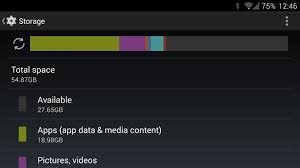
- Clearing Unnecessary Files: Use built-in cleaning tools or third-party apps like CCleaner to remove unnecessary files.
- External SD Card: Add a microSD card to expand your internal memory.
- Cloud Storage Services: Consider using cloud storage services like Google Drive, Dropbox, or Microsoft OneDrive.
Augmenting Storage Space on Iphone And Ipad Devices
For iPhone and iPad users, the process is slightly different:
- Clearing Unnecessary Files: Use built-in cleaning tools to remove unnecessary files.
- External Hard Drive: Consider using an external hard drive or SSD to expand your storage space.
- Icloud Storage: Use iCloud storage to augment your available space.
Conclusion
Augmenting your storage space is easier than you think! By following the steps outlined in this article, you can free up valuable space on your device and enjoy a clutter-free experience. Whether you’re using Google, Outlook, or other cloud services, remember that there’s always room for expansion.
Frequently Asked Questions (FAQs)
- How Much Storage Space do I Need?
- The amount of storage space needed depends on your personal usage patterns and the number of files you store.
- What Are The Best Cloud Storage Options?
- Google Drive, Outlook OneDrive, Apple iCloud, Dropbox, and Microsoft OneDrive are popular cloud storage services.
- How Can I Clear Unnecessary Files on my Device?
- Use built-in cleaning tools or third-party apps like CCleaner to remove unnecessary files.
- Can I Use an External Hard Drive on my Iphone or Ipad?
- Yes, you can use an external hard drive or SSD with your iPhone or iPad using a Lightning adapter.
Bonus Tip
Remember that clearing unnecessary files and augmenting storage space can greatly improve your device’s performance. Regularly review your storage usage to ensure optimal performance and maintain a clutter-free experience!


