
How to Order Channels on Your Tv: A Step-by-step Guide
Are you tired of navigating through a confusing list of channels on your TV? Do you wish there was an easier way to find your favorite shows and programs? Look no further! In this article, we will guide you through the process of ordering channels on your TV, using popular brands such as Samsung, Sony Bravia, AKAI, LG, and Hisense.
Understanding Channel Ordering
Before we dive into the specifics of each brand, let’s take a moment to understand how channel ordering works. Most modern TVs use a system called Logical Channel Numbering (LCN), which assigns a specific number to each channel based on its provider. For example, in Italy, Rai 1 is assigned to channel 1, while Rai 2 is assigned to channel 2.
Why Order Channels?
Ordering channels can make a big difference in your viewing experience. By assigning a logical order to your favorite channels, you can quickly find the shows and programs you love without having to navigate through a long list of numbers.
How to Order Channels on Your Tv: A Step-by-step Guide
Samsung Tvs
To order channels on your Samsung TV, follow these steps:
- Press the Home button on your remote control.
- Select Settings from the menu.
- Choose Transmission and then Sintonizzazione automatica (Automatic Scanning).
- Select the option Ordinamento automatico (Automatic Ordering) to assign a logical number to each channel based on its provider.
Sony Bravia Tvs
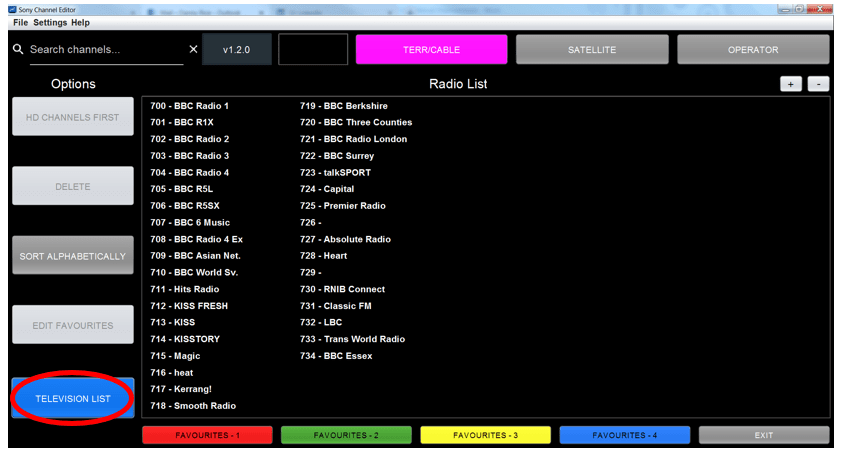
To order channels on your Sony Bravia TV, follow these steps:
- Press the Home button on your remote control.
- Select Settings and then Digital Setting.
- Choose Sintonia digital (Digital Scanning) and then Automatic Preselection.
- Select the option Ordinamento automatico (Automatic Ordering) to assign a logical number to each channel based on its provider.
Akai Tvs
To order channels on your AKAI TV, follow these steps:
- Press the Menu button on your remote control.
- Select General settings and then Prime voice setting.
- Choose Modality of configuration and select Home.
- Select the option Ordinamento automatico (Automatic Ordering) to assign a logical number to each channel based on its provider.
LG Tvs
To order channels on your LG TV, follow these steps:
- Press the Menu button on your remote control.
- Select All settings and then Channels.
- Choose Sintonizzazione e setting channels and select Update list channels (ON).
- Select the option Ordinamento automatico (Automatic Ordering) to assign a logical number to each channel based on its provider.
Hisense Tvs
To order channels on your Hisense TV, follow these steps:
- Press the Menu button on your remote control.
- Select Settings and then Channel.
- Choose Sintonizzazione automatica (Automatic Scanning) and enter your 4-digit PIN code.
- Select the option Ordinamento automatico (Automatic Ordering) to assign a logical number to each channel based on its provider.
Tips And Tricks
- Make sure you have updated your TV’s software to the latest version before attempting to order channels.
- If you’re having trouble finding a specific channel, try searching for it by name instead of number.
- Consider creating a list of favorite channels to make navigation even easier.
Conclusion
Ordering channels on your TV is a simple process that can greatly improve your viewing experience. By following the steps outlined in this guide, you can assign a logical order to your favorite channels and quickly find the shows and programs you love.
Frequently Asked Questions (FAQs)
- Q: Why do I Need to Update my Tv’s Software Before Ordering Channels?
A: Updating your TV’s software ensures that you have access to the latest features, including channel ordering. - Q: Can I Order Channels on Any TV Brand?
A: Yes, most modern TV brands support channel ordering, but the steps may vary depending on the manufacturer and model. - Q: What if I’m Having Trouble Finding a Specific Channel?
A: Try searching for the channel by name instead of number. - Q: Can I Create a List of Favorite Channels to Make Navigation Easier?
A: Yes, most TVs allow you to create a list of favorite channels, making it easy to find your go-to shows and programs. - Q: Do I Need to Purchase Any Additional Equipment or Software to Order Channels?
A: No, channel ordering is usually available through the TV’s built-in settings menu. - Q: Can I Reorder Channels on my TV if I’m Not Using Lcn?
A: Yes, you can still create a custom list of favorite channels and reorder them as needed. - Q: How do I Reset my Channel Order to Its Default Settings?
A: Check your TV’s manual or online documentation for specific instructions on resetting channel order. - Q: Can I Use Any External Devices to Help me Order Channels?
A: No, channel ordering is usually a built-in feature of the TV itself.
I hope this article has been helpful in guiding you through the process of ordering channels on your TV. If you have any further questions or concerns, please don’t hesitate to reach out!


