
How to Remove Programs From Your Computer: A Step-by-step Guide
Are you tired of dealing with programs that just won’t uninstall? Do you find yourself wondering why certain software refuses to leave your computer even after trying multiple times? Look no further! In this article, we will provide a comprehensive guide on how to remove programs from your Windows or Mac computer.
Why Can’t I Uninstall This Program?
There are several reasons why a program may not uninstall properly. One common reason is that the program has left behind residual files and registry entries, which can cause problems even after uninstalling. Another reason could be that the program is still running in the background or that there are conflicts with other installed programs.
Removing Programs on Windows
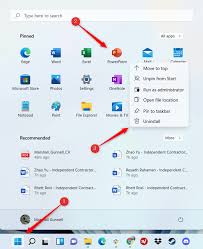
If you’re using a Windows computer, here’s how to remove a program:
Windows 11/10/8
- Click on The Start Button: This will open up the Start menu.
- Search For “Settings”: Click on the Settings icon (the one that looks like a gear).
- Select “Apps”: In the Settings window, click on the “Apps” tab.
- Find And Select The Program You Want to Uninstall: Look through the list of installed programs and find the one you want to remove. You can also search for it by typing its name in the search bar.
- Click “Uninstall”: Once you’ve found the program, click on the “Uninstall” button next to it.
Windows 7
- Click on The Start Button: This will open up the Start menu.
- Select “Control Panel”: Click on the Control Panel icon (the one that looks like a circle).
- Find And Select The Program You Want to Uninstall: Look through the list of installed programs and find the one you want to remove.
- Click “Uninstall”: Once you’ve found the program, click on the “Uninstall” button next to it.
Removing Programs on Mac
If you’re using a Mac computer, here’s how to remove a program:
Mac OS X
- Open The Launchpad: Click on the Launchpad icon (the one that looks like a grid).
- Find And Click on The Program You Want to Uninstall: Look through the list of installed programs and find the one you want to remove.
- Hold Down The Command Key And Click on The Program’s Icon: This will open up a context menu.
- Select “Move to Trash”: From the context menu, select “Move to Trash”.
- Empty The Trash: To complete the uninstallation process, empty the Trash.
Using Uninstaller Tools
If you’re having trouble removing a program using the built-in uninstaller, you can try using an uninstaller tool like Revo Uninstaller or CleanMyMac X. These tools will help you remove residual files and registry entries that are left behind by the program.
Conclusion
Removing programs from your computer is a relatively simple process. However, if you’re having trouble uninstalling a program, there may be underlying issues that need to be addressed. By following the steps outlined in this guide, you should be able to successfully remove any program from your Windows or Mac computer.
Faqs:
Q: Why Can’t I Uninstall This Program?
A: There are several reasons why a program may not uninstall properly. One common reason is that the program has left behind residual files and registry entries.
Q: How do I Use Revo Uninstaller?
A: To use Revo Uninstaller, download and install the software from its official website. Then, run the program and follow the prompts to select the program you want to uninstall.
Q: Can I Use Cleanmymac X on my Windows Computer?
A: No, CleanMyMac X is only compatible with Mac computers. If you’re using a Windows computer, you can try using Revo Uninstaller instead.
Q: How do I Remove Residual Files And Registry Entries?
A: To remove residual files and registry entries, use an uninstaller tool like Revo Uninstaller or CleanMyMac X. These tools will help you delete any remaining files and registry entries that are left behind by the program.
Q: Can I Reinstall a Program After Removing It?
A: Yes, if you want to reinstall a program that you previously removed, simply download and install the software again from its official website or store.
Q: How do I Protect my Computer From Malware And Viruses?
A: To protect your computer from malware and viruses, regularly update your operating system and antivirus software. Also, be cautious when downloading and installing programs from the internet.


