
Accessing Google Play Store Like a Pro: A Step-by-step Guide
Are you tired of struggling to access the Google Play Store on your Android device? Do you want to know how to download and install apps easily without any hassle? Look no further! In this article, we will guide you through the process of accessing the Google Play Store like a pro.
Why Create a Google Account?
Before we dive into the steps, let’s talk about why creating a Google account is essential. A Google account allows you to access various Google services, including the Google Play Store. With a Google account, you can download and install apps on your Android device, as well as access other Google services like Gmail and Google Drive.
Step 1: Create a Google Account
To create a Google account, follow these steps:
- Open the Settings app on your Android device.
- Tap on “Users & accounts” and then select “Add account.”
- Choose “Google” from the list of available options.
- Follow the prompts to create a new Google account.
Alternatively, you can also create a Google account using a computer. To do this:
- Go to the Google account creation page.
- Fill out the required information, including your name, email address, and password.
- Click on “Create” to create your new Google account.
Accessing The Google Play Store
Now that you have created a Google account, let’s move on to accessing the Google Play Store. Here are the steps:
Accessing The Google Play Store on Android Devices
If you have already configured your device with a Google account, accessing the Google Play Store is easy. Simply follow these steps:
- Locate the Google Play Store icon on your device’s home screen.
- Tap on the icon to open the app.
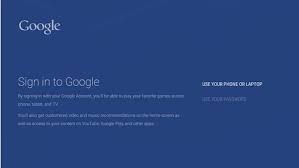
- You will be prompted to sign in with your Google account credentials.
- Enter your email address and password to access the store.
Accessing The Google Play Store on Computer
If you want to access the Google Play Store from a computer, follow these steps:
- Go to the Google Play website.
- Click on the “Sign in” button at the top right corner of the page.
- Enter your email address and password to access the store.
Accessing The Google Play Store With Another Account
If you have another Google account associated with your device, you can easily switch between accounts. Here’s how:
Switching Accounts on Android Devices
To switch accounts on an Android device, follow these steps:
- Open the Google Play Store app.
- Tap on the profile picture in the top right corner of the screen.
- Select “Add another account” from the menu.
- Enter your new Google account credentials to access the store.
Switching Accounts on Computer
If you want to switch accounts on a computer, follow these steps:
- Go to the Google Play website.
- Click on the profile picture in the top right corner of the page.
- Select “Add another account” from the menu.
- Enter your new Google account credentials to access the store.
Accessing The Google Play Store Without an Account
If you don’t have a Google account, you can still access the Google Play Store without one. However, keep in mind that you won’t be able to download or install apps on your device.
Alternative Stores
If you don’t want to use a Google account to install apps on your device, consider using alternative stores like Amazon Appstore or Samsung Galaxy Apps.
Conclusion
In conclusion, accessing the Google Play Store is easy and straightforward. By creating a Google account and following these steps, you can download and install apps on your Android device without any hassle. Remember to switch accounts easily by following the steps outlined above.
Frequently Asked Questions (FAQs)
- Q: What is The Purpose of Creating a Google Account?
A: Creating a Google account allows you to access various Google services, including the Google Play Store. - Q: How do I Create a Google Account on my Android Device?
A: To create a Google account on an Android device, go to Settings > Users & accounts > Add account > Google. - Q: Can I Access The Google Play Store Without a Google Account?
A: Yes, you can access the Google Play Store without a Google account. However, keep in mind that you won’t be able to download or install apps on your device. - Q: How do I Switch Between Accounts on an Android Device?
A: To switch between accounts on an Android device, open the Google Play Store app and tap on the profile picture in the top right corner of the screen. - Q: Can I Access The Google Play Store on a Computer?
A: Yes, you can access the Google Play Store from a computer by going to the Google Play website.
I hope this article has been helpful!


