
How to Block a Website on Mac: A Comprehensive Guide
Are you tired of getting distracted by social media, email, or other websites while working or studying on your Mac? Do you wish there was a way to block access to these sites for a certain period or forever? Look no further! In this article, we will guide you through the various methods to block a website on your Mac, ensuring you stay focused and productive.
The Problem of Distractions
We all know how easy it is to get sidetracked by social media, email, or other websites while working or studying. It’s like having a constant temptation in front of us, making it difficult to resist the urge to check our notifications or browse through our favorite sites. This can lead to procrastination, decreased productivity, and wasted time.
Method 1: Using Parental Controls
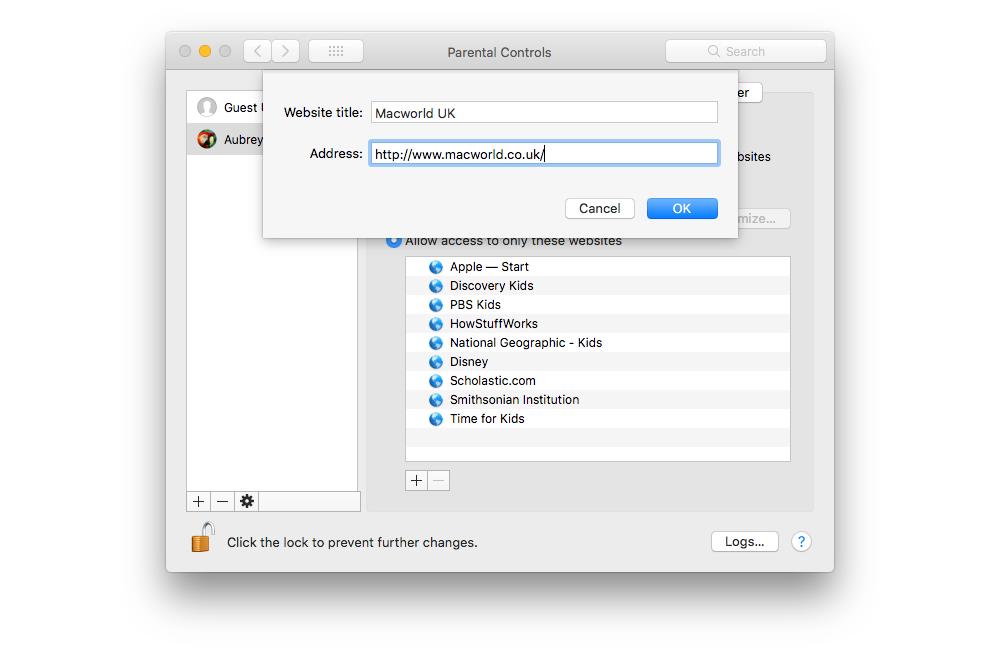
The first method to block a website on your Mac is by using the built-in parental controls feature. This method is particularly useful for parents who want to restrict access to certain websites for their children. To enable parental controls, follow these steps:
- Go to System Preferences > Accounts
- Click on the lock icon and enter your administrator password
- Select the user account you want to block access for
- Click on “Parental Controls”
- Select the option to limit websites
- Enter the specific website URLs or categories you want to block
Method 2: Using Selfcontrol
SelfControl is a free, open-source application that allows you to block certain websites on your Mac for a set period of time. This method is ideal for blocking access to websites during work hours, study sessions, or other focused periods. To use SelfControl, follow these steps:
- Download and install SelfControl from the official website
- Launch SelfControl and select the option to block websites
- Enter the specific website URLs you want to block
- Set the desired time period for blocking access
Method 3: Modifying The Hosts File
The hosts file is a system file that maps domain names to IP addresses. By modifying this file, you can block certain websites on your Mac. This method requires some technical knowledge and should be used with caution. To modify the hosts file, follow these steps:
- Open Terminal and type “nano /etc/hosts”
- Add the website URLs you want to block at the end of the file
- Save the changes and restart your Mac
Method 4: Using Browser Extensions
Browser extensions like BlockSite (for Chrome and Firefox) allow you to block certain websites directly within the browser. This method is convenient and easy to use, but may require additional steps to configure.
Method 5: Filtering Dns
Filtering DNS (Domain Name System) is another way to block access to certain websites on your Mac. This method requires a third-party service like OpenDNS, which filters out unwanted websites based on pre-defined rules or categories. To filter DNS using OpenDNS, follow these steps:
- Create an account on OpenDNS
- Install the OpenDNS client on your Mac
- Configure the filtering settings to block specific websites
Method 6: Blocking Websites on Your Router
If you want to block access to certain websites not only on your Mac but also on other devices connected to your home network, you can configure your router’s parental controls. This method requires access to your router’s management panel and knowledge of the specific settings.
Conclusion
Blocking a website on your Mac is easier than you think! With these six methods, you can regain control over your productivity and stay focused on what matters most. Remember to choose the best approach for your needs, whether it’s using parental controls, SelfControl, modifying the hosts file, browser extensions, filtering DNS, or blocking websites on your router. By taking these steps, you’ll be able to block distractions and achieve your goals.
Faqs
- Q: How do I Block a Website on my Mac?
A: You can block a website on your Mac using various methods, including parental controls, SelfControl, modifying the hosts file, browser extensions, filtering DNS, or blocking websites on your router. - Q: What Are The Benefits of Blocking Websites on my Mac?
A: Blocking websites on your Mac can help you stay focused and productive, avoid distractions, and achieve your goals. - Q: How do I Configure Parental Controls on my Mac?
A: To configure parental controls on your Mac, go to System Preferences > Accounts, select the user account you want to block access for, click on “Parental Controls,” and select the option to limit websites. - Q: Can I Use Selfcontrol to Block Multiple Websites at Once?
A: Yes, you can use SelfControl to block multiple websites at once by entering the specific website URLs in the list of blocked sites. - Q: How do I Modify The Hosts File on my Mac?
A: To modify the hosts file on your Mac, open Terminal and type “nano /etc/hosts,” add the website URLs you want to block, save the changes, and restart your Mac. - Q: Can I Use a Browser Extension Like Blocksite to Block Websites on my Mac?
A: Yes, you can use a browser extension like BlockSite (for Chrome and Firefox) to block websites directly within the browser. - Q: How do I Filter Dns on my Mac Using Opendns?
A: To filter DNS on your Mac using OpenDNS, create an account, install the client, configure the filtering settings, and add specific website URLs to the blocked list. - Q: Can I Block Websites on my Router?
A: Yes, you can block websites on your router by accessing its management panel and configuring the parental controls settings.
Stay focused, stay productive! By choosing the best approach for your needs, you’ll be able to regain control over your time and achieve your goals.


