
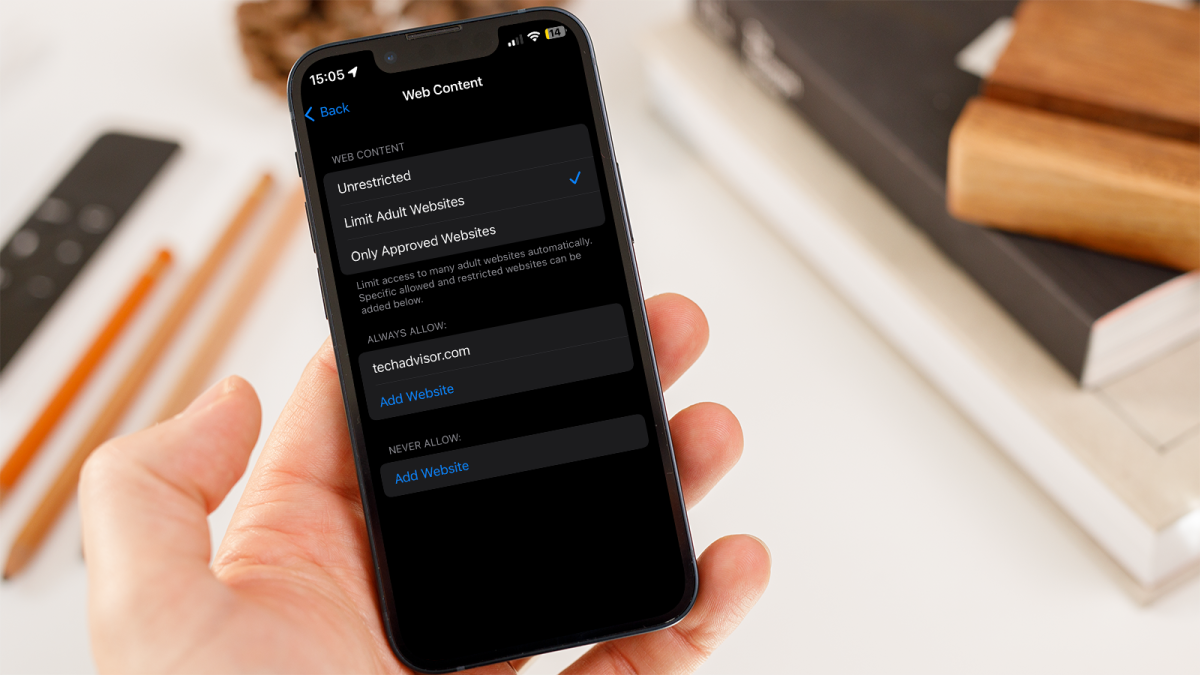
Blocking a Website on Iphone: A Step-by-step Guide
As a parent or guardian, it’s essential to ensure that your child is safe online. One way to achieve this is by blocking access to websites that may contain explicit content or be harmful in any way. Fortunately, iOS provides a built-in feature called “Screen Time” that allows you to set time limits, app restrictions, and even block specific websites on an iPhone.
Understanding Screen Time
Screen Time is a feature in iOS that helps you monitor and control how much time your child spends on their device. It also enables you to set boundaries for apps, games, and websites, ensuring they stay within safe limits. By setting up Screen Time, you can restrict access to certain websites, apps, or features, making it an ideal solution for parents.
How to Block a Website on Iphone Using Screen Time
To block a website on your iPhone using Screen Time, follow these steps:
- Open the Settings app and tap on Screen Time.
- Tap on This Iphone Belongs to a Minor if you want to apply a pre-set profile based on age.
- Select the appropriate age range for your child from the options available (5 years and under, 6-7 years, 8 years, 9-11 years, 12-13 years, 14-16 years, 17 or older).
- Set time limits for apps and websites by tapping on Add Limit.
- Choose Websites from the menu and tap on Limit Unwanted Websites.
- Enter the website’s URL you want to block in the text field.
- Tap on the red minus sign next to the website’s name to remove it from the list.
- Set up a password by tapping on Set Up Password and entering a four-digit code.
Alternative Solutions: Blocking Websites on Iphone Using Third-party Apps
If you find that Screen Time’s features don’t meet your needs, consider using third-party apps designed for parental control. These apps can offer more advanced features and flexibility compared to the built-in iOS solution.
One popular app is Qustodio, which allows you to monitor and limit screen time across various devices (iPhone, iPad, Android, and computer). Qustodio offers a range of features, including website blocking, app control, and location tracking. To use Qustodio:
- Install the Qustodio Parental Control app on your child’s device.
- Create a parent account by following the in-app instructions.
- Configure restrictions for specific websites or categories using the Qustodio dashboard.
Blocking Websites Using Dns (Domain Name System)
If you’re looking for a more discreet approach, consider using a Domain Name System (DNS) service that offers parental control features. Opendns’s Familyshield is one such solution, which can block access to adult-oriented websites and phishing sites.
To use OpenDNS:
- Set up your iPhone’s DNS settings by going to Settings > Wi-Fi.
- Select the network you’re currently connected to.
- Tap on “Static” next to IP Address.
- Enter the OpenDNS server addresses (208.67.222.123 And 208.67.220.123).
Blocking Websites Using a Router
If you prefer a more straightforward approach, consider using your router’s built-in parental control features. Many routers allow you to block specific websites or categories by setting up filters.
To configure website blocking on your router:
- Access your router’s management panel.
- Look for the Parental Control or Content Filtering section.
- Enable the feature and add the website URLs you want to block.
- Save your changes and restart your router if necessary.
Conclusion
Blocking websites on an iPhone can be a straightforward process, especially with the built-in Screen Time feature in iOS. However, if you need more advanced features or flexibility, consider using third-party apps like Qustodio or exploring DNS services that offer parental control features.
By setting up these measures, you’ll be able to ensure your child stays safe online and has a healthy relationship with their device.
Frequently Asked Questions (FAQs)
-
How do I Block a Website on Iphone Using Screen Time?
To block a website on your iPhone using Screen Time, open the Settings app, tap on Screen Time, select This iPhone Belongs to a Minor, and set time limits for apps and websites.
2. What Are Some Alternative Solutions to Blocking Websites on Iphone?Consider using third-party apps like Qustodio or DNS services that offer parental control features, such as OpenDNS’s FamilyShield.
3. How do I Block Websites Using a Router?Access your router’s management panel, enable the Parental Control feature, and add the website URLs you want to block. Save your changes and restart your router if necessary.
Conclusion
Blocking websites on an iPhone can be achieved through various methods, including Screen Time, third-party apps, DNS services, or routers. By understanding these options, you’ll be better equipped to safeguard your child’s online experience and set a healthy relationship with their device.
Take control of your child’s digital well-being today!


