
The Importance of Monitoring PC Temperatures: A Guide
As a computer user, you’ve likely experienced situations where your device overheats, leading to slowdowns or even shutdowns. This can be frustrating, especially if you’re in the middle of an important task. In this article, we’ll explore why monitoring PC temperatures is crucial and provide step-by-step guides on how to do so on both Windows and macOS.
Why Monitor PC Temperatures?
Before diving into the nitty-gritty, let’s briefly discuss why monitoring PC temperatures is essential. When your computer components, such as the CPU, GPU, or hard drive, get too hot, they can overheat, causing damage or even failure. This can lead to costly repairs or, in severe cases, render your device unusable.
Precautions And Benefits
Monitoring PC temperatures also helps prevent overheating, which is especially important during:
- Resource-intensive Tasks: Running resource-hungry applications, such as video editing software or games, can cause components to heat up quickly.
- Summer Months: Warmer environments can contribute to increased temperatures, putting additional stress on your computer’s components.
Monitoring PC Temperatures on Windows 10
Using Speccy
Speccy is a free, user-friendly tool for monitoring PC temperatures and other hardware information. To install Speccy:
- Visit the official website (www.Ccleaner.Com) and click on the “Download” button.
- Run the installer and follow the prompts to complete the installation process.
Once installed, open Speccy and select the component you want to monitor (e.G., CPU or GPU). The temperature reading will be displayed next to the corresponding label.
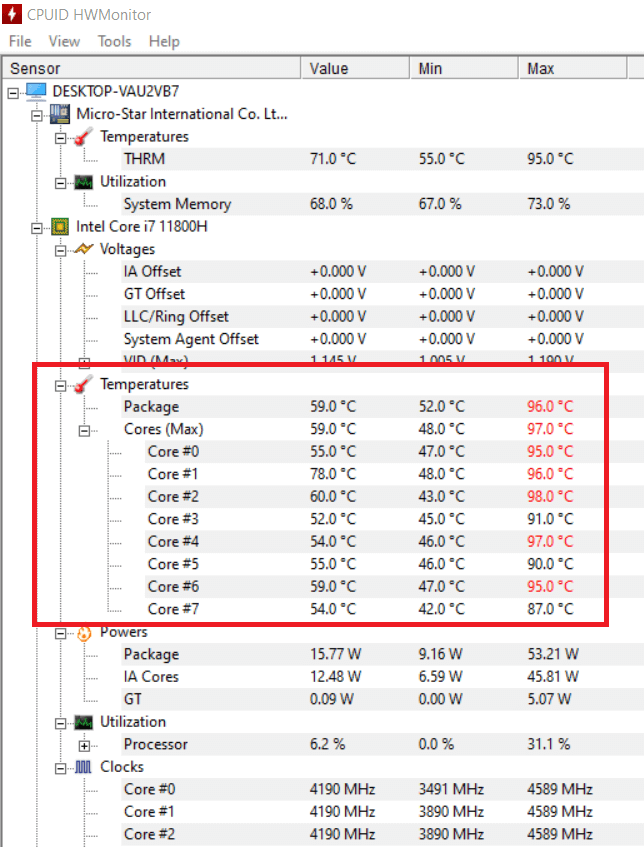
Using Hwmonitor
HWMonitor is another free tool for monitoring PC temperatures. To install HWMonitor:
- Visit the official website (www.Cpuid.Com) and click on the “Download” button.
- Run the installer and follow the prompts to complete the installation process.
Once installed, open HWMonitor and select the component you want to monitor (e.G., CPU or GPU). The temperature reading will be displayed next to the corresponding label.
Monitoring PC Temperatures Without Programs
If you don’t want to install new programs, you can still monitor PC temperatures using your computer’s built-in tools:
- Bios/uefi: Accessing your computer’s BIOS settings (usually by pressing F2 or F12 during boot-up) allows you to view temperature readings for specific components.
- Windows Task Manager: Right-clicking on the Taskbar and selecting “Task Manager” will display system information, including temperatures.
Monitoring PC Temperatures on Macos
Using Istat Menus
IStat Menus is a popular app for monitoring various system metrics, including temperatures. To install iStat Menus:
- Visit the official website (www.Isignalapp.Com) and click on the “Download” button.
- Run the installer and follow the prompts to complete the installation process.
Once installed, open iStat Menus and select the component you want to monitor (e.G., CPU or GPU). The temperature reading will be displayed next to the corresponding label.
Using Macs Do Control
Macs Do Control is another tool for monitoring PC temperatures on macOS. To install Macs Do Control:
- Visit the official website (www.Macosx.Org) and click on the “Download” button.
- Run the installer and follow the prompts to complete the installation process.
Once installed, open Macs Do Control and select the component you want to monitor (e.G., CPU or GPU). The temperature reading will be displayed next to the corresponding label.
Conclusion
Monitoring PC temperatures is crucial for maintaining your device’s health and preventing overheating. By using tools like Speccy, HWMonitor, iStat Menus, and Macs Do Control, you can keep track of your computer’s temperatures and take necessary precautions to avoid damage or failure.
Frequently Asked Questions (FAQs)
- Q: What Are The Benefits of Monitoring PC Temperatures?
A: Monitoring PC temperatures helps prevent overheating, which can cause component damage or failure. - Q: Which Tools Can I Use to Monitor PC Temperatures on Windows 10?
A: You can use Speccy and HWMonitor. - Q: How do I Install Speccy And Hwmonitor?
A: Visit the official websites, download the installers, and follow the prompts to complete the installation process. - Q: Can I Monitor PC Temperatures Without Installing New Programs?
A: Yes, you can use your computer’s built-in tools, such as BIOS/UEFI or Windows Task Manager. - Q: Which Tool Can I Use to Monitor PC Temperatures on Macos?
A: You can use iStat Menus and Macs Do Control. - Q: How do I Install Istat Menus And Macs Do Control?
A: Visit the official websites, download the installers, and follow the prompts to complete the installation process.


