
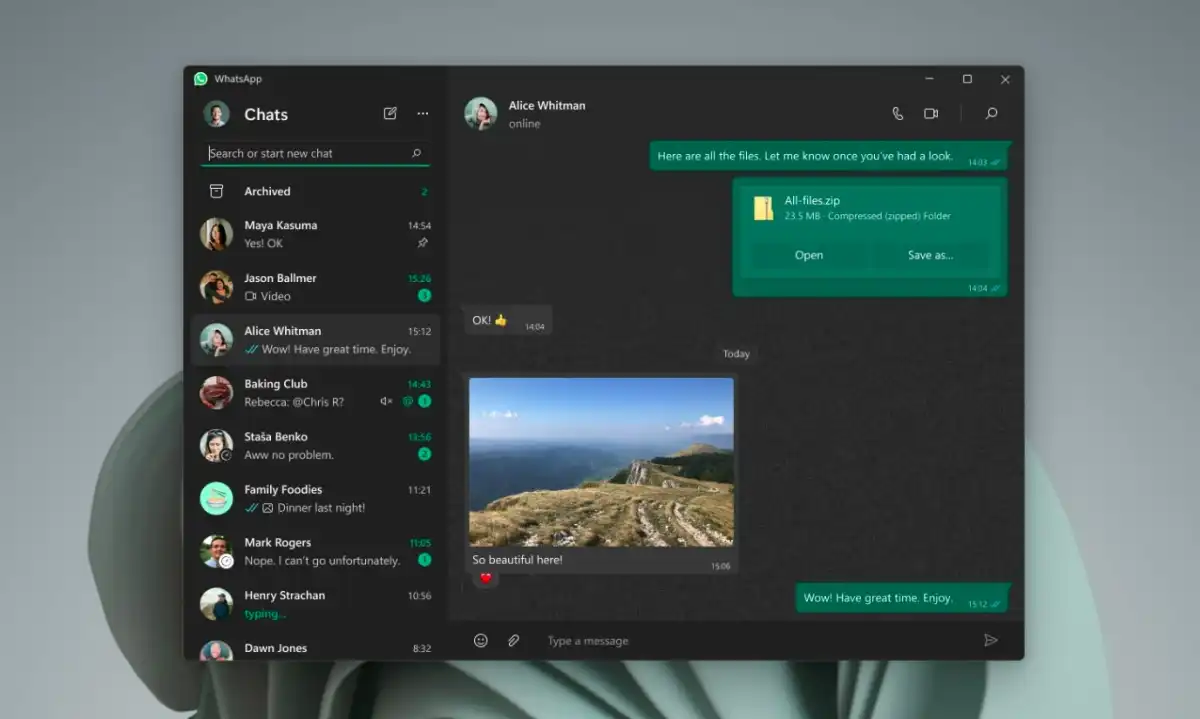
The Ultimate Guide to Using Whatsapp on Your PC
Are you tired of keeping your smartphone active all day just to stay connected with friends, family, or colleagues? Do you want to enjoy the benefits of WhatsApp without the hassle of a mobile device? Look no further! In this article, we will show you how to use WhatsApp on your PC, exploring various methods and solutions.
What is Whatsapp?
WhatsApp is a popular messaging app that allows users to send texts, make voice and video calls, and share media with their contacts. With over 2 billion monthly active users, it’s one of the most widely used messaging apps in the world.
Why Use Whatsapp on Your Pc?
There are several reasons why you might want to use WhatsApp on your PC:
- Convenience: You can stay connected with friends and family without having to constantly check your phone.
- Productivity: With a larger screen, you can multitask more efficiently and respond to messages quickly.
- Ease of Use: The interface is simple and user-friendly, making it easy to navigate and use.
Method 1: Using Whatsapp on PC With The Official Client
To use WhatsApp on your PC, follow these steps:
- Download the official WhatsApp client from the Microsoft Store (for Windows) or Mac App Store (for macOS).
- Launch the app and sign in with your WhatsApp account.
- You will be prompted to scan a QR code using your smartphone’s camera. This is necessary for authentication purposes.
- Once authenticated, you can start using WhatsApp on your PC.
Method 2: Using Whatsapp Web
Another way to use WhatsApp on your PC is by accessing it through the web version:
- Go to the WhatsApp website and sign in with your account.
- You will be prompted to scan a QR code using your smartphone’s camera, just like in Method 1.
- Once authenticated, you can start using WhatsApp Web.
Method 3: Using Airdroid
AirDroid is an alternative method for using WhatsApp on your PC:
- Download and install the AirDroid desktop client on your computer.
- Follow the setup instructions to connect your smartphone to the app.
- Once connected, you can start using WhatsApp through AirDroid.
Method 4: Using Emulators
Emulators like BlueStacks or Android x86 allow you to run Android apps on your PC:
- Download and install an emulator of your choice.
- Follow the setup instructions to connect your smartphone to the emulator.
- Once connected, you can start using WhatsApp through the emulator.
Tips And Tricks
Here are some additional tips and tricks to help you get the most out of WhatsApp on your PC:
- Keep Your Session Active: To avoid re-authenticating every time you use WhatsApp on your PC, keep the session active by checking the “Keep the session active” box.
- Use Multiple Devices: With the fine-device feature, you can connect up to 4 devices at a time, making it easy to stay connected with multiple contacts simultaneously.
- Customize Your Interface: Personalize your WhatsApp interface by changing the color scheme, notification sounds, and more.
Conclusion
Using WhatsApp on your PC is a great way to stay connected with friends and family without the hassle of a mobile device. With various methods available, you can choose the one that best suits your needs. Whether it’s using the official client, WhatsApp Web, AirDroid, or emulators, we hope this guide has helped you get started with using WhatsApp on your PC.
Frequently Asked Questions (FAQs)
Here are some frequently asked questions to help you further:
- Q: Can I Use Whatsapp on Multiple Devices at The Same Time?
A: Yes, with the fine-device feature, you can connect up to 4 devices at a time. - Q: Do I Need to Have my Smartphone Connected to The Internet For Whatsapp to Work on my Pc?
A: No, but you will need to authenticate your account using your smartphone’s camera. - Q: Can I Use Whatsapp Web Without Installing Any Software?
A: Yes, but you will still need to authenticate your account using your smartphone’s camera.
I hope this helps! If you have any further questions or concerns, feel free to ask.


