
How to Discharge The Ram of Your Mac: A Step-by-step Guide
Are you tired of experiencing slowdowns on your Mac? Do you find yourself waiting interminable seconds for applications to load or tasks to complete? If so, it’s time to discharge the RAM of your Mac! In this article, we’ll walk you through a simple and effective way to free up memory on your computer.
Why Discharge The Ram of Your Mac?
Discharging the RAM (Random Access Memory) of your Mac is essential for several reasons:
- Improved Performance: By freeing up memory, you’ll be able to run applications smoothly without experiencing slowdowns.
- Increased Productivity: With more available RAM, you can multitask with ease and work on demanding projects.
- Enhanced User Experience: A discharged RAM ensures that your Mac responds quickly to user inputs, making it a joy to use.
Step 1: Disabling Unnecessary Programs at Startup
Before we dive into the nitty-gritty of discharging the RAM, let’s tackle an essential step: Disabling unnecessary programs at startup. This will help reduce memory usage and make the process more efficient.
- Go to System Preferences > Users & Groups.
- Click on your user account in the sidebar.
- Select the Login Items tab.
- Remove any unnecessary applications from the list by clicking the (-) button next to them.
Step 2: Closing Unnecessary Processes
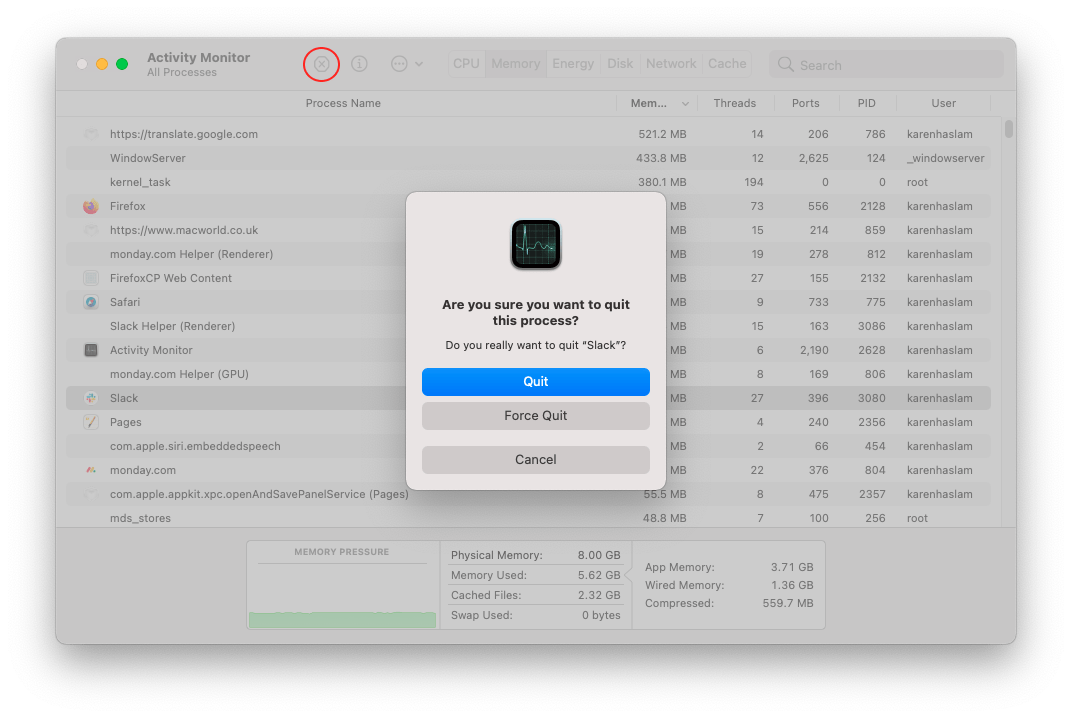
Next, let’s close any unnecessary processes that might be consuming memory. This is a simple yet effective way to free up RAM.
- Open the Activity Monitor application (found in the Applications/Utilities folder).
- Sort the list by Memory usage to identify which processes are consuming the most memory.
- Close any unnecessary processes by clicking the (x) button next to them.
Step 3: Using Cleanmymac X
Now it’s time to bring out the big guns – CleanMyMac X! This powerful tool is designed to help you clean up your Mac and free up memory in a single click.
- Download and install CleanMyMac X from the official website.
- Launch the application and follow the on-screen instructions to scan your Mac for unnecessary files, apps, and other data that might be consuming memory.
- Choose the cleaning options you want to perform (e.G., Cleaning, Protection, Speed).
- Click the “Clean” button to start the process.
Step 4: Discharging The Ram of Your Mac
This is the final step – discharging the RAM of your Mac! Using CleanMyMac X or other tools will help you achieve this goal. Remember to follow the on-screen instructions and choose the options that best suit your needs.
- Launch the Terminal application (found in the Applications/Utilities folder).
- Type
purgeand press Enter to discharge the inactive memory. - Follow the on-screen instructions to confirm the process.
What to Do If You Encounter Problems?
If you encounter any issues or have doubts about the process, don’t worry! We’ve got you covered. Here are some troubleshooting tips:
- Check For Hardware Issues: Sometimes, problems with your Mac can be attributed to hardware issues.
- Contact Apple Support: Reach out to Apple’s customer support team for assistance via phone, online chat, or email.
Conclusion
Discharging the RAM of your Mac is a simple and effective way to improve performance, increase productivity, and enhance the overall user experience. By following these steps and using tools like CleanMyMac X, you’ll be able to free up memory on your computer in no time. Remember to always back up your data before attempting any cleaning or optimization processes.
Frequently Asked Questions (FAQs)
Q: How often should I discharge the RAM of my Mac?
A: It’s recommended to do this process every 2-3 months, depending on how you use your computer.
Q: What are some common causes of slowdowns on a Mac?
A: Common causes include running too many applications at once, not closing unnecessary processes, and having inadequate storage space.
Q: Can I discharge the RAM of my Mac without using CleanMyMac X?
A: Yes, you can use other tools or methods to achieve this goal. However, CleanMyMac X is a powerful and user-friendly tool that makes it easy to clean up your Mac.
Q: Will discharging the RAM of my Mac affect my files or data?
A: No, this process will not affect your files or data. It simply frees up memory by closing unnecessary processes and removing unnecessary files.
Q: Can I use CleanMyMac X on other versions of macOS?
A: Yes, CleanMyMac X is compatible with all versions of macOS, including the latest Big Sur operating system.
Q: Is discharging the RAM of my Mac a permanent solution?
A: No, this process needs to be repeated periodically to maintain optimal performance. However, it’s a simple and effective way to free up memory on your computer.
Q: Can I use other tools besides CleanMyMac X to discharge the RAM of my Mac?
A: Yes, there are many other tools available that can help you clean up your Mac and free up memory.


