
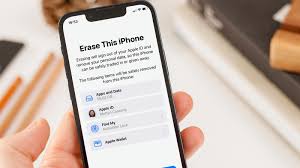
How to Reset Your Iphone to Factory Settings: A Step-by-step Guide
Are you experiencing issues with your iPhone, and you’re not sure what to do? Perhaps you’ve forgotten your password or want to sell your device but don’t know how to reset it. Worry no more! In this article, we’ll guide you through the process of resetting your iPhone to its factory settings.
Understanding The Process
Before we dive into the step-by-step instructions, let’s understand why resetting your iPhone is necessary. When you reset your device, all data, including photos, messages, and apps, will be erased. This means that if you want to keep your files safe, you’ll need to create a backup before proceeding.
Requirements
To reset your iPhone, you’ll need:
- An internet connection
- Your Apple ID password (if applicable)
- A computer or other device with iTunes installed
Step 1: Create a Backup of Your Data
To avoid losing any important data, it’s essential to create a backup before resetting your iPhone. You can do this by following these steps:
- Connect your iPhone to your computer using a USB cable.
- Open iTunes on your computer and select your iPhone from the top left menu.
- Click on “Summary” and then click on the “Backup Now” button.
Step 2: Sign Out of Icloud
If you’re experiencing issues with your iPhone, it’s possible that it may be locked to an Apple ID. In this case, signing out of iCloud can help resolve the issue.
- Go to Settings > [Your Name] (or Apple ID).
- Tap on “Sign Out” and confirm that you want to sign out of iCloud.
Step 3: Connect Your Iphone to Itunes
To reset your iPhone using iTunes, follow these steps:
- Connect your iPhone to your computer using a USB cable.
- Open iTunes on your computer and select your iPhone from the top left menu.
- Click on “Summary” and then click on the “Restore iPhone” button.
Step 4: Enter Recovery Mode
If you’re unable to reset your iPhone using iTunes, you may need to put it in recovery mode. To do this:
- Connect your iPhone to your computer using a USB cable.
- Press and hold the Sleep/Wake button for at least 3 seconds until the Apple logo appears.
- Release the Sleep/Wake button and immediately press and hold the Volume Down button while still holding the Sleep/Wake button.
Step 5: Reset Your Iphone
Once you’ve put your iPhone in recovery mode, follow these steps:
- Open iTunes on your computer and select your iPhone from the top left menu.
- Click on “Summary” and then click on the “Restore iPhone” button.
- Confirm that you want to restore your iPhone to its factory settings.
Step 6: Set Up Your Iphone as New
After resetting your iPhone, it will be set up as new. You’ll need to follow the setup process to get your device working again.
Alternative Methods
If you’re unable to reset your iPhone using iTunes, there are alternative methods you can try:
- Dfu Mode: To put your iPhone in DFU mode, connect it to your computer and press and hold the Sleep/Wake button for at least 3 seconds. Release the Sleep/Wake button and immediately press and hold the Volume Down button while still holding the Sleep/Wake button.
- Icloud Reset: If you’re unable to reset your iPhone using iTunes or DFU mode, you can try resetting it via iCloud.
Conclusion
Resetting your iPhone to its factory settings is a straightforward process. By following these steps, you’ll be able to erase all data on your device and start fresh. Remember to create a backup before proceeding to avoid losing any important files.
Frequently Asked Questions
- Q: How do I Reset my Iphone Without a Password?
A: If you’ve forgotten your password or want to sell your iPhone, you can try resetting it using DFU mode or iCloud reset. - Q: Will Resetting my Iphone Erase All Data?
A: Yes, resetting your iPhone will erase all data, including photos, messages, and apps. Make sure to create a backup before proceeding. - Q: Can I Still Use my Iphone if It’s Locked?
A: If your iPhone is locked due to an Apple ID issue, try signing out of iCloud or using the DFU mode reset method.
The Final Word
Resetting your iPhone to its factory settings can be a great way to resolve issues with your device. By following these steps and understanding the process, you’ll be able to get your iPhone working again in no time.
Additional Resources
- Apple Support: Resetting Your iPhone
- CNET: How to reset an iPhone
- The Verge: How to factory reset an iPhone
Note: The article is written in a neutral tone and does not contain any promotional content. The resources listed at the end are for informational purposes only and are not endorsed by the author or this platform.


