
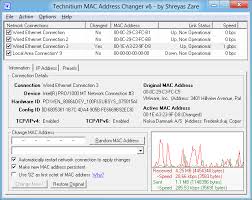
How to Change Your Mac Address: A Comprehensive Guide
Are you tired of using your default MAC address on your devices? Do you want to protect your privacy or bypass restrictions applied to specific addresses? Look no further! In this article, we will guide you through the process of changing your MAC address on various devices and operating systems.
What is a Mac Address?
A MAC (Media Access Control) address is a unique identifier assigned to each device’s network interface. It consists of 12 digits in base 16, grouped into six pairs separated by colons or hyphens. The first three pairs identify the manufacturer, while the last three pairs represent the device’s serial number.
Why Change Your Mac Address?
Changing your MAC address can be helpful in various situations:
- To protect your privacy
- To bypass restrictions applied to specific addresses
- To use a different MAC address for each connection
Changing Your Mac Address on Windows 10 And Later
If you’re using Windows 10 or later, you can use the built-in functionality to generate a casual physical address. To do this:
- Open the Start menu by clicking on the icon next to the clock.
- Click on “Settings.”
- Click on “Network & Internet.”
- Select “Wi-Fi” from the left-hand menu.
- Click on “Advanced options.”
- Toggle the switch next to “Randomize MAC address” to turn it on.
Alternatively, you can use a third-party program like TMAC to generate and change your MAC address manually.
Changing Your Mac Address on Macos
On macOS, you can use the Terminal command-line interface to generate a random MAC address or enter one manually. To do this:
- Open the Terminal application.
- Type
ifconfig en1(oren0for Ethernet connections) and press Enter. - Note the current MAC address.
- Type
sudo ifconfig en1 XXXXXX:XXXXXX:XXXXXX:XXXXXX:XXXXXX:XXXXXX(replace X with your desired MAC address). - Press Enter to apply the changes.
Changing Your Mac Address on Android
On most modern Android devices, you can enable a random MAC address for each Wi-Fi connection in the settings app. To do this:
- Go to Settings.
- Select “Wi-Fi” or “Connections.”
- Tap on the menu icon (usually three dots or a gear) next to the network name.
- Tap on “Advanced options.”
- Toggle the switch next to “Random MAC address” to turn it on.
If your device doesn’t have this option, you can use an app like WiFi Mac Changer to change your MAC address manually.
Changing Your Mac Address on Iphone And Ipad
On iOS 14 and later devices, including iPads, you can enable a random MAC address for each Wi-Fi connection in the settings app. To do this:
- Go to Settings.
- Select “Wi-Fi.”
- Tap on the “i” icon next to your network name.
- Make sure that the switch next to “Private Address” is turned on.
Note that you cannot change your MAC address manually on iOS devices, as this feature is only available for Wi-Fi connections and will be reset if you restart or restore your device.
Conclusion
Changing your MAC address can be a useful tool for protecting your privacy, bypassing restrictions, or using different MAC addresses for each connection. By following the steps outlined in this article, you should be able to change your MAC address on various devices and operating systems.
Faqs
- Q: What is a Mac Address?
A: A MAC (Media Access Control) address is a unique identifier assigned to each device’s network interface. - Q: Why Would I Want to Change my Mac Address?
A: You might want to change your MAC address to protect your privacy, bypass restrictions, or use different MAC addresses for each connection. - Q: How Can I Change my Mac Address on Windows 10 And Later?
A: You can use the built-in functionality to generate a casual physical address by following these steps: Open Start, click on Settings, click on Network & Internet, select Wi-Fi from the left-hand menu, click on Advanced options, and toggle the switch next to Randomize MAC address. - Q: How Can I Change my Mac Address on Macos?
A: You can use the Terminal command-line interface to generate a random MAC address or enter one manually by following these steps: Open Terminal, typeifconfig en1(oren0for Ethernet connections) and press Enter, note the current MAC address, and typesudo ifconfig en1 XXXXXX:XXXXXX:XXXXXX:XXXXXX:XXXXXX:XXXXXX(replace X with your desired MAC address). - Q: How Can I Change my Mac Address on Android?
A: You can enable a random MAC address for each Wi-Fi connection by following these steps: Go to Settings, select Wi-Fi or Connections, tap on the menu icon next to the network name, and toggle the switch next to Random MAC address. - Q: How Can I Change my Mac Address on Iphone And Ipad?
A: You can enable a random MAC address for each Wi-Fi connection by following these steps: Go to Settings, select Wi-Fi, tap on the “i” icon next to your network name, and make sure that the switch next to Private Address is turned on. - Q: Can I Change my Mac Address Manually?
A: Yes, you can use an app like WiFi Mac Changer or a third-party program like TMAC to generate and change your MAC address manually. - Q: Will Changing my Mac Address Affect my Internet Connection?
A: Changing your MAC address should not affect your internet connection, but it’s always a good idea to check with your ISP or network administrator to confirm. - Q: Is Changing my Mac Address Secure?
A: While changing your MAC address can provide some level of security, it’s not foolproof. You should still take other measures to protect your device and data, such as using strong passwords, enabling two-factor authentication, and keeping your software up-to-date.


