
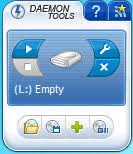
Unlocking The Power of Daemon Tools: A Comprehensive Guide
Are you curious about how to download and install Daemon Tools, a powerful software for managing file images of CD and DVD? Look no further! In this article, we will take you on a step-by-step journey through the process of downloading and installing Daemon Tools on your computer.
Understanding The Available Versions of Daemon Tools
Before we dive into the tutorial, let’s take a look at the available versions of Daemon Tools and their prices. This will help you decide which version is best suited for your needs.
- Daemon Tools Lite: This is the free version of Daemon Tools that allows you to mount images disc, capture images of physical discs, organize your image catalog, and more.
- Daemon Tools Pro: This is a paid version of Daemon Tools that offers all the features of Daemon Tools Lite plus additional advanced functionalities like emulating IDE peripherals, creating writable virtual drives, and more.
- Daemon Tools Ultra: This is the most advanced version of Daemon Tools that includes all the features of Daemon Tools Pro plus additional advanced functionalities like protecting USB keys with passwords, creating Live USB devices, and more.
Downloading And Installing Daemon Tools Lite
Now that we have covered the available versions of Daemon Tools, let’s move on to downloading and installing Daemon Tools Lite.
To download Daemon Tools Lite on PC Windows:
- Visit the official website of Daemon Tools.
- Click on the “Download” button to initiate the download process.
- Double-click on the downloaded file (DTLiteInstaller.Exe) to begin the installation process.
- Follow the prompts to select your language, agree to the terms and conditions, and choose whether to install additional software.
- Once the installation is complete, click on the “Execute” button to launch Daemon Tools Lite.
Downloading And Installing Daemon Tools Pro
To download Daemon Tools Pro:
- Visit the official website of Daemon Tools.
- Click on the “Download” button to initiate the download process.
- Double-click on the downloaded file (DTPro[version].Exe) to begin the installation process.
- Follow the prompts to select your language, agree to the terms and conditions, and choose whether to install additional software.
- Once the installation is complete, click on the “End” button to launch Daemon Tools Pro.
Downloading And Installing Daemon Tools Ultra
To download Daemon Tools Ultra:
- Visit the official website of Daemon Tools.
- Click on the “Download” button to initiate the download process.
- Double-click on the downloaded file (DaemonToolsUltra[version].Exe) to begin the installation process.
- Follow the prompts to select your language, agree to the terms and conditions, and choose whether to install additional software.
- Once the installation is complete, click on the “Execute” button to launch Daemon Tools Ultra.
Conclusion
In conclusion, downloading and installing Daemon Tools is a relatively straightforward process that can be completed in just a few minutes. By following the step-by-step guide provided above, you will be able to download and install Daemon Tools Lite, Pro, or Ultra, depending on your needs.
Frequently Asked Questions (FAQs)
- Q: What is Daemon Tools?
A: Daemon Tools is a software that allows you to manage file images of CD and DVD. - Q: Which Version of Daemon Tools Should I Download?
A: The choice of version depends on your needs. If you only need basic features, Daemon Tools Lite may be sufficient. If you require advanced functionalities, consider downloading Daemon Tools Pro or Ultra. - Q: Is Daemon Tools Free to Download?
A: Yes, Daemon Tools Lite is free to download and use. However, the paid versions (Pro and Ultra) require a purchase. - Q: How do I Install Daemon Tools on my Computer?
A: Follow the step-by-step guide provided above for downloading and installing each version of Daemon Tools. - Q: Can I Upgrade From One Version to Another?
A: Yes, you can upgrade from one version to another by purchasing a license or acquiring additional features. - Q: Is Daemon Tools Compatible With my Operating System?
A: Daemon Tools is compatible with PC Windows and Mac. - Q: How do I Contact Support For Daemon Tools?
A: You can visit the official website of Daemon Tools for support and resources.
Key Features of Each Version
- Daemon Tools Lite: Mount images disc, capture images of physical discs, organize your image catalog, mount VHDs and TrueCrypt files.
- Daemon Tools Pro: Emulate IDE peripherals, create writable virtual drives, masterize images, etc.
- Daemon Tools Ultra: Protect USB keys with passwords, create Live USB devices, emulate IDE peripherals, etc.


