
How to Expand Your Phone’s Memory
Are you tired of running out of storage space on your phone? Do you find yourself constantly deleting apps, photos, and videos just to make room for new ones? Well, you’re not alone! Many smartphone users face this issue, but the good news is that there are ways to expand your phone’s memory. In this article, we’ll explore some of the best methods to help you free up space on your device.
Why Do I Need to Expand My Phone’s Memory?
Before we dive into the solutions, let’s quickly discuss why expanding your phone’s memory is essential. With more apps, games, and multimedia content available than ever before, it’s no wonder our phones are running out of storage space. If you don’t expand your phone’s memory, you might experience:
- Slower performance
- Frequent crashes
- Inability to install new apps or update existing ones
- Storage limitations for photos, videos, and music
Method 1: Use a Microsd Card
One of the most effective ways to expand your phone’s memory is by using a microSD card. This nifty device allows you to add extra storage space to your phone, giving you more room for apps, photos, and videos.
Here’s how to use a microSD card:
- Purchase a microSD card that fits your phone’s model (check the manual or online for compatibility).
- Insert the microSD card into your phone’s designated slot.
- Open the Settings app and navigate to Storage > Internal storage.
- Select the microSD card as the external memory.
- You can now transfer files, apps, and other data to the microSD card.
Method 2: Clear Cache And Data
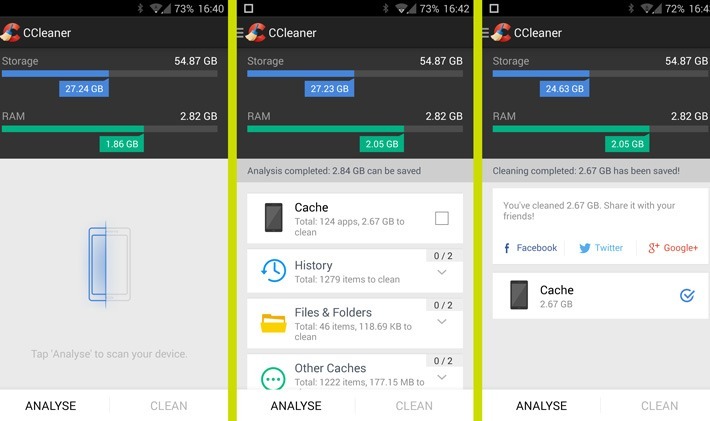
Another way to free up space on your phone is by clearing cache and data from unused apps. This process can help you recover a significant amount of storage space without having to delete any essential apps or data.
Here’s how to clear cache and data:
- Go to the Settings app and select Apps.
- Find the app you want to clear cache and data for, then tap on it.
- Select Clear cache and Clear data (if available).
- Confirm your actions by tapping OK.
Method 3: Use Cloud Storage
Cloud storage services like Google Drive, iCloud, or OneDrive allow you to store files online, freeing up space on your phone. You can upload photos, videos, documents, and more to the cloud, making it easier to manage your device’s storage.
Here’s how to use cloud storage:
- Download a cloud storage app (e.G., Google Drive) from the Play Store or App Store.
- Sign in with your account credentials.
- Upload files to the cloud by selecting them and tapping on the “Upload” button.
- Access your stored files online, either through the cloud storage app or on your computer.
Method 4: Uninstall Unused Apps
Uninstalling unused apps is another effective way to free up space on your phone. You can remove apps that you no longer use or need, which will help declutter your device and make room for new ones.
Here’s how to uninstall unused apps:
- Go to the Settings app and select Apps.
- Find the app you want to uninstall, then tap on it.
- Select Uninstall (if available).
- Confirm your action by tapping OK.
Method 5: Organize Photos, Videos, And Music
Lastly, organizing your photos, videos, and music can help you free up space on your phone. You can delete unnecessary files, transfer them to the cloud, or store them on an external device like a microSD card.
Here’s how to organize media files:
- Review your photo, video, and music libraries.
- Delete any unnecessary files (e.G., Duplicates or low-quality images).
- Transfer files to the cloud or an external device as needed.
- Organize your media files into folders or albums for easier management.
Conclusion
Expanding your phone’s memory doesn’t have to be a daunting task! By using a microSD card, clearing cache and data, utilizing cloud storage, uninstalling unused apps, and organizing media files, you can free up space on your device and enjoy a smoother user experience. Remember to always back up your important data before making any changes.
Frequently Asked Questions (FAQs)
Q: What is the best way to expand my phone’s memory?
A: The best method depends on your specific needs and preferences, but using a microSD card or cloud storage services are highly recommended.
Q: How do I clear cache and data from unused apps?
A: Go to Settings > Apps, select an app, and tap Clear cache and Clear data (if available).
Q: Can I use multiple cloud storage services on my phone?
A: Yes! You can sign in with different accounts for each service or use a single account across all platforms.
Q: Will uninstalling apps affect my device’s performance?
A: No! Uninstalling unused apps will only free up space, not impact your device’s overall performance.
Q: Can I transfer media files from my phone to an external device?
A: Yes! You can transfer files using a microSD card or by connecting your phone to a computer via USB.
Q: How do I access cloud-stored files on my phone?
A: Open the cloud storage app and sign in with your account credentials. You’ll be able to view and manage your stored files.
Q: Will using a microSD card void my device’s warranty?
A: No! Most manufacturers permit users to use external storage devices, including microSD cards, without affecting their warranty.
Still Unsure About How to Expand Your Phone’s Memory?
Feel free to ask us in the comments below, and we’ll be happy to help you out!


