
Connecting Your Ps4 to Your Tv: A Step-by-step Guide
Are you excited to dive into the world of PlayStation 4 gaming, but not sure how to connect your console to your TV? Look no further! In this article, we’ll guide you through the simple process of connecting your PS4 to your TV, whether you have a cable or not.
Understanding The Basics
Before we begin, it’s essential to understand that there are two main ways to connect your PS4 to your TV: Using an HDMI cable or without one. We’ll cover both methods in this article, so you can choose the one that suits your needs.
Method 1: Connecting Your Ps4 to Your TV Using an Hdmi Cable
If you have a TV with an HDMI port, connecting your PS4 is relatively easy. Here’s what you need to do:
Step 1: Gather Your Cables
First, make sure you have the following cables:
- The HDMI cable that came with your PS4
- A power cord for your PS4
Step 2: Connect The Cables
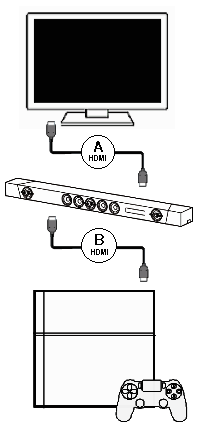
Next, connect the HDMI cable to both the PS4 and the TV. Make sure it’s securely plugged in to avoid any issues.
Step 3: Turn On Your Console And TV
Turn on both devices, and you should see the PS4 logo on your screen. If not, try restarting both devices.
Step 4: Configure Your Settings
Finally, configure your settings by going to Settings > Display Settings on your PS4. From here, you can adjust the resolution, frame rate, and other display settings to suit your TV’s capabilities.
Method 2: Connecting Your Ps4 to Your TV Without an Hdmi Cable
If your TV doesn’t have an HDMI port, don’t worry! You can still connect your PS4 using adapters or other methods. Here are a few options:
Option 1: Using an Hdmi-to-vga Adapter
You can purchase an HDMI-to-VGA adapter and use it to connect your PS4 to your TV. This method is relatively simple and inexpensive.
Option 2: Using an Hdmi-to-scart Adapter
Another option is to use an HDMI-to-SCART adapter, which allows you to connect your PS4 to a SCART-equipped TV.
Option 3: Remote Play
If none of the above options work for you, don’t worry! You can still enjoy PS4 gaming on your TV using remote play. This method involves connecting your PS4 to your computer or laptop and playing games remotely.
Troubleshooting Tips
If you’re experiencing issues with your connection, here are some troubleshooting tips:
- Check that all cables are securely plugged in.
- Restart both devices if the problem persists.
- Consult the user manual for specific instructions on how to connect your PS4 to your TV.
Conclusion
Connecting your PS4 to your TV is a simple process that can be completed using various methods. Whether you choose to use an HDMI cable or adapters, we hope this article has helped guide you through the process and answered any questions you may have had. Happy gaming!
Frequently Asked Questions (FAQs)
Q: Can I Connect my Ps4 to Multiple Tvs?
A: Yes, you can connect your PS4 to multiple TVs using HDMI cables or adapters.
Q: What if my TV Doesn’t Have an Hdmi Port?
A: Don’t worry! You can still connect your PS4 using adapters or other methods, such as remote play.
Q: How do I Troubleshoot Connection Issues?
A: Check that all cables are securely plugged in, restart both devices, and consult the user manual for specific instructions on how to connect your PS4 to your TV.
Q: Can I Use my Ps4 Controller With my Tv?
A: Yes, you can use your PS4 controller with your TV by connecting it via Bluetooth or using a wired connection.
Q: What if I’m Experiencing Problems With my Ps4?
A: Don’t worry! You can contact Sony support for assistance or visit their website for troubleshooting guides and FAQs.
Q: Can I Connect my Ps4 to my Computer or Laptop?
A: Yes, you can use remote play to connect your PS4 to your computer or laptop and enjoy gaming on a larger screen.


