
The Ultimate Guide to Using Airpods Pro: A Step-by-step Manual
Are you one of the millions of people who have recently acquired a pair of AirPods Pro? If so, congratulations! You’ve taken the first step towards experiencing wireless audio like never before. However, as with any new technology, it’s essential to understand how to use them properly to get the most out of your experience.
In this article, we’ll take you through everything you need to know about using AirPods Pro, from setting them up to customizing their settings and troubleshooting common issues. Whether you’re a seasoned Apple user or just switching to wireless audio for the first time, this guide will be your go-to resource for mastering the art of listening with AirPods Pro.
Characteristics of Airpods Pro
Before we dive into the nitty-gritty of using AirPods Pro, let’s take a closer look at their leading characteristics. Here are some of the key features that set them apart from other wireless earbuds:
- Active Noise Cancellation: AirPods Pro come equipped with an advanced noise-cancellation system that uses two microphones to detect and eliminate ambient sounds.
- Transparency Mode: This feature allows you to hear your surroundings while listening to music or taking calls, making it perfect for situations where you need to stay aware of your environment.
- Wireless Charging Case: The AirPods Pro case supports wireless charging, making it easy to keep your earbuds powered up without the hassle of tangled cables.
- Long-lasting Battery Life: With up to 5 hours of listening time on a single charge, AirPods Pro are designed to keep you entertained all day long.
How to Connect Airpods Pro to Your Device
Connecting AirPods Pro to your device is a breeze. Here’s how to do it:
- Iphone or Ipad: Simply bring the AirPods Pro close to your device and answer “yes” when prompted.
- Mac: Open System Preferences > Sound, click on the Bluetooth tab, and select “Connect.”
How to Connect Airpods Pro to an Android Device
If you’re using an Android device, here’s how to connect your AirPods Pro:
- Go to Settings > Bluetooth.
- Select the “Search for devices” option.
- Hold down on the AirPods Pro icon until it appears in the list of available devices.
- Tap on the AirPods Pro icon to connect.
How to Connect Airpods Pro to a Windows PC
Connecting AirPods Pro to a Windows PC is slightly more involved, but don’t worry – we’ve got you covered:
- Go to Settings > Devices > Bluetooth & other devices.
- Click on “Add device” and select the AirPods Pro icon from the list of available devices.
- Select the AirPods Pro icon to connect.
How to Wear Airpods Pro
To get the most out of your AirPods Pro, it’s essential to wear them correctly. Here are some tips:
- Oblique Positioning: Place the AirPods Pro at an oblique angle in relation to your ear canal.
- Adhesion to Ear Canal: Ensure that the silicone tip provides a snug fit and doesn’t fall out during use.
How to Use Airpods Pro
Now that you’ve set up and worn your AirPods Pro, it’s time to learn how to use them:
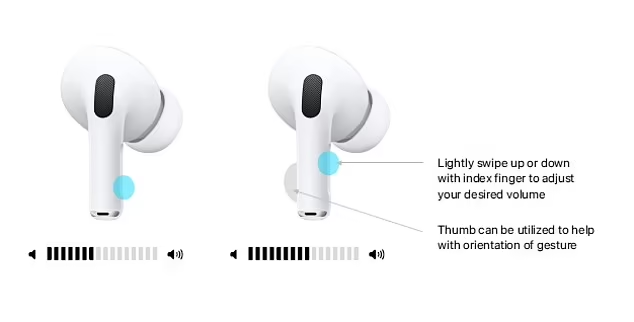
- Play Music or Podcasts: Tap on an AirPod to play music or podcasts.
- Answer Calls: Double-tap on an AirPod to answer calls.
- Skip Tracks: Triple-click on an AirPod to skip tracks.
How to Charge Airpods Pro
Charging your AirPods Pro is easy:
- Place the AirPods in their charging case.
- Close the lid and charge via Lightning or wireless charging.
Troubleshooting Common Issues
If you’re experiencing issues with your AirPods Pro, don’t worry – we’ve got some troubleshooting tips to help you resolve them:
- Resetting Airpods Pro: Hold down on the setup button for 15 seconds to reset your AirPods Pro.
- Updating Airpods Pro Firmware: Go to Settings > General > Software Update to update your AirPods Pro firmware.
Cleaning Airpods Pro
To keep your AirPods Pro in top condition, it’s essential to clean them regularly. Here’s how:
- Dry The Pincushions: Use a soft, dry cloth to wipe away any moisture or debris.
- Clean The Microphone And Speakers: Gently wipe the microphone and speakers with a cotton swab.
Conclusion
Congratulations! You now have a comprehensive guide to using AirPods Pro. From setting them up to customizing their settings and troubleshooting common issues, we’ve covered everything you need to know to get the most out of your wireless audio experience.
If you still have questions or concerns, check out our FAQs below:
Faqs
- How do I Connect my Airpods Pro to my Device?
- Simply bring the AirPods Pro close to your device and answer “yes” when prompted.
- Can I Use Airpods Pro With an Android Device?
- Yes! Just follow the steps outlined in our guide above.
- How do I Charge my Airpods Pro?
- Place the AirPods in their charging case, close the lid, and charge via Lightning or wireless charging.
- Can I Reset my Airpods Pro?
- Yes! Hold down on the setup button for 15 seconds to reset your AirPods Pro.
- How do I Update my Airpods Pro Firmware?
- Go to Settings > General > Software Update to update your AirPods Pro firmware.
- Can I Use Airpods Pro With a Windows Pc?
- Yes! Just follow the steps outlined in our guide above.
- How do I Clean my Airpods Pro?
- Use a soft, dry cloth to wipe away any moisture or debris, and gently wipe the microphone and speakers with a cotton swab.
Happy listening, everyone!


