
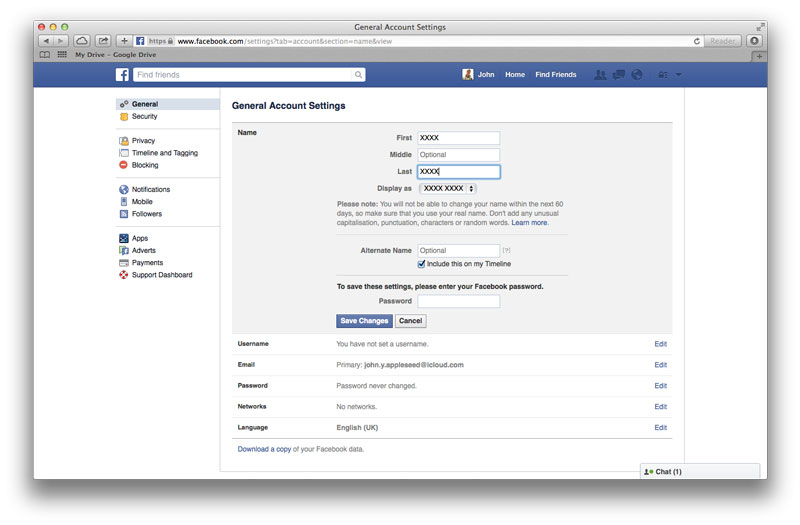
Deleting a Facebook Account: A Step-by-step Guide
Are you tired of your Facebook account? Have you decided to delete it, but don’t know how? Or maybe you’ve tried before, but couldn’t succeed? Don’t worry; we’ve got you covered! In this article, we’ll guide you through the process of deleting a Facebook account on various devices.
Understanding The Process
Before we dive into the step-by-step instructions, it’s essential to understand that deleting a Facebook account is a permanent process. Once you delete your account, it will be gone forever, and all your data will be erased. So, make sure you’re ready for this before proceeding!
Step 1: Backing Up Your Data
Before deleting your Facebook account, it’s crucial to back up your data. This includes your posts, photos, videos, comments, friends list, and other information. To do this:
-
On a smartphone or tablet:
- Open the Facebook app.
- Tap on the three horizontal lines (⋮) at the top right corner.
- Select “Settings & Privacy” > “Settings.”
- Scroll down to “Your Information” and tap on it.
- Choose the data you want to download, such as posts, photos, or comments.
- Select the format (HTML or JSON) and quality of your media files.
- Tap on “Create File” to initiate the backup process.
-
On a computer:
- Go to Facebook.Com.
- Click on the arrow at the top right corner.
- Select “Settings & Privacy” > “Settings.”
- Scroll down to “Your Information” and click on it.
- Choose the data you want to download, such as posts, photos, or comments.
- Select the format (HTML or JSON) and quality of your media files.
- Click on “Create File” to initiate the backup process.
Step 2: Deleting Your Account
Now that you’ve backed up your data, it’s time to delete your Facebook account. Here’s how:
-
On a smartphone or tablet:
- Open the Facebook app.
- Tap on the three horizontal lines (⋮) at the top right corner.
- Select “Settings & Privacy” > “Settings.”
- Scroll down to “Your Information” and tap on it.
- Tap on the three dots (⋯) next to your name.
- Select “Deactivate or Delete Account.”
- Choose the reason for deleting your account (optional).
- Confirm your decision by tapping on “Delete Account.”
-
On a computer:
- Go to Facebook.Com.
- Click on the arrow at the top right corner.
- Select “Settings & Privacy” > “Settings.”
- Scroll down to “Your Information” and click on it.
- Click on the three dots (⋯) next to your name.
- Select “Deactivate or Delete Account.”
- Choose the reason for deleting your account (optional).
- Confirm your decision by clicking on “Delete Account.”
Important Note
After you delete your Facebook account, it will be permanently deleted after 30 days. If you change your mind within this timeframe, you can recover your account by following these steps:
- Go to Facebook.Com.
- Click on the arrow at the top right corner.
- Select “Login” and enter your email address and password.
- Confirm your identity by answering a few security questions.
Deleting a Facebook Account With Business Manager
If you have a business account with Facebook, deleting it is a bit more complicated. Here’s how:
- Go to Facebook.Com.
- Click on the arrow at the top right corner.
- Select “Settings & Privacy” > “Settings.”
- Scroll down to “Business Manager” and click on it.
- Click on the three dots (⋯) next to your business name.
- Select “Delete Business Account.”
- Choose a reason for deleting your business account (optional).
- Confirm your decision by clicking on “Delete.”
Conclusion
Deleting a Facebook account is a straightforward process, but it’s essential to understand the consequences before proceeding. Make sure you’ve backed up your data and are ready to say goodbye to your Facebook account. If you have any questions or need further assistance, feel free to reach out.
Frequently Asked Questions (FAQs)
- What Happens When I Delete my Facebook Account?
When you delete your Facebook account, all your data will be erased, and your profile will no longer exist on the platform.
- Can I Recover my Deleted Facebook Account?
Yes, within 30 days of deletion, you can recover your account by following the steps outlined in this article.
- How do I Back up my Facebook Data?
To back up your Facebook data, follow the step-by-step instructions provided earlier.
- What Should I do if I’ve Forgotten my Password?
If you’ve forgotten your password, click on “Forgot Password” and follow the prompts to reset it.
- Can I Delete a Friend’s Account For Them?
No, only the account holder can delete their own Facebook account.
- How Long Does it Take to Delete an Account?
The deletion process typically takes 30 days to complete.


