
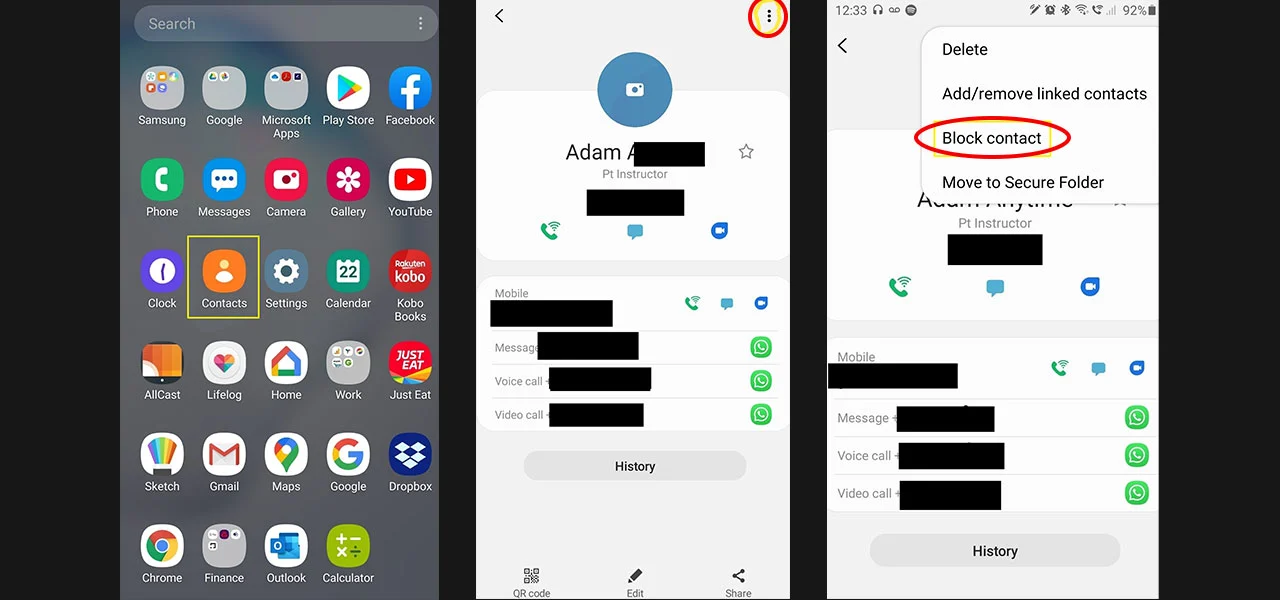
How to Block Annoying Calls on Android
Are you tired of getting unwanted calls from telemarketers, spammers, or unknown numbers? Do you want to know how to block these annoying calls on your Android device? Look no further! In this article, we will guide you through the process of blocking unwanted calls on your Android phone.
What Are Annoying Calls?
Annoying calls refer to those calls that you receive from unknown or unwanted numbers. These can include telemarketing calls, spam calls, and even prank calls. These types of calls can be frustrating and annoying, especially when they come in at inconvenient times.
Why Do You Want to Block Annoying Calls?
There are several reasons why you might want to block annoying calls on your Android device. Firstly, these types of calls can be distracting and disrupt your daily activities. Secondly, some of these calls may even be scams or phishing attempts, which can put your personal and financial information at risk.
How to Block Annoying Calls on Android
Fortunately, blocking unwanted calls on Android is a relatively straightforward process. Here are the steps you can follow:
Method 1: Using The Phone App
The first method of blocking annoying calls on Android involves using the Phone app that comes pre-installed on your device.
- Open the Phone app and go to the “Recent” tab.
- Find the number or contact that you want to block.
- Hold down on the number or contact until a menu appears.
- Tap on the option that says “Block/Report Spam.”
- Confirm that you want to block the number by tapping on the “Block” button.
Method 2: Using Third-party Apps
If you don’t want to use the Phone app, there are several third-party apps available that can help you block unwanted calls on Android. Some popular options include:
- Truecaller
- Should I Answer
These apps use a database of known spammers and scammers to identify and block unwanted calls.
How to Use Truecaller
Truecaller is a popular app that uses a database of known spammers and scammers to identify and block unwanted calls. Here’s how to use it:
- Download and install the Truecaller app from the Play Store.
- Open the app and tap on the “Block” button.
- Select the numbers or contacts that you want to block.
- Confirm that you want to block the numbers by tapping on the “Block” button.
How to Use Should I Answer
Should I Answer is another popular app that uses a database of known spammers and scammers to identify and block unwanted calls. Here’s how to use it:
- Download and install the Should I Answer app from the Play Store.
- Open the app and tap on the “Settings” button.
- Select the numbers or contacts that you want to block.
- Confirm that you want to block the numbers by tapping on the “Block” button.
Conclusion
In conclusion, blocking annoying calls on Android is a relatively straightforward process that can be accomplished using either the Phone app or third-party apps like Truecaller and Should I Answer. By following the steps outlined in this article, you can say goodbye to unwanted calls and hello to peace of mind.
Frequently Asked Questions (FAQs)
- Q: How do I Block a Specific Number on my Android Device?
A: To block a specific number on your Android device, go to the Phone app and follow the steps outlined in Method 1. - Q: What is Truecaller?
A: Truecaller is a popular app that uses a database of known spammers and scammers to identify and block unwanted calls. - Q: How do I Use Truecaller to Block Annoying Calls?
A: To use Truecaller, download and install the app from the Play Store, open it, tap on the “Block” button, select the numbers or contacts that you want to block, and confirm that you want to block them. - Q: What is Should I Answer?
A: Should I Answer is another popular app that uses a database of known spammers and scammers to identify and block unwanted calls. - Q: How do I Use Should I Answer to Block Annoying Calls?
A: To use Should I Answer, download and install the app from the Play Store, open it, tap on the “Settings” button, select the numbers or contacts that you want to block, and confirm that you want to block them. - Q: Can I Unblock a Number That I Previously Blocked?
A: Yes, you can unblock a number that you previously blocked by going to the Phone app, tapping on the “Blocked Numbers” tab, and selecting the number that you want to unblock. - Q: How do I Prevent Unwanted Calls From Appearing in my Call Log?
A: To prevent unwanted calls from appearing in your call log, go to the Phone app, tap on the “Settings” button, select the option to block unknown numbers or spam calls, and confirm that you want to enable it. - Q: Can I Use Multiple Apps to Block Annoying Calls?
A: Yes, you can use multiple apps to block annoying calls, such as Truecaller and Should I Answer, to maximize your chances of blocking unwanted calls.


