
How to Delete a Card From Wallet on Android And Iphone: A Step-by-step Guide
Are you wondering how to delete a card from your Wallet app on Android or iPhone? Look no further! In this article, we will guide you through the simple process of deleting a card from Wallet on both Android and iOS devices.
What is Wallet?
Before we dive into the steps, let’s quickly explain what Wallet is. Wallet is a digital wallet app that allows you to store your credit or debit cards, loyalty cards, and other payment methods in one place. With Wallet, you can make payments at participating merchants using your phone, eliminating the need for physical cards.
Deleting a Card From Wallet: Android
If you have an Android device and want to delete a card from Wallet, follow these steps:
Step 1: Open The Google Wallet App
First, open the Google Wallet app on your Android device. If you don’t have the app installed, download it from the Play Store.
Step 2: Select The Card You Want to Delete
In the Google Wallet app, select the card you want to delete by tapping on its icon. This will take you to the card details screen.
Step 3: Tap on The Three Dots
On the card details screen, tap on the three dots (•••) in the top-right corner of the screen.
Step 4: Select “Remove Card”
From the menu that appears, select “Remove Card”.
Step 5: Confirm Deletion
Confirm that you want to delete the card by tapping on “OK”. The card will be removed from your Wallet app.
Deleting a Card From Wallet: Iphone
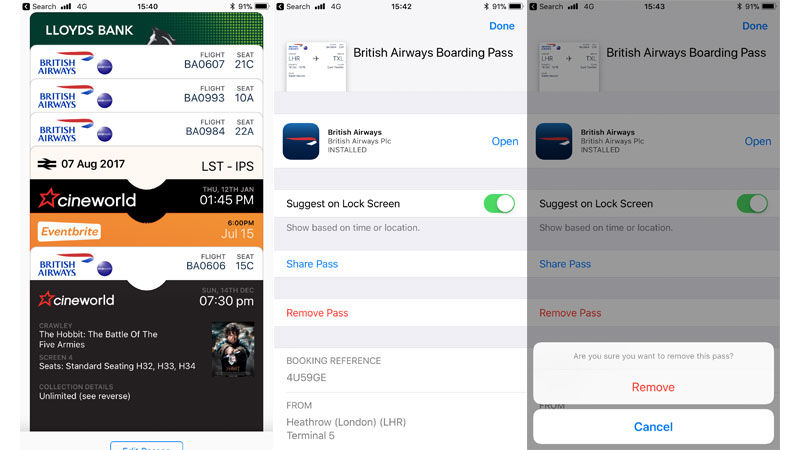
If you have an iPhone and want to delete a card from Wallet, follow these steps:
Step 1: Open The Apple Wallet App
First, open the Apple Wallet app on your iPhone. If you don’t have the app installed, download it from the App Store.
Step 2: Select The Card You Want to Delete
In the Apple Wallet app, select the card you want to delete by tapping on its icon. This will take you to the card details screen.
Step 3: Tap on “Edit”
On the card details screen, tap on the “Edit” button in the top-right corner of the screen.
Step 4: Select “Delete”
From the menu that appears, select “Delete”.
Step 5: Confirm Deletion
Confirm that you want to delete the card by tapping on “Delete”. The card will be removed from your Wallet app.
What Happens When You Delete a Card?
When you delete a card from Wallet, it will no longer appear in the app. However, note that some cards may not be deletable if they are associated with another account or service. If you’re having trouble deleting a card, try restarting the Wallet app or contacting your bank or credit card issuer for assistance.
Conclusion
Deleting a card from Wallet on Android or iPhone is a straightforward process. By following these simple steps, you can remove any unwanted cards from your digital wallet and keep your payment methods organized. Remember to always confirm deletion before removing a card to avoid accidentally deleting the wrong one.
Frequently Asked Questions (FAQs)
- What Happens if I Delete a Card by Mistake?
If you delete a card by mistake, you can usually recover it within 24 hours by contacting your bank or credit card issuer.
- Can I Delete Multiple Cards at Once?
No, you must delete each card separately from the Wallet app.
- Will Deleting a Card Affect my Account Balance?
Deleting a card will not affect your account balance or available funds.
- How do I Reactivate a Deleted Card?
To reactivate a deleted card, contact your bank or credit card issuer and ask them to re-add the card to your Wallet app.
- Can I Delete Cards From my Wallet App if I’m Traveling Abroad?
Yes, you can delete cards from your Wallet app while traveling abroad. However, be aware that some cards may have specific rules for international use.
References:
- Google Wallet support article on deleting cards
- Apple Wallet support article on deleting cards


