
How to Delete a Facebook Profile: A Step-by-step Guide
Are you tired of having a Facebook account? Do you want to delete your profile but don’t know where to start? Look no further! In this article, we will guide you through the process of deleting a Facebook profile, both on computer and mobile devices.
Why Delete a Facebook Profile?
Before we dive into the step-by-step guide, let’s discuss why someone might want to delete their Facebook profile. Maybe you’re tired of seeing annoying ads, or perhaps you’ve experienced cyberbullying. Whatever the reason, deleting your Facebook profile is a simple process that can be completed in just a few steps.
Preparatory Steps: Backing Up Your Data
Before deleting your Facebook profile, it’s essential to back up your data. This includes photos, posts, and other information you’ve shared on the platform. Here’s how to do it:
Backing Up Your Facebook Data (Computer)
- Open your web browser and log in to your Facebook account.
- Click on the three dots at the top right corner of the page and select “Settings.”
- From the left-hand menu, click on “Your Information” and then “Download a copy of your Facebook data.”
- Choose the type of data you want to download (e.G., Posts, photos, videos).
- Select the format in which you’d like to receive the backup (HTML or JSON).
- Click on “Create File” to start the download process.
Backing Up Your Facebook Data (Mobile)
- Open the Facebook app and log in to your account.
- Tap on the three horizontal lines at the top right corner of the screen and select “Settings.”
- Scroll down and tap on “Your Information” and then “Download a copy of your Facebook data.”
- Follow the same steps as above to choose the type of data you want to download.
Suspending Your Facebook Profile
Before deleting your profile, it’s essential to suspend it first. This will prevent any future use of the account while allowing you to reactivate it if needed.
Suspending a Facebook Profile (Computer)
- Log in to your Facebook account using a web browser.
- Click on the three dots at the top right corner of the page and select “Settings.”
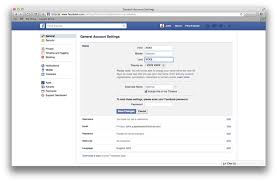
- From the left-hand menu, click on “Your Information” and then “Account Settings.”
- Scroll down and click on “Deactivate Account.”
- Follow the prompts to confirm your decision.
Suspending a Facebook Profile (Mobile)
- Open the Facebook app and log in to your account.
- Tap on the three horizontal lines at the top right corner of the screen and select “Settings.”
- Scroll down and tap on “Your Information” and then “Account Settings.”
- Tap on “Deactivate Account.”
- Follow the prompts to confirm your decision.
Deleting a Facebook Profile
Now that you’ve suspended your profile, it’s time to delete it completely.
Deleting a Facebook Profile (Computer)
- Log in to your Facebook account using a web browser.
- Click on the three dots at the top right corner of the page and select “Settings.”
- From the left-hand menu, click on “Your Information” and then “Account Settings.”
- Scroll down and click on “Delete Account.”
- Enter your password to confirm your decision.
Deleting a Facebook Profile (Mobile)
- Open the Facebook app and log in to your account.
- Tap on the three horizontal lines at the top right corner of the screen and select “Settings.”
- Scroll down and tap on “Your Information” and then “Account Settings.”
- Tap on “Delete Account.”
- Enter your password to confirm your decision.
What Happens After Deleting Your Facebook Profile?
After deleting your Facebook profile, you will no longer be able to access the platform using that account. Your data, including photos and posts, will remain online for 14 days. During this time, you can reactivate your account if needed.
However, please note that some information may still be accessible for up to 90 days after deletion.
Conclusion
Deleting a Facebook profile is a straightforward process that can be completed in just a few steps. Remember to back up your data before deleting your account and suspend it first to prevent any future use. If you have any questions or concerns, feel free to reach out to us.
Frequently Asked Questions
- Can I Reactivate my Facebook Profile After Deletion?
Yes, you can reactivate your Facebook profile within 14 days of deletion. - What Happens to my Data After Deleting my Facebook Profile?
Your data will remain online for up to 90 days after deletion. - Why do I Need to Suspend my Facebook Profile Before Deletion?
Suspending your account prevents any future use while allowing you to reactivate it if needed. - Can I Delete my Facebook Profile Using a Mobile Device?
Yes, you can delete your Facebook profile using a mobile device. - What Should I do With my Backed-up Data After Deleting my Facebook Profile?
You can choose to keep or discard the backed-up data as per your preference.
We hope this article has been helpful in guiding you through the process of deleting a Facebook profile. If you have any further questions, please don’t hesitate to ask!


