
How to Record Your Computer Monitor: A Step-by-step Guide
Are you looking for a way to record your computer monitor? Perhaps you want to create a tutorial or demonstration video, or maybe you need to capture some important information on screen. Whatever the reason, recording your monitor can be a useful tool in various situations.
In this article, we’ll show you how to record your computer monitor using different methods and software, including Windows and macOS versions. We’ll also explore other solutions for Android and iOS devices.
Recording Monitor on Windows
If you’re running Windows 11, you can use the built-in “Screen Recorder” tool to capture your screen activity. Here’s how:
- Open Screen Recorder: Press the Windows key + G to open the Game Bar.
- Select Recording Options: Click on the three dots (⋯) at the top right corner and select “Recording options.”
- Choose Recording Settings: In the new window, choose the recording settings you want:
- Select the area of the screen you want to record.
- Choose the audio source: System Sound, Microphone, or Both.
- Start Recording: Click on the Start button to begin recording.
- Stop And Save: When you’re done, click on the Stop button and save your video.
Alternatively, you can use third-party software like IObit iFun Screen Recorder, which offers more features and settings for capturing high-quality videos.
Recording Monitor on Macos
On a Mac, you have two options:
- Instantaneous Screen Capture: If your macOS version is 10.14 Or later (Mojave), you can use the built-in Instantaneous screen capture tool.
- Press Command + Shift + 5 to open the tool.
- Select “Record entire screen” or “Record selected area.”
- Click on the Record button and select a location to save your video.
- Quicktime Player: Alternatively, you can use QuickTime Player to record your screen activity.
Recording Monitor on Android
If you’re using an Android device, there are several apps available that allow you to record your screen:
- AZ Screen Recorder: This app offers a simple and easy-to-use interface for recording your screen.
- Download and install the app from the Google Play Store.
- Tap the record button and select the area of the screen you want to capture.
- Adv Monitor Recorder: Another popular app that allows you to record your Android device’s screen.
Recording Monitor on Ios
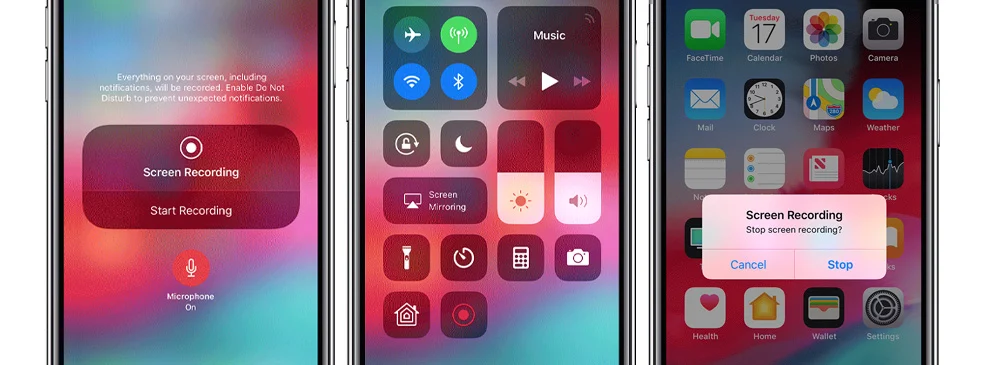
If you’re using an iPhone or iPad, you can use the built-in Screen Recording feature (iOS 11 or later):
- Open Settings: Tap on the Settings icon and select “Control Center.”
- Add a New Control: Tap on the “+” icon and add the “Screen Recording” control.
- Record Your Screen: Swipe up from the bottom of the screen, then tap and hold the Screen Recording button to start recording.
Recording Monitor Without Software
If you don’t want to install any software or apps, there are still ways to record your monitor:
- Game Bar on Windows 10: Press the Windows key + G to open the Game Bar and select “Record” to capture a video of your screen activity.
- Quicktime Player on Macos: Open QuickTime Player and select “New Screen Recording” to start recording.
In conclusion, recording your computer monitor can be done using various methods and software, depending on your operating system and device. Whether you need to create a tutorial or demonstration video, capture important information on screen, or simply have fun with screen recording, we hope this guide has been helpful in showing you how to record your monitor.
Frequently Asked Questions (FAQs)
- What is The Best Software For Screen Recording?
The best software for screen recording depends on your operating system and personal preferences. - Can I Record my Entire Computer Screen or Just a Portion of It?
Yes, you can record either your entire screen or select a specific area to capture. - How do I Stop The Recording?
To stop the recording, look for the Stop button in most software applications. - Can I Add Audio Commentary While Recording?
Some software allows you to add audio commentary while recording; check the settings of each application. - Is it Possible to Edit And Trim my Recorded Video?
Yes, many screen recording software offer built-in editors that allow you to trim, cut, or merge your videos. - Can I Share my Recorded Video Directly From Within The Software?
Yes, some software allows you to share your recorded video directly on social media platforms or online services.
If you have any further questions or need additional help with screen recording, please feel free to ask!


